I
Wireless Network Setup
"".
The menu
is
activated only if the Samsung Infolink Wireless adapter
is
connected (See page 120)
Auto Setup
"".
If you connect the LAN cable and
it
supports
DHCP,
the Internet Protocol (IP)
Settings are automatically configured.
""
The wireless
IP
sharer
to
be
connected
to
this product must support
DHCP.
1.
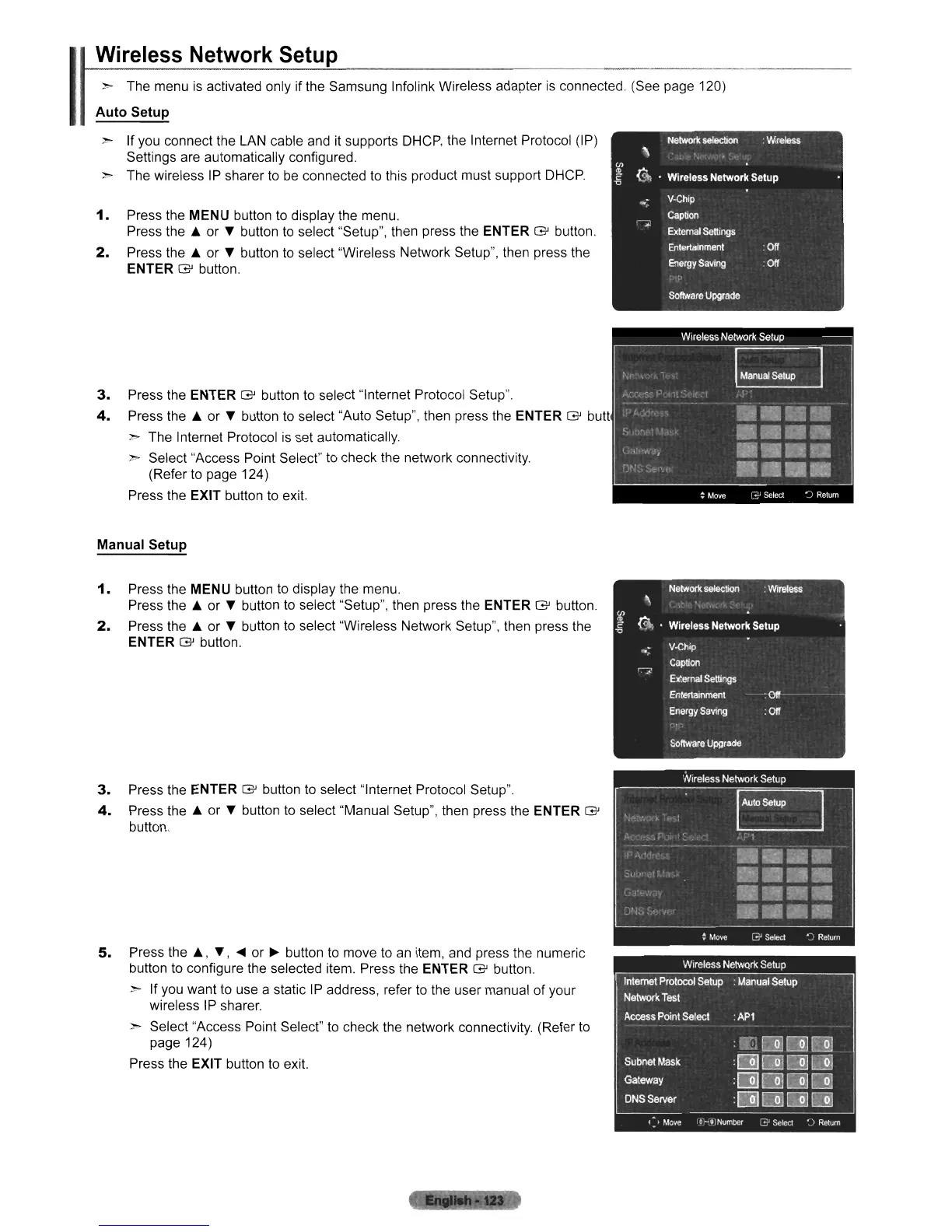
Press the MENU button to display the menu.
Press
the.
or
'Y
button
to
select "Setup", then press the ENTER G button.
2.
Press
the.
or
'Y
button
to
select "Wireless Network Setup", then press the
ENTER G button.
3.
Press the ENTER G button
to
select "Internet Protocol Setup".
4.
Press
the.
or
'Y
button
to
select "Auto Setup", then press the ENTER G butt
"".
The Internet Protocol
is
set automatically.
"".
Select "Access Point Select"
to
check the network connectivity.
(Refer
to
page 124)
Press the
EXIT button to exit.
Manual Setup
1.
Press the MENU button
to
display the menu.
Press
the.
or
'Y
button
to
select "Setup", then press the ENTER G button.
2.
Press
the.
or
'Y
button
to
select "Wireless Network Setup", then press the
ENTER G button.
3.
Press the ENTER G button
to
select "Internet Protocol Setup".
4.
Press
the.
or
'Y
button
to
select "Manual Setup", then press the ENTER G
burton.
5.
Press
the.,
'Y,
....
or
~
button to move
to
an item, and press the numeric
button
to
configure the selected item. Press the ENTER G button
"".
If you want to use a static
IP
address, refer
to
the user manual of your
wireless
IP
sharer.
"".
Select "Access Point Select" to check the network connectivity. (Refer
to
page 124)
Press the
EXIT button
to
exit.












 To Next Page