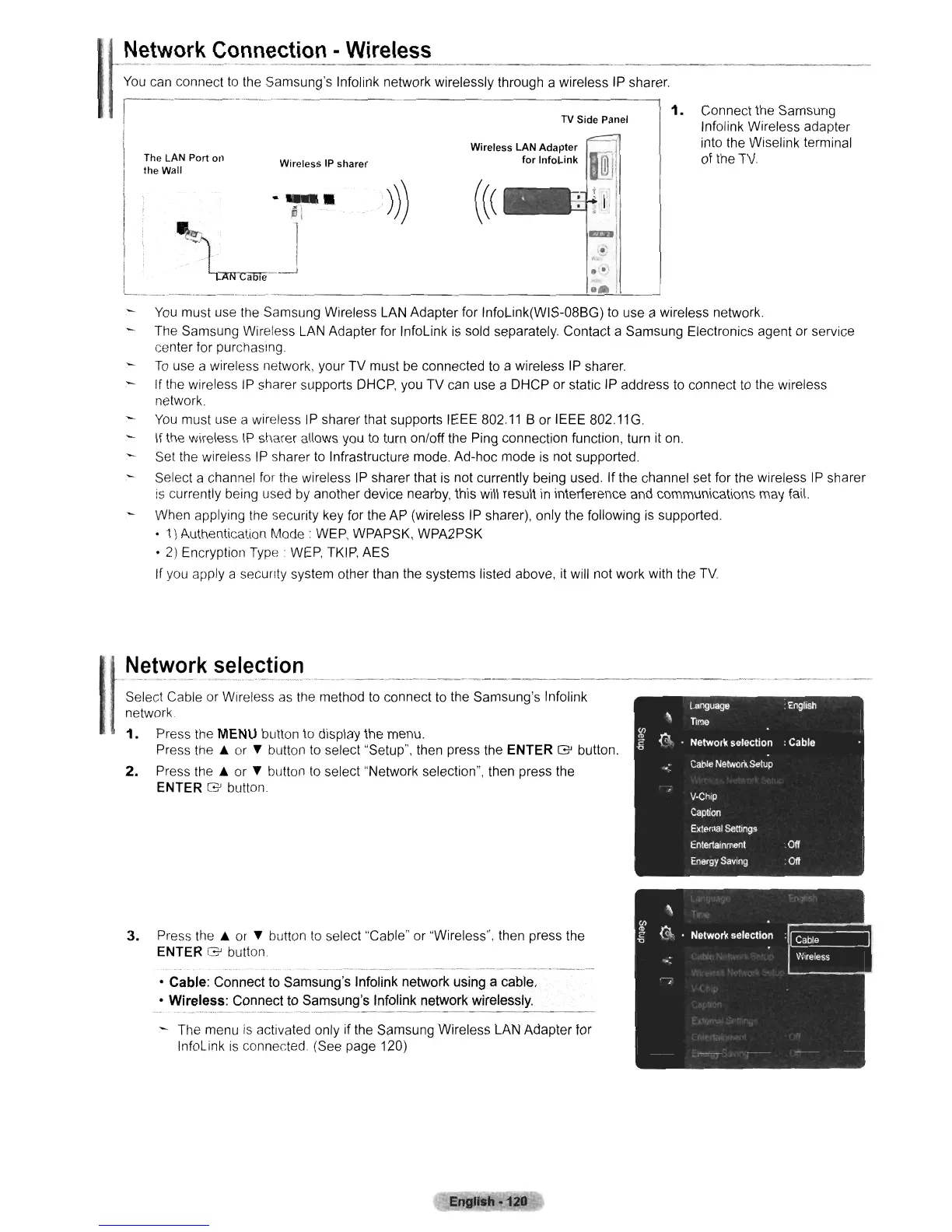
Connect the Samsung
Infolink Wireless adapter
into the Wiselink terminal
of the
TV
Wireless
LAN
Adapter
for
InfoLink
Wireless
IP
sharer
-
....
~:
.-
, I
~J
_I
.
--'--"=--'-'--_----'
~
Network
Connection
-
Wireless
You
can connect
to
the Samsung's Infollnk network wlrelessly through a wireless IP sharer
1----
---
-
--
-- TV
Side
Panel
1.
I
The
LAN
Port
on
I
lheWall
I
I
I
You
must use the Samsung Wireless LAN Adapter for InfoLink(WIS-08BG) to use a wireless network.
The Samsung Wireless
LAN
Adapter for InfoLink
is
sold separately. Contact a Samsung Electronics agent or service
center for purchasing
-
To
use a wireless network, your TV must be connected to a wireless
IP
sharer.
- If the wireless
IP
sharer supports DHCP, you TV can use a DHCP or static IP address to connect
to
the wireless
network.
You
must use a wireless
IP
sharer that supports IEEE 802.11 B or IEEE 802.11
G.
- If the wireless
IP
sharer allows you to turn on/off the Ping connection function, turn
it
on.
- Set the wireless IP sharer
to
Infrastructure mode. Ad-hoc mode
is
not supported.
Select a channel for the wireless IP sharer that is not currently being used. If the channel set for the wireless
IP
sharer
is
currently being used
by
another device nearby, this will result
in
interference and communications may fail.
When applying the security key for the AP (wireless IP sharer), only the following
is
supported.
• 1) Authentication
Mode:
WEP,
WPAPSK, WPA2PSK
•
2)
Encryption
Type'
WEP,
TKIP. AES
If you apply a security system other than the systems listed above, it will not work with the
TV
Network
selection
Select Cable or Wireless
as
the method
to
connect to the Samsung's Infolink
network.
I
1.
2.
Press the MENU button to display the menu.
Press
the"
or
~
button
to
select "Setup", then press the ENTER G button.
Press
the"
or
~
button to select "Network selection", then press the
ENTER G button.
Language
:
English
'\
Time
(f)
'"
(\
<'
Network
selection
: Cable
"0
.-
Cable
Network
Selup
V-Chip
Caption
External
SeWngs
Entertainment
.
Off
Energy
Saving
Off
3.
Pr-ess
the"
or
~
button
to
select "Cable" or "Wireless", then press the
ENTER G button.
• Cable: Connect to Samsung's Infolink network using a cable.
• Wireless: Connect to Samsung's Infolink network wirelessly.
The menu
is
activated only if the Samsung Wireless LAN Adapter for
InfoLink
is
connected (See page 120)
English
·120












 To Next Page