Using
Additional
Content
Using
External
USB
Memory
Storage
You
can download contents onto a USB memory device and play them
on
your
TV.
(The contents
on
the external USB device are played directly without being copied
to
the built-in Flash memory of the
TV)
Playing and Exiting New Content
1.
Press the Red button
in
the "Content Library" main menu.
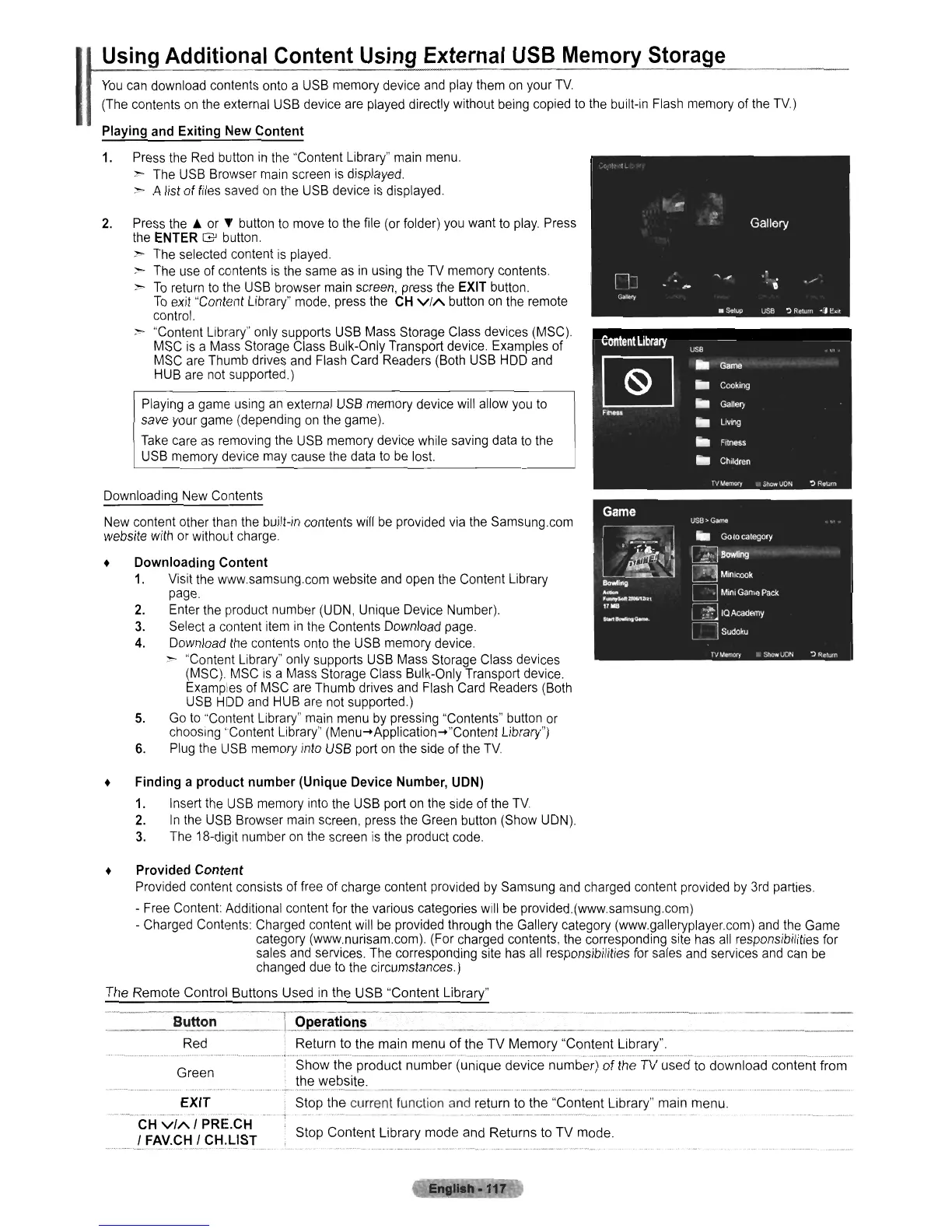
~ The USB Browser main screen
is
displayed.
> A list of files saved on the USB device
is
displayed.
2. Press
the.
or
~
button to move
to
the file (or folder) you want
to
play. Press
the ENTER
G'
button.
)'00 The selected content
is
played.
;,- The use of contents is the same as
in
using the TV memory contents.
~
To
return
to
the USB browser main screen, press the EXIT button.
To
exit "Content Library" mode. press the
CH
ViA
button on the remote
control.
;-,.
"Content Library" only supports USB Mass Storage Class devices (MSC).
MSC
is
a Mass Storage Class Bulk-Only Transport device. Examples
of
MSC are Thumb drives and Flash Card Readers (Both USB HOD and
HUB are not supported.)
Playing a game using an external USB memory device will allow you
to
save your game (depending on the game).
Take care as removing the USB memory device while saving data
to
the
USB memory device may cause the data to be lost.
Downloading New Contents
New content other than the built-in contents will
be
provided via the Samsung.com
website with or without charge.
• Downloading Content
1.
Visit the www.samsung.com website and open the Content Library
page.
2.
Enter the product number (UDN, Unique Device Number).
3.
Select a content item
in
the Contents Download page.
4.
Download the contents onto the USB memory device.
~ "Content Library" only supports USB Mass Storage Class devices
(MSC). MSC
is
a Mass Storage Class Bulk-Only Transport device.
Examples of MSC are Thumb drives and Flash Card Readers (Both
USB HOD and HUB are not supported.)
5.
Go
to
"Content Library" main menu by pressing "Contents" button or
choosing "Content Library" (Menu-+Application-+"Content Library")
6. Plug the USB memory into USB port on the side
of
the
TV
• Finding a
product
number
(Unique Device Number, UDN)
1.
Insert the USB memory into the USB port on the side of the
TV
2.
In
the USB Browser main screen, press the Green button (Show UDN).
3. The 18-digit number on the screen
is
the product code.
• Provided Content
Provided content consists of free
of
charge content provided by Samsung and charged content provided by 3rd parties.
- Free Content: Additional content for the various categories will be provided.(www.samsung.com)
- Charged Contents: Charged content will be provided through the Gallery category (www.galleryplayer.com) and the Game
category (www.nurisam.com). (For charged contents, the corresponding site has all responsibilities for
sales and services. The corresponding site has all responsibilities for sales and services and can
be
changed due
to
the circumstances.)
___
--=B=..u:tton
Red
Green
EXIT
._
...
_._._
....
__
.
_._-
--
.-
..
_-
.-
....
CH
VIA
I PRE.CH
I FAV.CH I CH.L1ST
--
1
Stop
Content
Library
mode
and Returns to
TV
mode.












 To Next Page