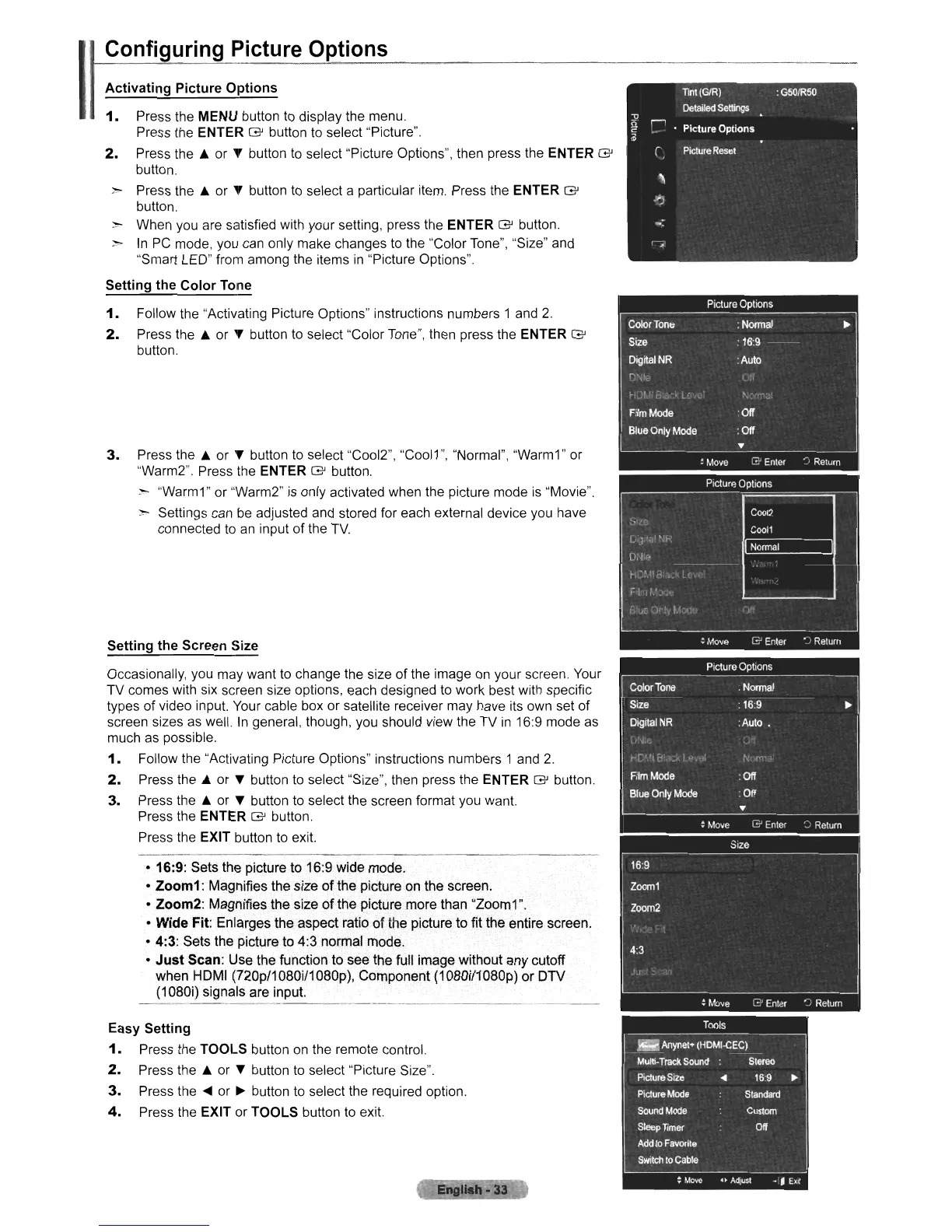
Configuring Picture Options
Activating
Picture
Options
1.
Press the MENU button
to
display the menu.
Press the ENTER
G'
button
to
select "Picture".
2.
Press the
Ji,.
or T button
to
select "Picture Options", then press the ENTER
G'
button.
:>
Press the
Ji,.
or T button to select a particular item. Press the ENTER
G'
button.
> When you are satisfied with your setting, press the ENTER
G'
button.
>
In
PC
mode, you can only make changes
to
the "Color Tone", "Size" and
"Smart LED" from among the items
in
"Picture Options".
Setting the
Color
Tone
1.
Follow the "Activating Picture Options" instructions numbers 1 and
2.
2.
Press the
Ji,.
or T button
to
select "Color Tone", then press the ENTER
G'
button.
3.
Press the
Ji,.
or T button
to
select "CooI2", "CooI1", "Normal", "Warm1" or
"Warm2". Press the ENTER
G'
button.
;,--
"Warm1" or "Warm2"
is
only activated when the picture mode
is
"Movie".
> Settings can
be
adjusted and stored for each external device you have
connected
to
an
input
of
the
TV.
Setting the Screen Size
Occasionally, you may want
to
change the size
of
the image on your screen. Your
TV comes with six screen size options, each designed to work best with specific
types of video input. Your cable box or satellite receiver may have its own set of
screen sizes as well.
In
general, though, you should view the TV
in
16:9 mode as
much as possible.
1.
Follow the "Activating Picture Options" instructions numbers 1 and
2.
2.
Press the
Ji,.
or T button
to
select "Size", then press the ENTER
G'
button.
3.
Press the
Ji,.
or T button
to
select the screen format you want.
Press the ENTER
G'
button.
Press the EXIT button
to
exit.
• 16:9: Sets the picture to
16:9wide
mode.
• Zoom1: Magnifies the size
of
the picture on the screen.
• Zoom2: Magnifies the size
of
the picture more than "Zoom1".
•
Wide
Fit: Enlarges the aspect ratio
of
the picture to fit the entire screen.
·4:3:
Sets the picture to 4:3 normal mode.
•
Just
Scan: Use the function to see the full image without any cutoff
when HDMI
(720p/1080iI1080p), Component (1080i/1080p) or DTV
(1080i) signals are input.
----_._-------
Easy Setting
1.
Press the TOOLS button
on
the remote control.
2.
Press the
Ji,.
or T button
to
select "Picture Size".
3.
Press the
....
or
~
button
to
select the required option.
4.
Press the EXIT or TOOLS button
to
exit.












 To Next Page