()
Item Selection lnforrnatlon
Shows
the
number
·.if
music files that are selected
by
pressing the Yellow button.
o Help Items
• Red(Device)
button:
Selects a connected device.
• Green(Favorites Setting) button: Changes the favorites setting for the selected music. Press this button
repeatedly until the desired value appears. (Refer to page
90)
• Yellow(Select)
button:
Selects music files from the music list. Selected music files are marked with a symbol
von
the left.
•
~
~
(Jump)
button:
Jumps to the previous sorting
groupl
Jumps to the next sorting group.
• TOOLS(Option) button: Displays the "Play Current Group", "Delete", "Change Group Info" (in "Mood" group),
"Information" or "Safe Remove" menus.
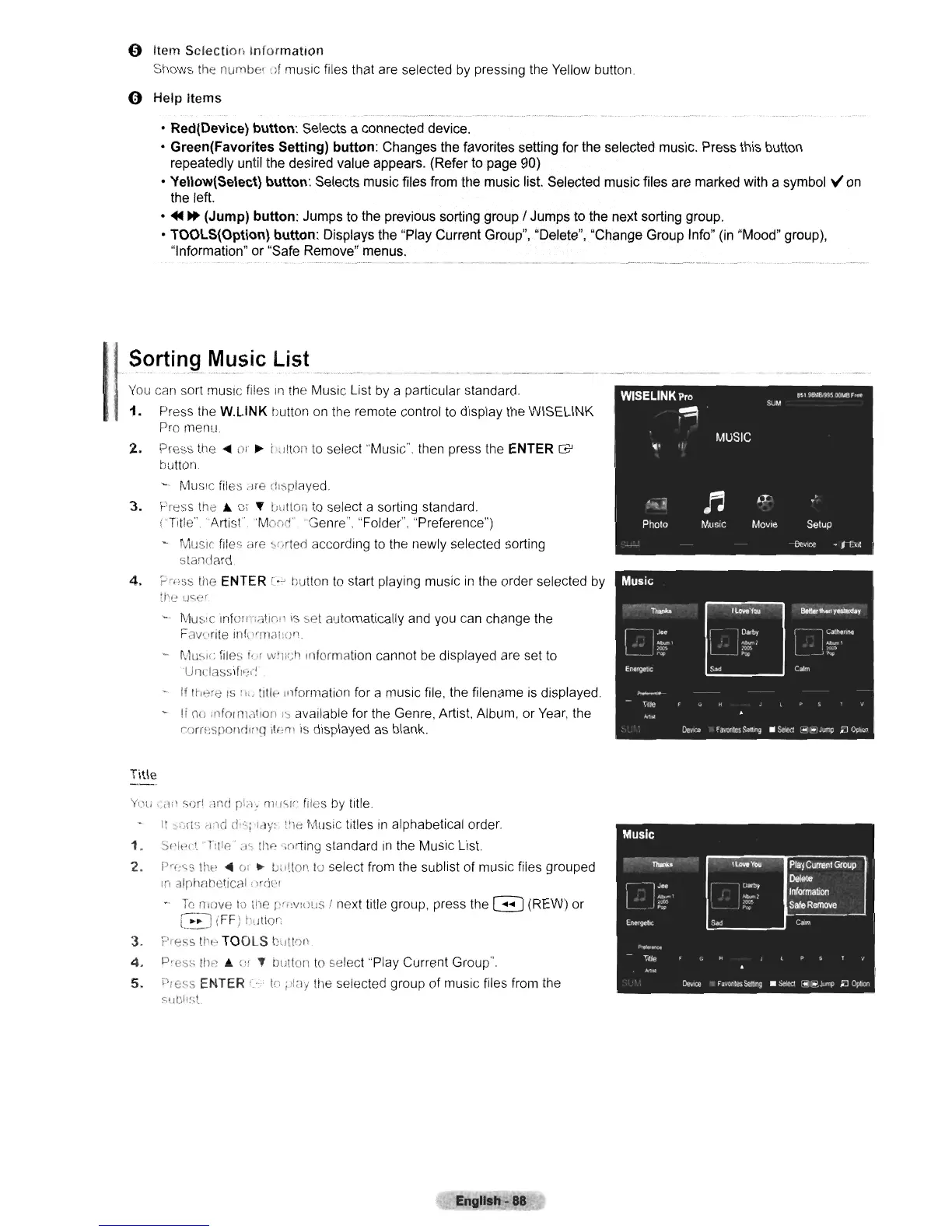
You
can sort musIc files
In
the Music List
by
a particular standard.
1.
Press
the
W.L1NK
hutton
on
the remote control to display the WISELINK
Pro menu
2.
Press
the'"
or
~
i ,ilton
to
select "Music", then press the ENTER
G'
button
~
MUSIC
files
cHe
(11~played.
3.
Press the
..
or
..
ullllon
to
select a sorting standard.
I Title',
'Artist'M0n~'
"Genre". "Folder". "Preference")
- Music files are
",r
,rted according
to
the newly selected sorting
standard
4.
F·"'('sS
tile
ENTER
c;~
hutton
to
start playing music
in
the order selected
by
1.lll;'
u<,er
MUSiC
infurl~:atin!'
IS set automatically and
you
can
change the
Fav'.,rite Inf"c!lli'lI'O'l.
-
r,
..
1usif~
files I,·r w!u;;h Information cannot
be
displayed are set
to
'Un,'lassiflu'
-
if
nl"'~e
IS Iii)
title-
Information for a music file, the filename
is
displayed.
- If
no
:nfornldtlon
IS
available for the Genre, Artist. Album, or
Year,
the
rorn;sponolrg IlI;'"
is
displayed
as
blank.
Title
Y<1li '
,1;1
sur!
"nri
rich
Ill;
'<'1"
files
by
title.
It
·";.rlS
d:lei
d·s; 'lay:
t!i8
Music titles
in
alphabetical order.
1.
Sf'fl'C! 'Tq'e'
,1C.
1110.
';orting standard
in
the Music List.
2.
pr(;<;s
the.
01
..
U:
,I.ton
10
select from the sublist of music files grouped
Ifl
alph<lbetical lXrlPf
-
To
n,()ve
to
lhe
pri!V10US
I next title group, press the G (REW) or
L
••
J(FF)
hltlon
3. ,-'ress
lIll'
TOOLS
button
4.
P'es~
lIH';
..
r:r
...
!JuttOIl
to
select "Play Current Group".
5.
PrE:SS
ENTER
'.
1.0;
)Iay
the selected group of music files from the
suiJk;(
Engllsh-88












 To Next Page