Playing
a
Music
File
Playing a music file
1.
Press the
W.L1NK
button
on
the remote control
to
display the ''WISELI
NK
Pro" menu.
2.
Press the
<OIl
or
~
button
to
select "Music". then press the ENTER G
button.
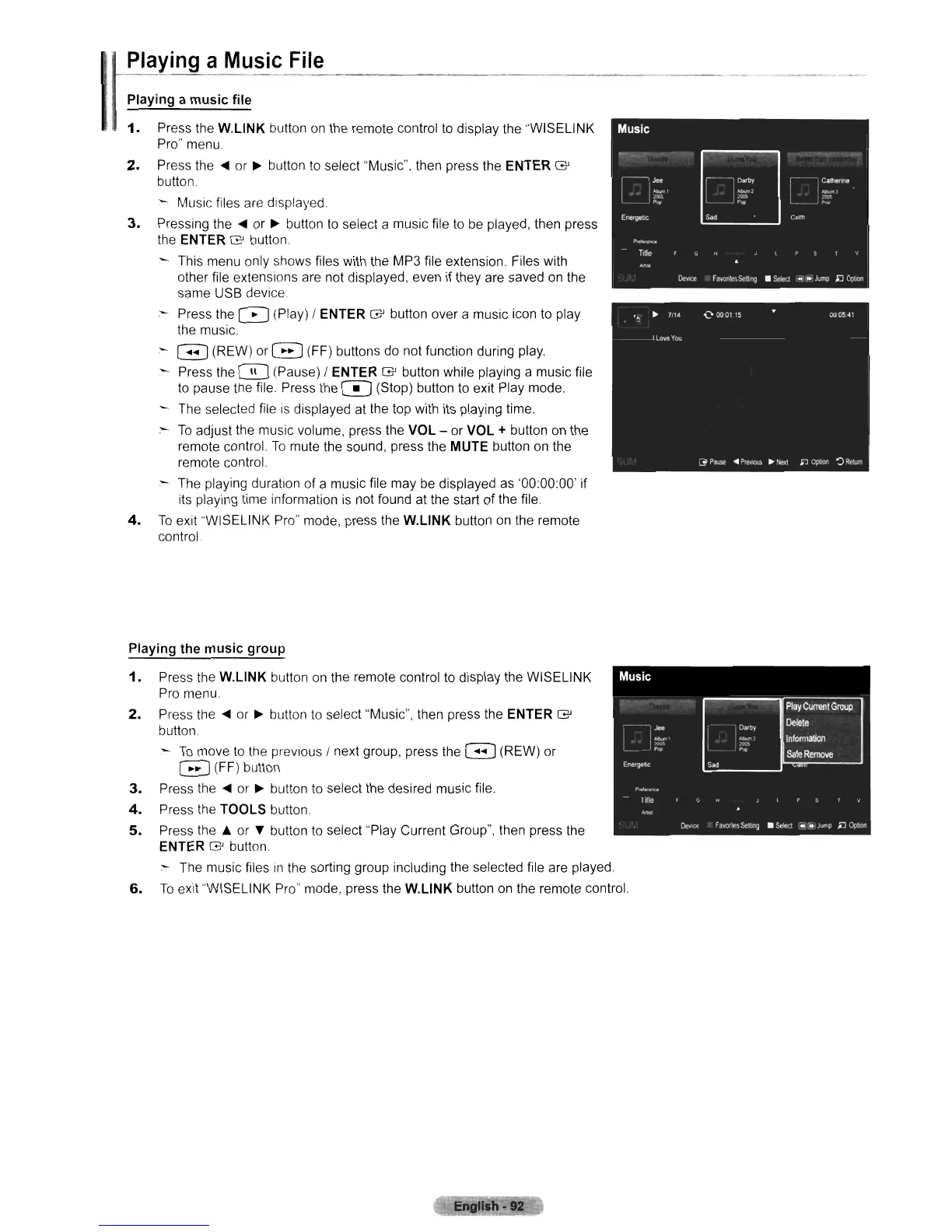
- Music files are displayed.
3.
Pressing the
<OIl
or
~
button
to
select a music file to
be
played, then press
the
ENTER G button.
This menu only shows files with the MP3 file extension. Files with
other file extensions are not displayed, even if they are saved
on
the
same USB device.
:-
Press the 0 (Play) / ENTER G button over a music icon to play
the music.
:-
G (REW) or G (FF) buttons do not function during play.
- Press the 0 (Pause) / ENTER G button while playing a music file
to
pause the file Press the 0 (Stop) button to exit Play mode.
The selected file
is
displayed at the top with its playing time.
:-
To
adjust the music volume, press the VOL - or VOL + button on the
remote control.
To
mute the sound, press the MUTE button on the
remote control.
.-
The playing duration of a music file may be displayed as '00:00:00' if
its playing time information
is
not found
at
the start of the file
4.
To
exit "WISELINK Pro" mode, press the
W.L1NK
button
on
the remote
control.
Playing the music group
1.
Press the
W.L1NK
button
on
the remote control to display the WISELINK
Pro menu.
2.
Press the
<OIl
or
~
button
to
select "Music", then press the ENTER G
button.
:-.
To
move
to
the previous / next group, press the G (REW) or
G(FF)
button
3.
Press the
<OIl
or
~
button
to
select the desired music file.
4.
Press the TOOLS button.
5.
Press
the.
or
~
button to select "Play Current Group", then press the
ENTER G button.
:-
The music files
in
the sorting group including the selected file are played.
6.
To
exit "WISELINK Pro" mode, press the
W.L1NK
button on the remote control.












 To Next Page