~
~etti'!9
up._th~
Ty
w_i_th_y:..-o_u_r_P_C
_
How to Auto Adjust
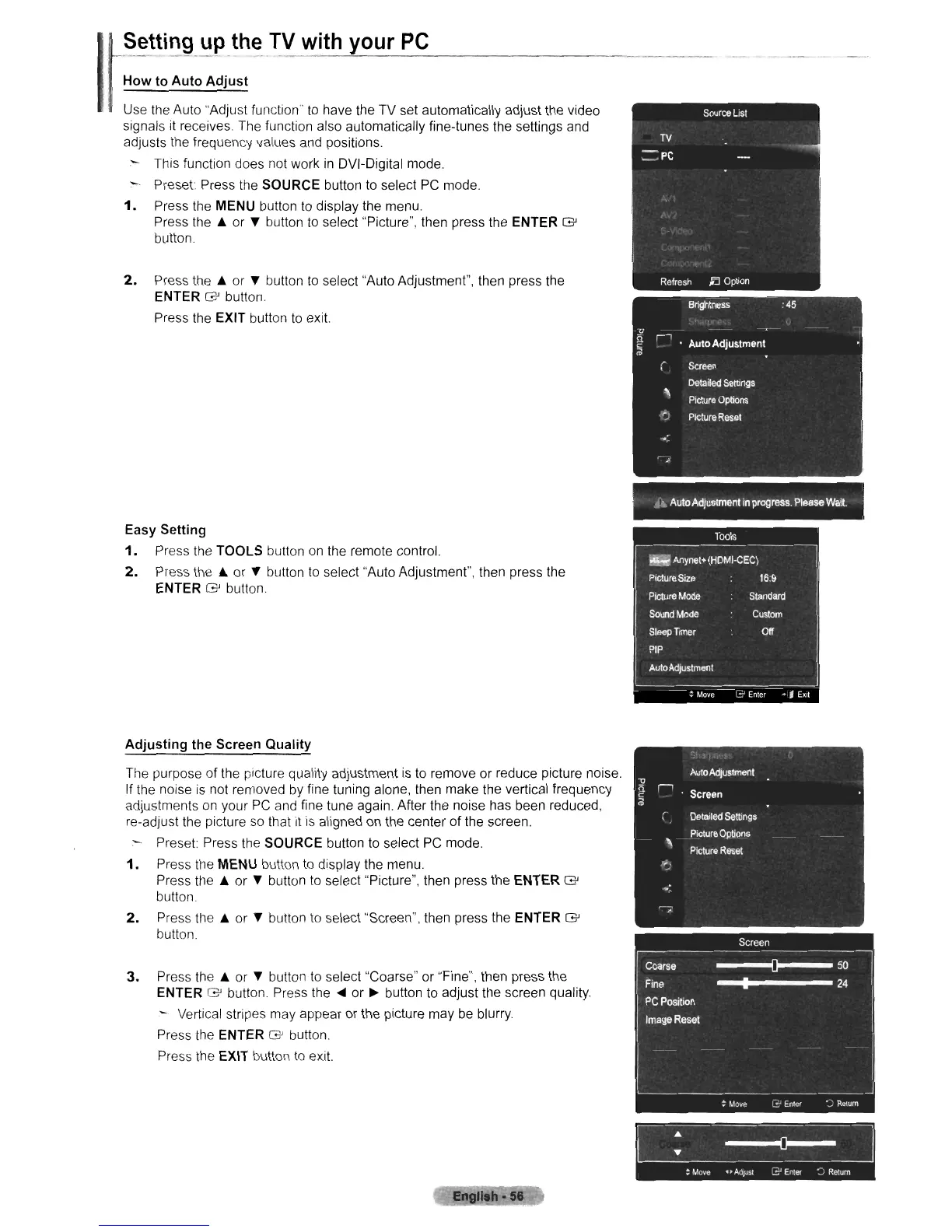
Use the Auto "Adjust function"
to
have the TV set automatically adjust the video
signals it receives The function also automatically fine-tunes the settings and
adjusts the frequency values and positions.
This function does not work
in
DVI-Digital mode.
- Preset: Press the
SOURCE
button
to
select
PC
mode.
1.
Press the MENU button
to
display the menu.
Press the
..
or
...
button to select "Picture", then press the
ENTER
G'
button.
2.
Press the
..
or
...
button
to
select "Auto Adjustment", then press the
ENTER
G'
button.
Press the
EXIT button
to
exit:
,\
Auto
Adjustment
in
progress
Please
Wait.
Easy Setting
1.
Press the TOOLS button
on
the remote control.
2.
Press the
..
or
...
button
to
select "Auto Adjustment", then press the
ENTER
G'
button
Adjusting the Screen Quality
The purpose of the picture quality adjustment
is
to remove or reduce picture noise.
If the noise
is
not removed by fine tuning alone, then make the vertical frequency
adjustments on your
PC
and fine tune again. After the noise has been reduced,
re-adjust the picture
so
that it
is
aligned on the center of the screen.
- Preset: Press the
SOURCE
button to select
PC
mode.
1.
Press the MENU button
to
display the menu.
Press the
..
or
...
button to select "Picture", then press the
ENTER
G'
button.
2.
Press the
..
or
...
button
to
select "Screen", then press the
ENTER
G'
button.
3.
Press the
..
or
...
button
to
select "Coarse" or "Fine", then press the
ENTER
G'
button. Press the
....
or
~
button to adjust the screen quality.
-.
Vertical stripes may appear or the picture may
be
blurry.
Press the
ENTER
G'
button.
Press the EXIT button
to
exit:












 To Next Page