WISELINK
Pro-DLNA
Setting
the
DLNA
Network
DLNA allows you to watch videos and pictures saved on your
PC
on your TV through a network connection
in
Wiselink Pro
mode. This removes the need
to
copy them to a USB storage device and then connect the device
to
your
TV.
To
use DLNA,
the TV must
be
connected to the network and the DLNA application must
be
installed on your
PC.
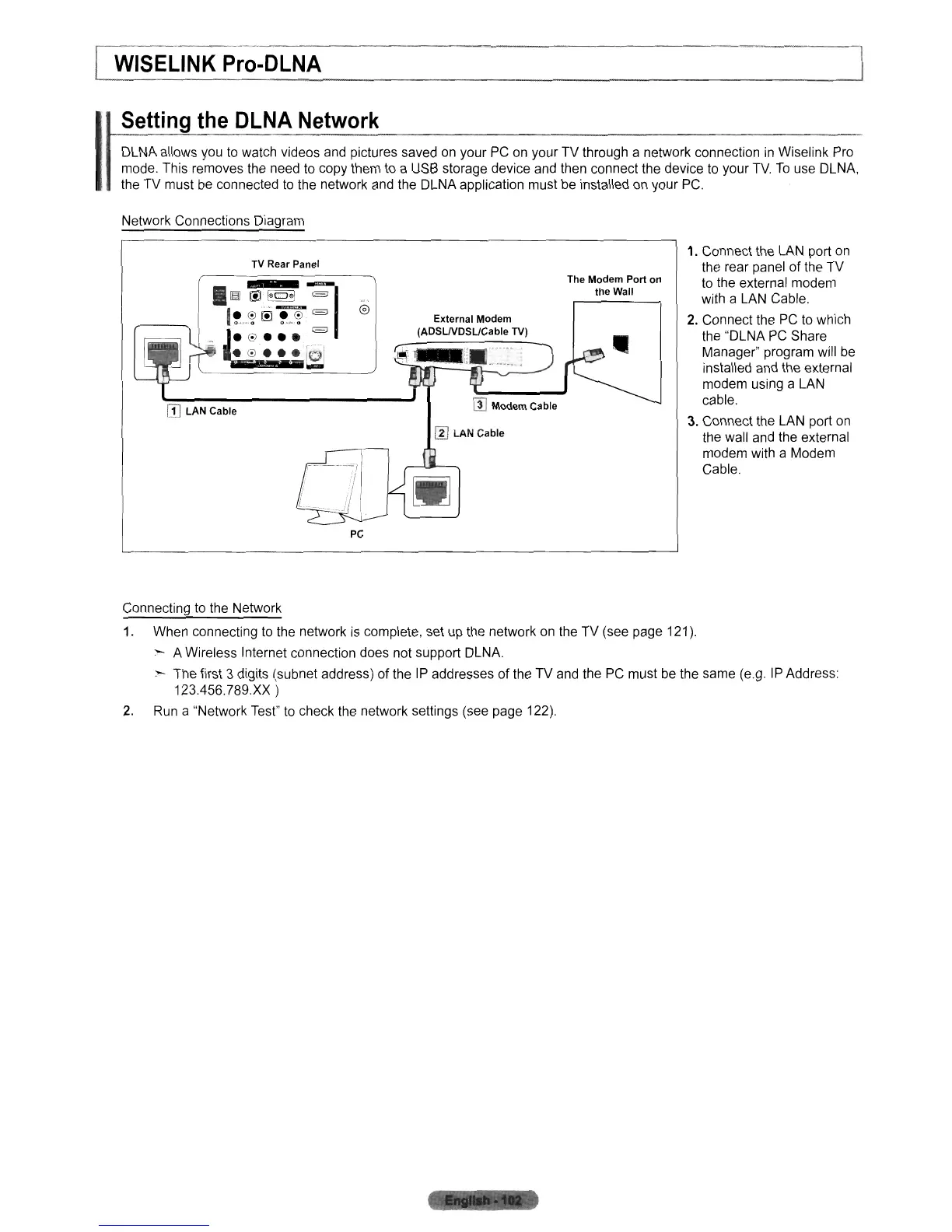
Network Connections Diagram
TV
Rear Panel
pc
External Modem
(ADSUVDSUCable
TV)
The Modem Port on
the Wall
1. Connect the LAN port
on
the rear panel of the TV
to the external modem
with a LAN Cable.
2.
Connect the
PC
to which
the "DLNA
PC
Share
Manager" program will
be
installed and the external
modem using a LAN
cable.
3.
Connect the LAN port
on
the wall and the external
modem with a Modem
Cable.
Connecting
to
the Network
1. When connecting
to
the network is complete, set
up
the network on the TV (see page 121).
:--
A Wireless Internet connection does not support DLNA.
:--
The first 3 digits (subnet address) of the
IP
addresses
of
the TV and the
PC
must be the same (e.g. IP Address:
123.456.789.XX)
2.
Run a "Network Test" to check the network settings (see page 122).












 To Next Page