Anynet+ Device
I
Scanning
and
Switching
between
Anynet+
Devices
1.
Press the TOOLS button.
Press the
ENTER
G'
button to select "Anynet+ (HDMI-CEC)".
2.
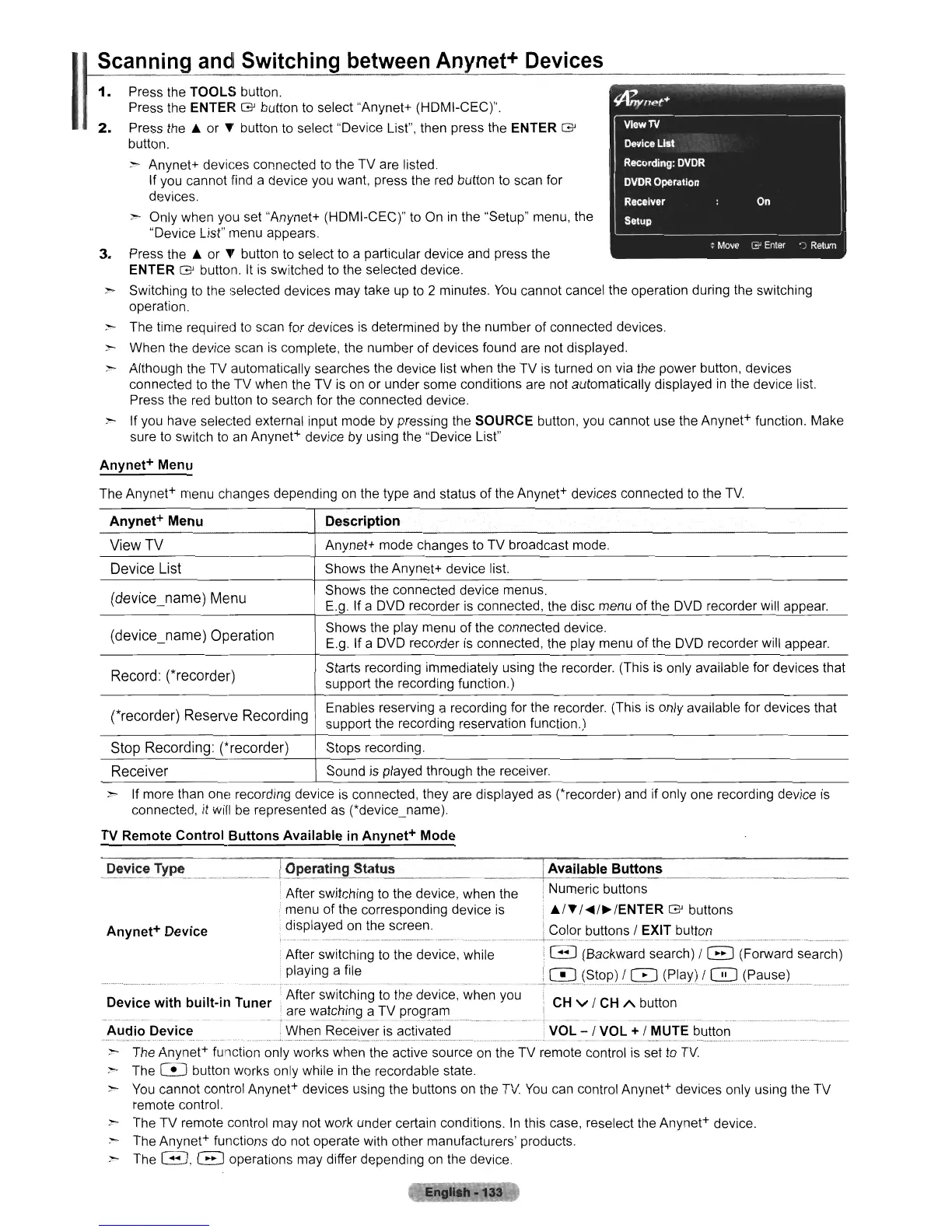
Press the A or T button to select "Device List", then press the ENTER
G'
button.
> Anynet+ devices connected to the TV are listed.
If you cannot find a device you want, press the
red
button to scan for
devices.
",.
Only when you set "Anynet+ (HDMI-CEC)" to On
in
the "Setup" menu, the
"Device List" menu appears.
3.
Press the A or T button to select to a particular device and press the
ENTER
G'
button.
It
is switched to the selected device.
~ Switching to the selected devices may take
up
to 2 minutes.
You
cannot cancel the operation during the switching
operation.
~
The time required to scan for devices
is
determined
by
the number of connected devices.
> When the device scan
is
complete, the number of devices found are not displayed.
",...
Although the TV automatically searches the device list when the TV
is
turned
on
via the power button, devices
connected
to
the TV when the TV
is
on
or under some conditions are not automatically displayed
in
the device list.
Press the
red
button to search for the connected device.
",...
If you have selected external input mode
by
pressing the SOURCE button, you cannot use the Anynet+ function. Make
sure
to
switch to
an
Anynet+ device
by
using the "Device List"
Anynet+ Menu
The Anynet+ menu changes depending
on
the type and status of the Anynet+ devices connected to the
TV.
Anynet+ Menu
Description
View
TV
Anynet+ mode changes to TV broadcast mode.
Device List
Shows the Anynet+ device list.
(device_name) Menu
Shows the connected device menus.
E.g. If a DVD recorder
is
connected, the disc menu
of
the DVD recorder will appear.
(device_name) Operation
Shows the play menu of the connected device.
E.g. If a DVD recorder is connected, the play menu of the DVD recorder will appear.
Record: (*recorder)
Starts recording immediately using the recorder. (This
is
only available for devices that
support the recording function.)
(*recorder) Reserve Recording
Enables reserving a recording for the recorder. (This
is
only available for devices that
support the recording reservation function.)
Stop Recording:
('recorder)
Stops recording.
Receiver
Sound is played through the receiver.
> If more than one recording device
is
connected, they are displayed as (*recorder) and if only one recording device
is
connected,
it
will
be
represented
as
(*device_name).
TV Remote Control Buttons Available
in
Anynet+ Mode
Devi~e
Type @Jl_erating Status IAvailable Buttons
i INumeric buttons
1After switching to the device, when the
!
menu of the corresponding device
is
I
All'
I
"'/~
IENTER
G'
buttons
displayed
on
the screen. i Color buttons I EXIT button
,._._---
--_._-----_.
--_._----.
__
.+::::-._---_._---_.---_
...
_-
--_._---------_
..
_---
. After switching
to
the device, while i G (Backward search) I B (Forward search)
playing
~
file
1~~H~!c:>p)i.C~)J~I~~2Lc:~~1.{~_~_~~~).
__
..
_._
Device with built-in Tuner
,After
switching to the device, when you 1
CH
v I
CH
A button
~
are
wat~~lng
a TV
pro.~~~~
__
.
..
. I _ _
_.
...•
•....•...
_._
.....
Audio Device When Receiver
is
activated VOL - I VOL + I MUTE button
.......
__
..
-
---
_................. - -
-_._._
_..
__
..
_--_._._
_.~.
__
..
_
..
-_.~-----
~
The Anynet+ function only works when the active source
on
the TV remote control
is
set to
TV.
- The C!J button works only while
in
the recordable state.
}->
You
cannot control Anynet+ devices using the buttons
on
the
TV.
You
can
control Anynet+ devices only using the TV
remote control.
> The TV remote control may not work under certain conditions.
In
this case, reselect the Anynet+ device.
;-
The Anynet+ functions do not operate with other manufacturers' products.
- The
G,
B operations may differ depending
on
the device.












 To Next Page