I
Content
Library
Using
the
Content
Library
The
"Content Library" enables
you
to
view or play the built-in contents
on
the
TV
or stored
on
your
USB
device.
>- The Delete, Move and Update functions will not work with the built-in content
on
the
TV.
Using the Content Library Menu
1.
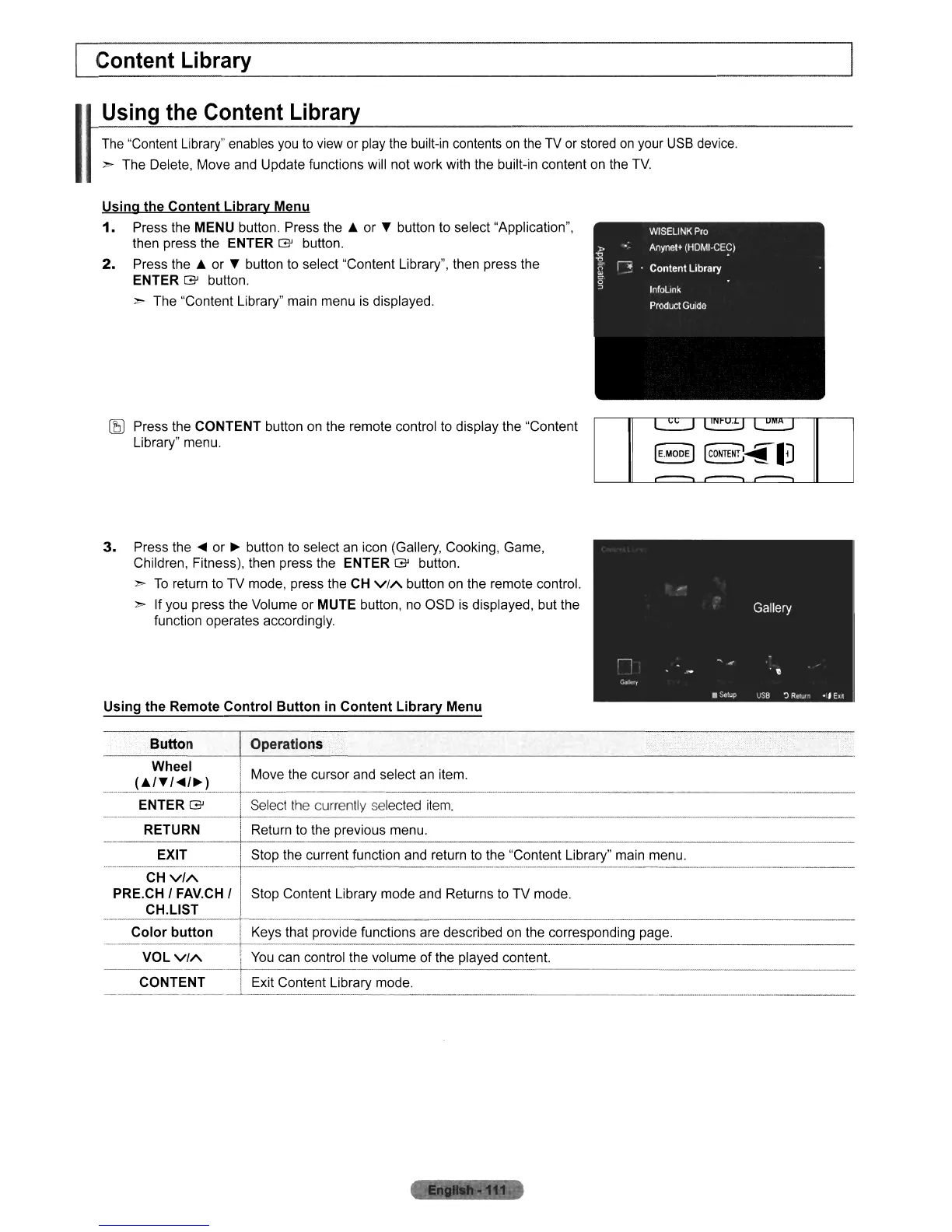
Press the MENU button. Press
the.
or T button to select "Application",
then press the
ENTER
G'
button.
2.
Press
the.
or T button to select "Content Library", then press the
ENTER
G'
button.
>- The "Content Library" main menu
is
displayed.
[f;J)
Press the CONTENT button
on
the remote control to display the "Content
Library" menu.
3.
Press the
~
or
~
button to select an icon (Gallery, Cooking, Game,
Children, Fitness), then press the
ENTER
G'
button.
>-
To
return to TV mode, press the CH
VIA
button on the remote control.
>- If you press the Volume or MUTE button, no OSD is displayed, but the
function operates accordingly.
Using the Remote Control Button
in
Content Library Menu
Button
I_o--,-p_er_a_ti_o_n_$~
--,-
----,-,-
__
Wheel I .
...
-
....
J:~~~.~I~L··-·t·-~~::t
t~h:
c:~~r:~~~::I:::~ai~el:m.~--.-.-.-----.--
..
------.----------
---_._-----+
RETURN I Return to the previous menu.
EXIT I Stop the current function and return to the "Content Library" main menu.
·
..
··
-
..
···C'H·-.;;/A·
..
·--
..
·-r·-·--·-···
..
··-··-··-
..
-
..
-··
..
·
.-
..
-
..
-
..
--.-.--
-
----
-
--
-
----
..
------.-----
---.-.--
..
---
PRE.CH , FAV.CH
'rtop
Content Library mode and Returns to TV mode.
CH.L1ST
-----------_._
..
-
._----
_.
---_.
Color button ! Keys that provide functions are described
on
the corresponding page.
-
...
----
_
..
_---1------
VOL
ViA
.
You
can control the volume
of
the played content.
CONTENT Exit Content Library mode.












 To Next Page