I
Using
the
DLNA
Function
Using the DLNA Menu
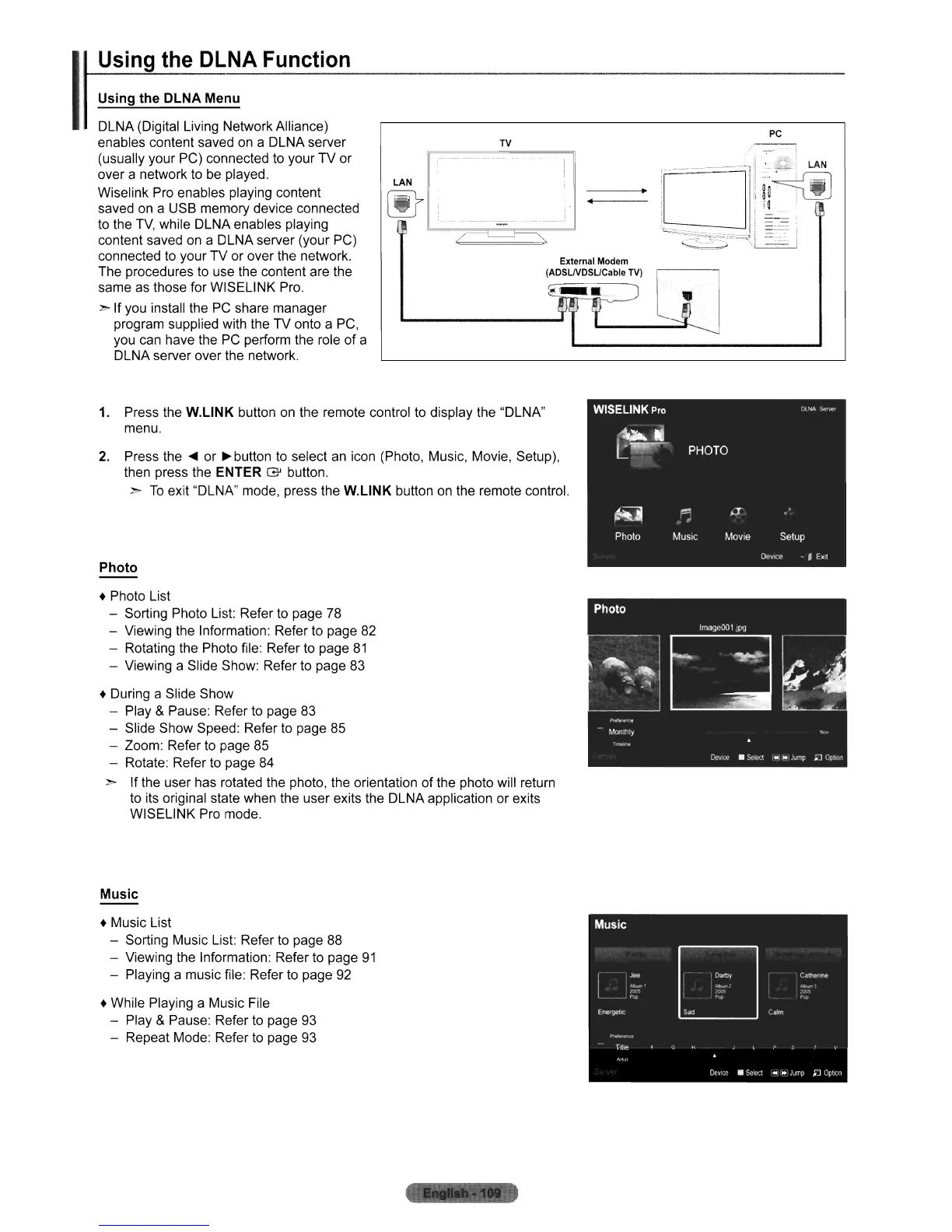
DLNA (Digital Living Network Alliance)
enables content saved on a DLNA server
(usually your PC) connected to your TV or
over a network to
be
played.
Wiselink Pro enables playing content
saved
on
a USB memory device connected
to the
TV,
while DLNA enables playing
content saved
on
a DLNA server (your PC)
connected to your TV or over the network.
The procedures
to
use the content are the
same as those for WISELINK Pro.
:»
If you install the
PC
share manager
program supplied with the TV onto a
PC,
you can have the
PC
perform the role of a
DLNA server over the network.
LAN
~
TV
. J
PC
~-.--!
!.~c----------~
II
;~
~
LAN]
.
lC
i
! . i
~
I I _
!~--~
._ Ii
~;~
i
-~C~~~~!::
I
1.
Press the
W.L1NK
button on the remote control to display the "DLNA"
menu.
2.
Press
the'"
or
~button
to select an icon (Photo, Music, Movie, Setup),
then press the
ENTER G button.
:»
To
exit "DLNA" mode, press the
W.L1NK
button
on
the remote control.
Photo
• Photo List
- Sorting Photo List: Refer to page
78
- Viewing the Information: Refer to page
82
- Rotating the Photo file: Refer to page
81
- Viewing a Slide Show: Refer to page
83
• During a Slide Show
- Play
& Pause: Refer to page
83
- Slide Show Speed: Refer to page 85
- Zoom: Refer to page 85
- Rotate: Refer to page
84
:»
If the user has rotated the photo, the orientation of the photo will return
to its original state when the user exits the DLNA application or exits
WISELINK Pro mode.
Music
• Music List
- Sorting Music List: Refer to page 88
- Viewing the Information: Refer to page
91
- Playing a music file: Refer to page
92
• While Playing a Music File
- Play
& Pause: Refer to page
93
- Repeat Mode: Refer to page
93












 To Next Page