~
Playing
a
Movie
File
Playing a movie file
1.
Press the
W.L1NK
button on the remote control
to
display the ''WISELINK
Pro" menu.
2.
Press the
~
or
~
button to select "Movie", then press the ENTER
G'
button.
3.
Pressing the
~
or
~
button
to
select a movie
to
be
played, then press the
ENTER
G'
button.
:-
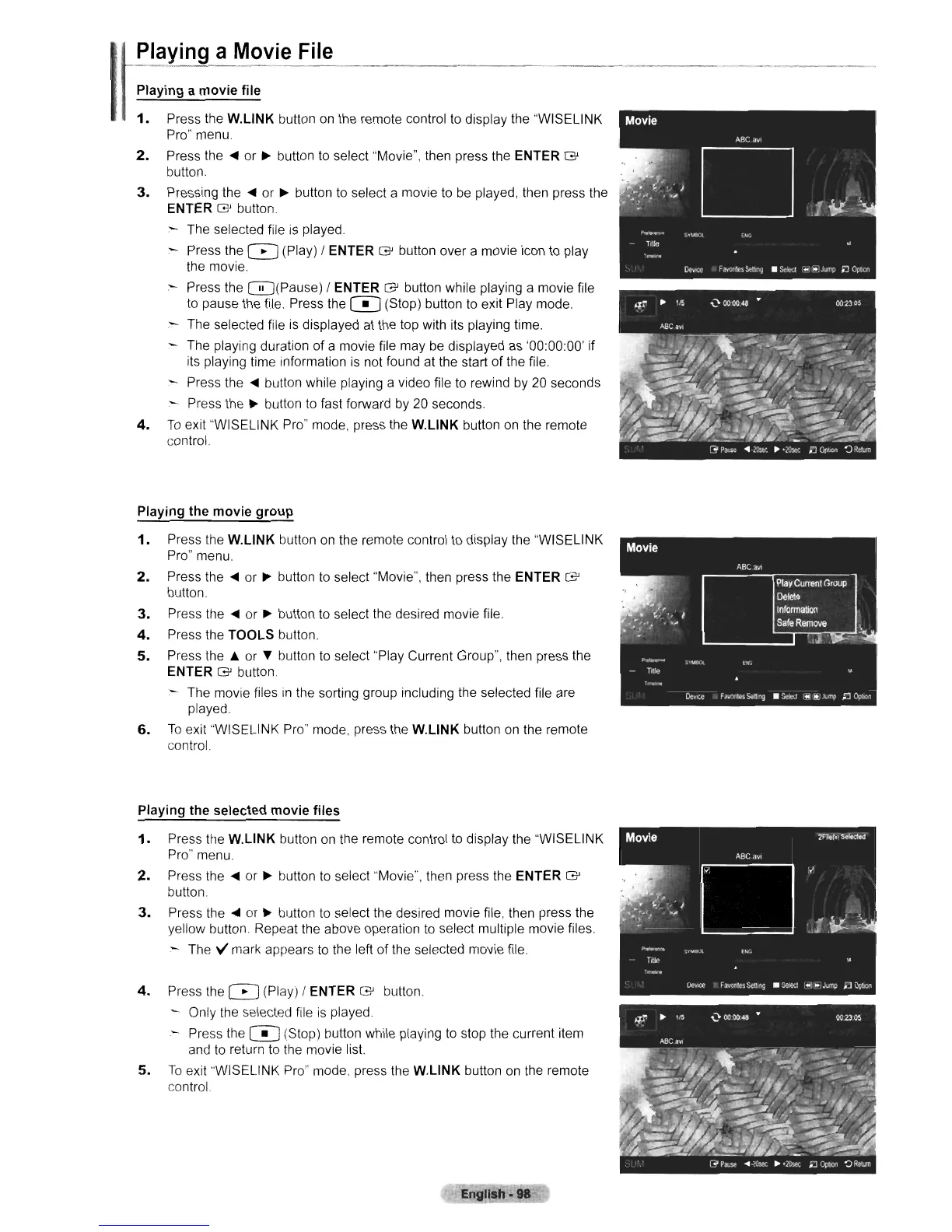
The selected file
IS
played.
:-
Press the 8 (Play) I ENTER
G'
button over a movie icon to play
the movie.
- Press the
0(Pause)
I ENTER
G'
button while playing a movie file
to
pause the file Press the 0 (Stop) button
to
exit Play mode.
- The selected file
is
displayed at the top with its playing time.
The playing duration
of
a movie file may
be
displayed as '00:00:00' if
its playing time information
is
not found at the start of the file.
Press the
~
button while playing a video file
to
rewind
by
20 seconds
- Press the
~
button
to
fast forward by 20 seconds.
4.
To
exit "WISELINK Pro" mode, press the
W.L1NK
button on the remote
control.
Playing the movie group
1.
Press the
W.L1NK
button
on
the remote control
to
display the "WISELINK
Pro" menu.
2.
Press the
~
or
~
button
to
select "Movie", then press the ENTER
G'
button.
3.
Press the
~
or
~
button
to
select the desired movie file
4.
Press the TOOLS button.
5.
Press
the.
or
~
button
to
select "Play Current Group", then press the
ENTER
G'
button
- The movie files
in
the sorting group including the selected file are
played.
6.
To
exit "WISELINK
Pro"
mode. press the
W.L1NK
button
on
the remote
control.
Playing the selected movie files
1.
Press the
W.L1NK
button
on
the remote control
to
display the "WISELINK
Pro" menu.
2.
Press the
~
or
~
button
to
select "Movie", then press the ENTER
G'
button.
3.
Press the
~
or
~
button
to
select the desired movie file, then press the
yellow button Repeat the above operation
to
select multiple movie files.
.- The
't/ mark appears
to
the left of the selected movie file
4.
Press the 8 (Play) I ENTER
G'
button.
- Only the selected file
is
played.
- Press the
0 (Stop) button while playing
to
stop the current item
and
to
return
to
the movie list.
5.
To
exit "WISELINK Pro" mode. press the
W.L1NK
button
on
the remote
control.
Engllsh·98












 To Next Page