"U
~
r
Mode :Movie
iil
r
Backlight
:5
Contrast
.95
..,
Brightness
:45
."j
Sharpness
:20
Color
:
50
~,
Tint(G/R)
.
G501R50
~
Detailed
Settings
Samsung's new TVs allow you
to
make even more precise picture settings than previous models. See below
to
adjust
detailed picture settings.
Activating
Detailed
Settings
1.
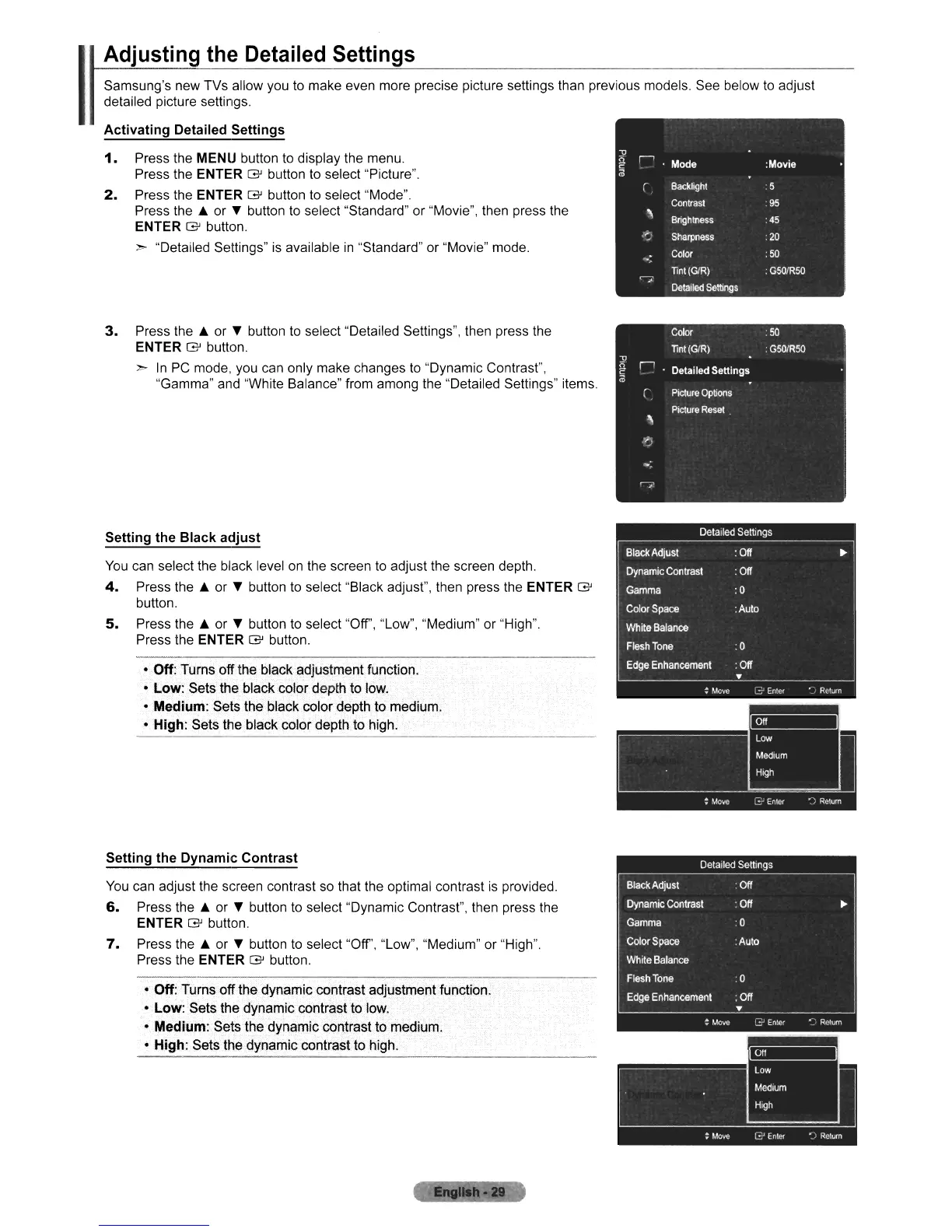
Press the MENU button
to
display the menu.
Press the ENTER
G'
button
to
select "Picture".
2.
Press the
ENTE.R
G'
button
to
select "Mode".
Press the
l.
or T button
to
select "Standard" or "Movie", then press the
ENTER
G'
button.
> "Detailed Settings"
is
available
in
"Standard" or "Movie" mode.
Adjusting
the
Detailed
Settings
I
3.
Press the
l.
or T button
to
select "Detailed Settings", then press the
ENTER
G'
button.
>
In
PC
mode, you can only make changes
to
"Dynamic Contrast",
"Gamma" and "White Balance" from among the "Detailed Settings" items.
Setting the
Black
adjust
You
can select the black level
on
the screen
to
adjust the screen depth.
4.
Press the
l.
or T button
to
select "Black adjust", then press the ENTER
G'
button.
5.
Press the
l.
or T button
to
select "Off', "Low", "Medium" or "High".
Press the ENTER
G'
button.
• Off: Turns off the black adjustment function.
•
Low:
Sets
the black color depth to low.
• Medium: Sets the black color depth to medium.
••
High: Sets the black color depth to high.
•
Setting the Dynamic
Contrast
You
can adjust the screen contrast so that the optimal contrast
is
provided.
6.
Press the
l.
or T button
to
select "Dynamic Contrast", then press the
ENTER
G'
button.
7.
Press the
l.
or T button
to
select "Off', "Low", "Medium" or "High".
Press the ENTER
G'
button.
• Off: Turns offthe dynamic contrast adjustment fUnction.
•
LOW:'
Sets the dynamic contrast to low.
o Medium: Sets the dynamic contrast
to
medium.
o High: Sets the dynamic contrast to high.












 To Next Page