f-
pi~tu
r~"
C~~tro
I
L-
_
-_.,----------
._.
-----
--~
--
J-
--_
..
_-----
~
hanging
the
Pic_tu_r_e_S_ta_n_d_a_rd
. .
__
You
can select the type of picture which best corresponds
to
your viewing
requirements.
1.
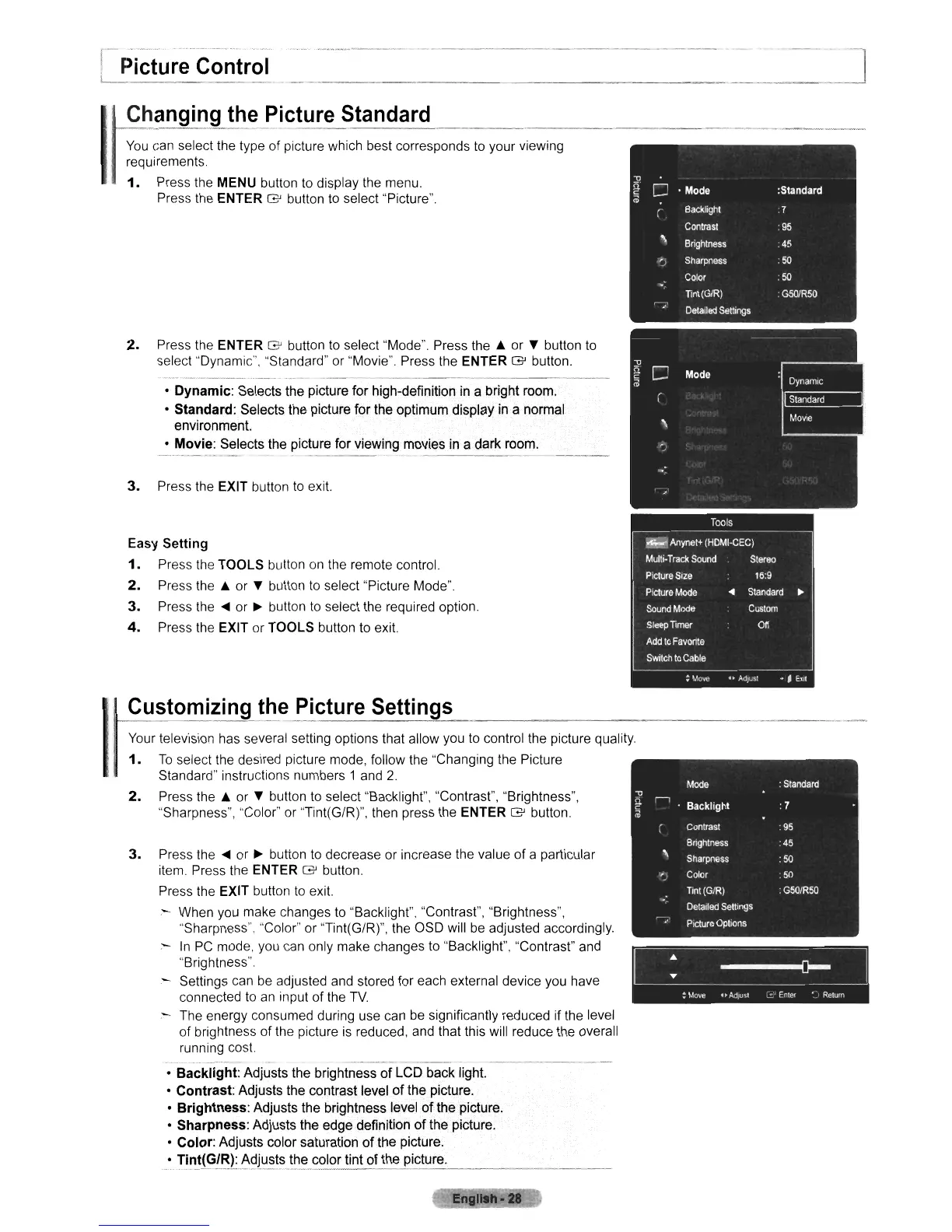
Press the MENU button to display the menu.
Press the ENTER G button
to
select "Picture".
2.
Press the ENTER G button
to
select "Mode" Press the & or T button
to
select "Dynamic", "Standard" or "Movie". Press the ENTER G button.
• Dynamic: Selects the picture for high-definition in a bright room.
• Standard: Selects the picture for the optimum display in a normal
environment.
• Movie: Selects the picture for viewing movies in a dark room.
3.
Press the EXIT button
to
exit.
Easy Setting
1.
Press the TOOLS button
on
the remote control.
2.
Press the & or T button
to
select "Picture Mode".
3.
Press
the'"
or
~
button to select the required option.
4.
Press the EXIT
or
TOOLS button to exit.
Customizing the
ficture
Settings
Mode
:
Standard
-u
~
,..,
Backlight :7
;;;
Contrast
95
Brightness
:45
'\
Sharpness
:50
-
Color
.50
Tint(GJR)
G50/R50
..
Detailed
Settings
r--
••
Picture
Options
~
:
Move
H
A(lJusl
~
Enter
.
Relum
3.
Press the
....
or
~
bution
to
decrease or increase the value of a particular
item. Press the ENTER G button.
Press the EXIT button
to
exit.
- When you make changes to "Backlight", "Contrast", "Brightness",
;'Sharpness", "Color" or "Tint(G/R)", the OSD will
be
adjusted accordingly.
.-
In
PC
mode, you can only make changes to "Backlight", "Contrast" and
"Brightness".
- Settings can be adjusted and stored for each external device you have
connected
to
an
input of the
TV.
- The energy consumed during use can
be
significantly reduced if the level
of brightness of the picture
is
reduced, and that this will reduce the overall
running cost.
Your television has several setting options that allow you
to
control the picture quality.
1.
To
select the desired picture mode, follow the "Changing the Picture
Standard" instructions numbers 1 and
2.
2.
Press the & or T button to select "Backlight", "Contrast", "Brightness",
"Sharpness", "Color" or "Tint(G/R)", then press the
ENTER G button.
• Backlight: Adjusts the brightness of LCD back light.
• Contrast: Adjusts the contrast level
of
the picture.
• Brightness: Adjusts the brightness level
of
the picture.
• Sharpness: Adjusts the edge definition
of
the picture.
• Color: Adjusts color saturation of the picture.
_~T!!!!.~~~L~9just~_~~~_
color tint of the picture.











 To Next Page