Upgrading
the
Software
TV
Side
Panel
Software
Upgrade
~
5.
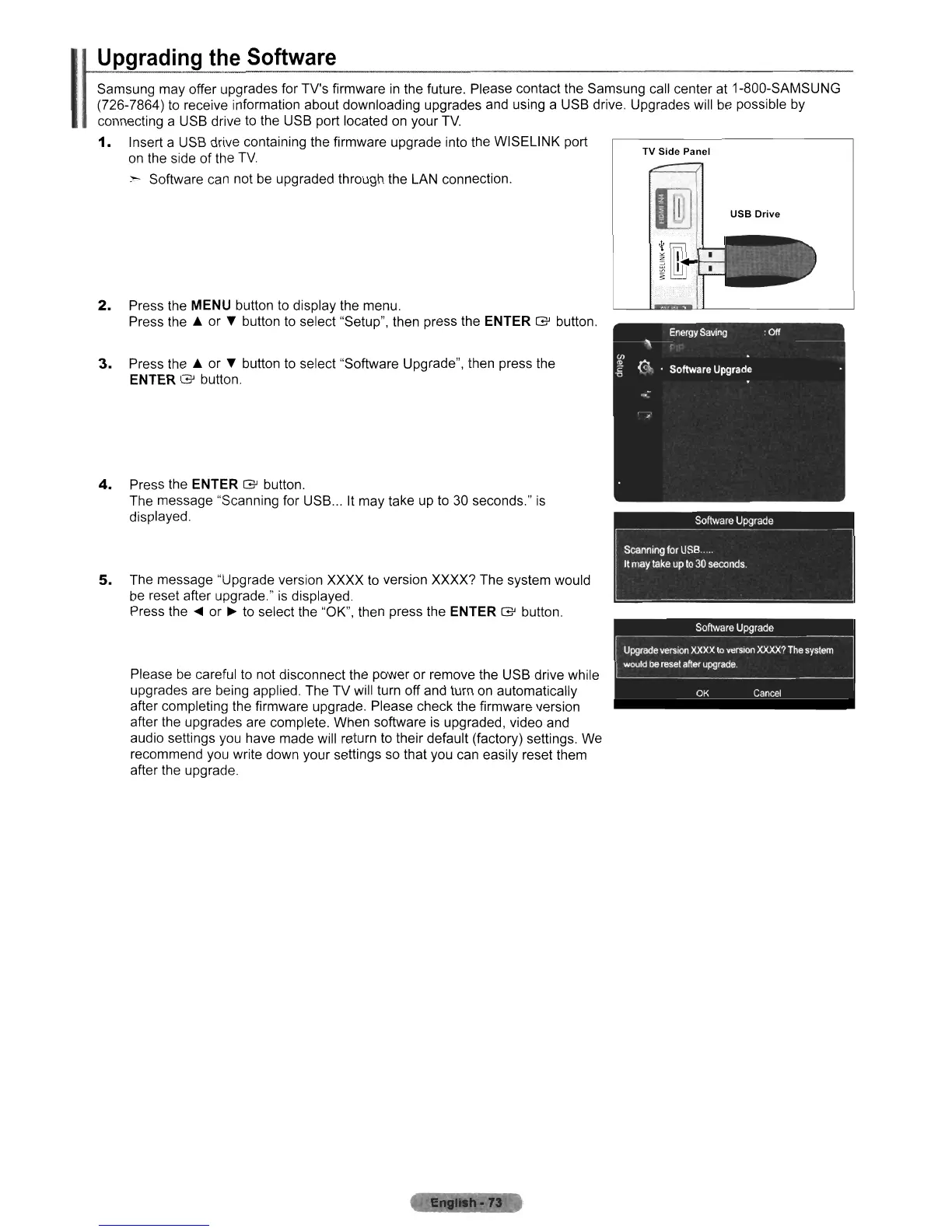
The message "Upgrade version XXXX to version XXXX? The system would
be
reset after upgrade."
is
displayed.
Press the
....
or
~
to select the "OK", then press the ENTER G button.
4.
Press the ENTER G button.
The message "Scanning for USB
...
It
may take
up
to
30 seconds."
is
displayed.
3.
Press
the'"
or T button to select "Software Upgrade", then press the
ENTER G button.
2.
Press the MENU button
to
display the menu.
Press
the'"
or T button
to
select "Setup", then press the ENTER G button.
Samsung may offer upgrades for TV's firmware
in
the future. Please contact the Samsung call center at 1-800-SAMSUNG
(726-7864)
to
receive information about downloading upgrades and using a USB drive. Upgrades will
be
possible
by
connecting a USB drive
to
the USB port located
on
your
TV.
1.
Insert a
USB
drive containing the firmware upgrade into the WISELINK port
on the side
of
the
TV.
:-
Software can not
be
upgraded through the LAN connection.
Please
be
careful
to
not disconnect the power or remove the USB drive while
upgrades are being applied. The TV will turn off and turn on automatically
after completing the firmware upgrade. Please check the firmware version
after the upgrades are complete. When software
is
upgraded, video and
audio settings you have made will return
to
their default (factory) settings.
We
recommend you write down your settings
so
that you can easily reset them
after the upgrade.
Software
Upgrade
OK
Cancel












 To Next Page