~icture/Nl~sic
Settings
Us_in---:g"'---W_IS_E_L_I_N_K
_
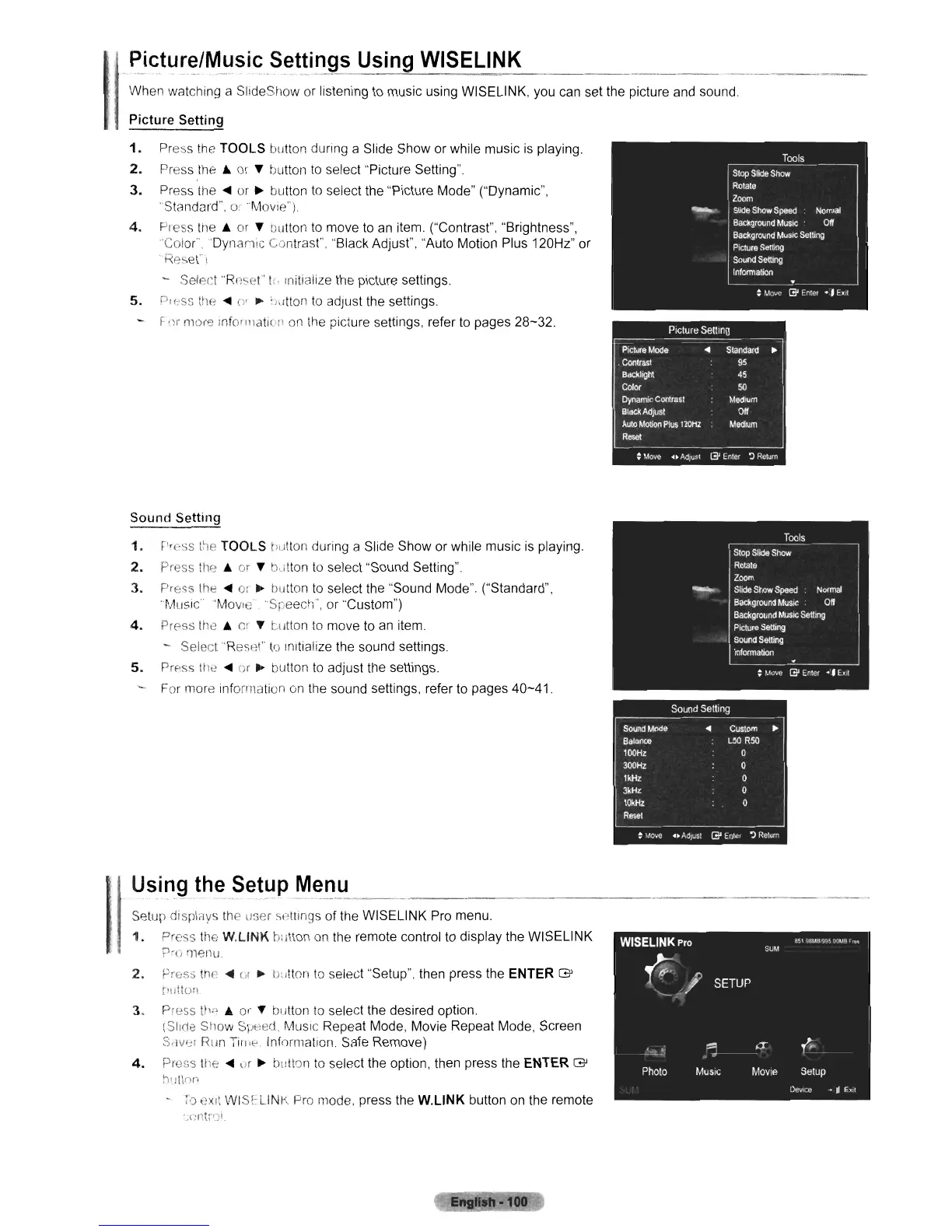
When watching a SlideShow or listening to music using WISELlNK, you can set the picture
and
sound.
Picture Setting
1.
Pre s the TOOLS button during a Slide Show or while music
is
playing.
2.
Press the 6
or
'Y
button
to
select "Picture Setting".
3.
Press
the'"
or
• button
to
select the "Picture Mode" ("Dynamic",
'Standard". or 'Movie")
4.
Pless ltle 6
or
'Y
Dutton
to
move
to
an item. ("Contrast", "Brightness",
'Color'Dynamic
Contrast". "Black Adjust", "Auto Motion Plus 120Hz" or
KASel!
- Selpet "Rp.set'
t:·
rnitiaiize the picture settings.
5.
DreSS
ti\("
...
()'
•
:Jl1tton
to
adjust the settings.
~
,11'
more info'll1atll'" on the picture settings, refer
to
pages 28-32.
Sound
Setting
1.
rress
Ile
TOOLS t:utton during a Slide Show or while music is playing.
2.
press the 6
or
'Y
bcltton
to
select "Sound Setting".
3.
prE:SS
the'"
0:
• button
to
select the "Sound Mode". ("Standard",
"Music"'Movle
"Speech", or "Custom")
4.
Press Ihe 6
GI
'Y
tutton
to
move
to
an
item.
- Selecl'Restl!"
to
Initialize the sound settings.
5.
Press tlie
...
or • button
10
adjust the settings.
For more info(lnation
on
the sound settings, refer
to
pages
40-41.
Us.ing
the
.~etup~.~~.!J
_
Setup displays the lIser :'t,ttings of the WISELINK Pro menu.
1.
Press the
W.L1NK
britton
on
the remote control
to
display the WISELINK
P'c, rnenu.
2.
Prt:ss
th
....
01 •
[j"tlon
to
select "Setup". then press the ENTER
G'
['lJt!Ur)
3. Press tI", 6
0"
'Y
button
to
select the desired option.
tSlrne Show
Spc,ed,
MUSIC
Repeat Mode, Movie Repeat Mode, Screen
S'IV'~i
RIIil
~lillt·.
Information. Safe Remove)
4.
Press
tile'"
"r
• button
to
select the option, then press the ENTER
G'
h'
Jll()ro
-
~0
"XII WISr:L1NK Pro mode, press the
W.L1NK
button on the remote
~
__
(
:ntr,~;j.
·100
WISELINK
Pro
~s,
"3l,IR?':<Soc.Wi~r
..
5UM
p
.~,I
SETUP
.'
t.
.,
is
po
Photo
MUSIC
MOVie
Setup
Oevoce
••
EXll












 To Next Page