o
Currently
selected
photo
Shows the currently selected photo.
f)
Current
Sort
Standard
Press
the.
or
~
button
to
change the standard for sorting photos. ("Monthly", "Timeline", "Color", "Composition
"Folder", "Preference")
The item that
is
selected
as
the sorting standard
is
highlighted
in
the Photo Information Window
9
View
Groups
Shows the sorting groups The sorting group including the currently selected photo
is
highlighted.
o
Current
Device
Shows the currently selected device name Press the
Red
button
to
select a device
«:')
Item
Selection
Information
Shows the number of photos that are selected
by
pressing the Yellow button.
o Help Items
o Red(Device)
button:
Selects a connected
device,
o Green(Favorites Setting)
button:
Changes the favorites setting for the selected photo, Press this button
repeatedly until the desired value appears. (Refer to page 81)
o Yellow(Select)
button:
Selects photos from the photo list. Selected photos are marked with a symbol
\I
on the left.
o
~ ~
(Jump)
button:
Jumps to the previous sorting group I Jumps
to
the next sorting group.
o TOOLS(Option)
button:
Displays the "Slide Show", "Play Current Group", "Rotate", "Delete", "Change Group Info"
(in "Color" or "Composition" group),"lnformation"
or
"Safe Remove" menus.
ISorting
Pho!~ist
----------.--
You
can sort photos
in
the Photo List by a particular standard.
1.
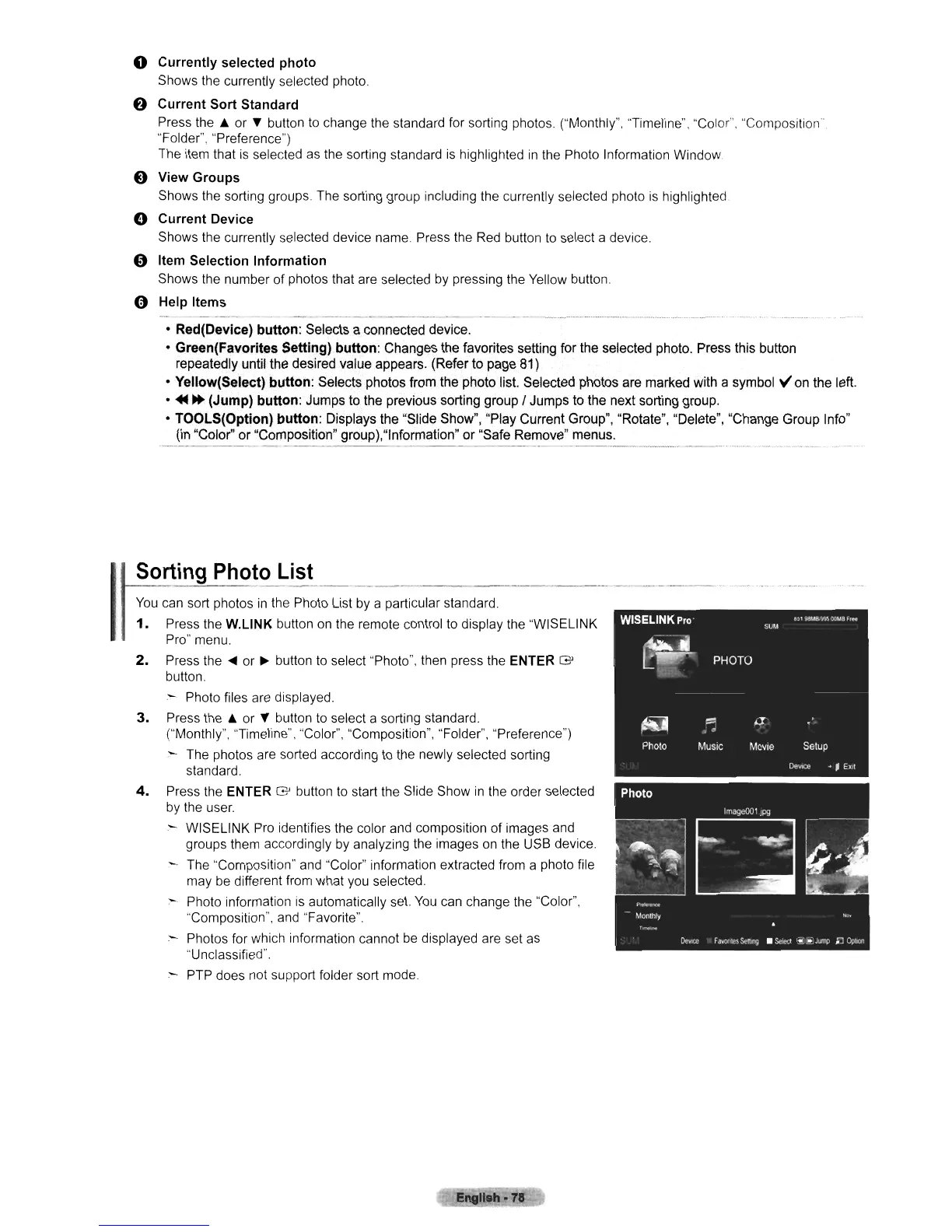
Press the W.L1NK button
on
the remote control to display the "WISELINK
Pro" menu.
2.
Press the
~
or
~
button
to
select "Photo", then press the ENTER G
button.
.- Photo files are displayed.
3.
Press
the.
or
~
button
to
select a sorting standard.
("Monthly", "Timeline". "Color", "Composition", "Folder", "Preference")
:-
The photos are sorted according
to
the newly selected sorting
standard.
4.
Press the ENTER G button
to
start the Slide Show
in
the order selected
by
the user.
WISELINK Pro identifies the color and composition of images and
groups them accordingly
by
analyzing the images
on
the USB device.
:-
The "Composition" and "Color" information extracted from a photo file
may
be
different from what you selected.
- Photo information
is
automatically set.
You
can change the "Color",
"Composition", and "Favorite".
- Photos for which information cannot
be
displayed are set
as
'·Unclassified".
- PTP does not support folder sort mode
english·
78












 To Next Page