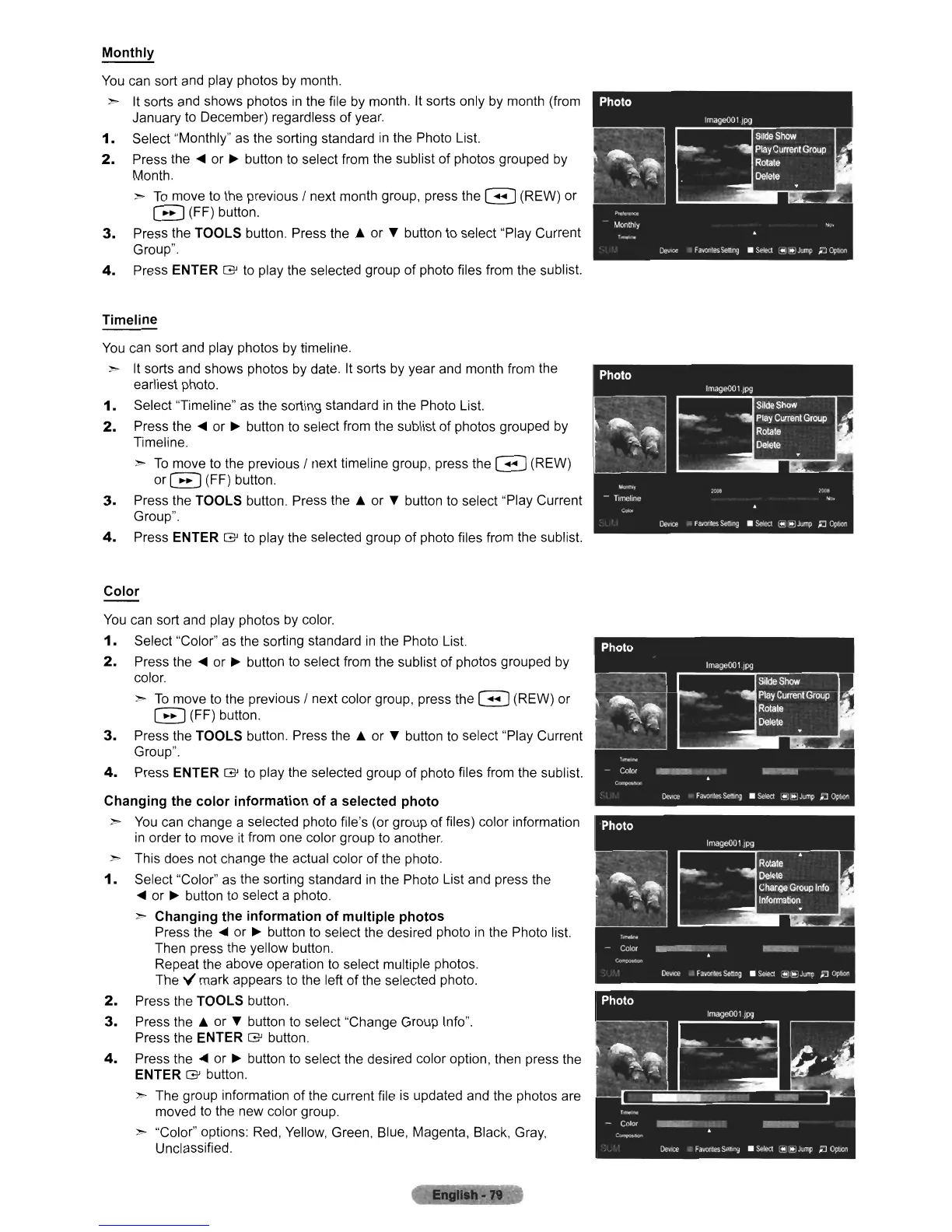
Monthly
You
can sort and play photos by month.
:>
It
sorts and shows photos
in
the file
by
month.
It
sorts only
by
month (from
January to December) regardless of year.
1.
Select "Monthly"
as
the sorting standard
in
the Photo List.
2.
Press the
....
or
~
button to select from the sublist of photos grouped
by
Month.
:>
To
move to the previous / next month group, press the G (REW) or
B (FF) button.
3.
Press the TOOLS button. Press the
..
or T button to select "Play Current
Group".
4.
Press ENTER
G'
to play the selected group
of
photo files from the sublist.
Timeline
You
can sort and play photos
by
timeline.
:>
It
sorts and shows photos by date.
It
sorts
by
year and month from the
earliest photo.
1.
Select "Timeline" as the sorting standard
in
the Photo List.
2.
Press the
....
or
~
button
to
select from the sublist
of
photos grouped
by
Timeline.
:>
To
move to the previous / next timeline group, press the G (REW)
or
0 (FF) button.
3.
Press the TOOLS button. Press the
..
or T button to select "Play Current
Group".
4.
Press ENTER
G'
to play the selected group of photo files from the sublist.
Color
You
can sort and play photos
by
color.
1.
Select "Color"
as
the sorting standard
in
the Photo List.
2.
Press the
....
or
~
button to select from the sublist of photos grouped by
color.
:>
To
move to the previous / next color group, press the G (REW) or
o (FF) button.
3.
Press the TOOLS button. Press the
..
or T button to select "Play Current
Group".
4.
Press ENTER
G'
to play the selected group of photo files from the sublist.
Changing the color information of a selected photo
:>
You
can change a selected photo file's (or group of files) color information
in
order to move
it
from one color group to another.
:>
This does not change the actual color of the photo.
1.
Select "Color"
as
the sorting standard
in
the Photo List and press the
....
or
~
button to select a photo.
:>
Changing the information of multiple photos
Press the
....
or
~
button to select the desired photo
in
the Photo list.
Then press the yellow button.
Repeat the above operation to select multiple photos.
The
\I
mark appears to the left of the selected photo.
2.
Press the TOOLS button.
3.
Press the
..
or T button to select "Change Group Info".
Press the ENTER
G'
button.
4.
Press the
....
or
~
button to select the desired color option, then press the
ENTER
G'
button.
:>
The group information of the current file
is
updated and the photos are
moved to the new color group.
:>
"Color" options: Red, Yellow, Green, Blue, Magenta, Black, Gray,
Unclassified












 To Next Page