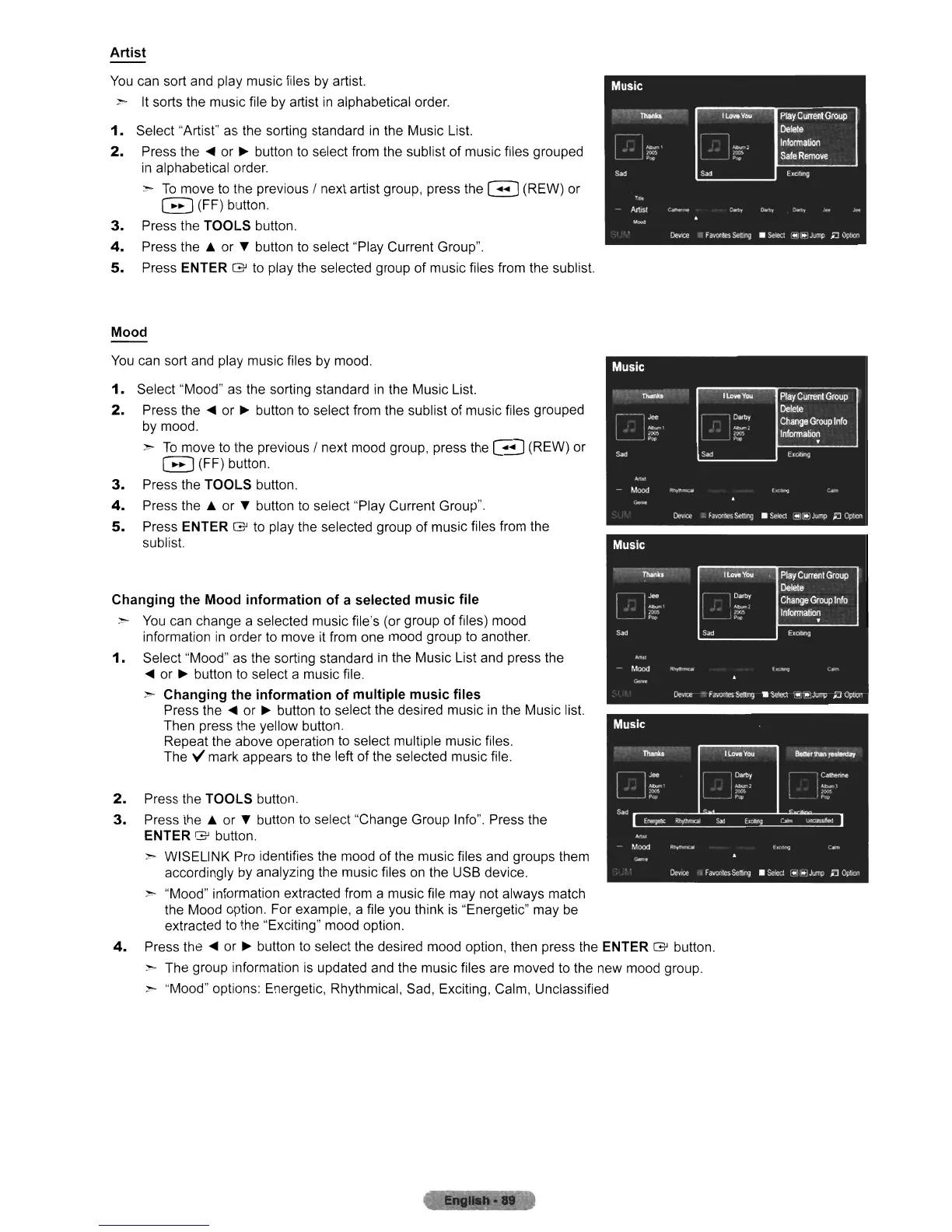
Artist
You
can sort and play music files by artist.
~ It sorts the music file
by
artist
in
alphabetical order.
1.
Select "Artist" as the sorting standard
in
the Music List.
2.
Press
the'"
or
~
button
to
select from the sublist of music files grouped
in
alphabetical order.
>
To
move
to
the previous / next artist group, press the G (REW) or
G (FF) button.
3.
Press the TOOLS button.
4.
Press the & or T button
to
select "Play Current Group".
5.
Press ENTER G
to
play the selected group
of
music files from the sublist.
Mood
You
can sort and play music files
by
mood.
1.
Select "Mood" as the sorting standard
in
the Music List.
2.
Press
the'"
or
~
button
to
select from the sublist
of
music files grouped
by
mood.
>
To
move
to
the previous / next mood group, press the G (REW) or
G (FF) button.
3.
Press the TOOLS button.
4.
Press the & or T button
to
select "Play Current Group".
5.
Press ENTER G to play the selected group
of
music files from the
sublist.
Changing the Mood information
of
a selected music file
~
You
can change a selected music file's (or group of files) mood
information
in
order
to
move
it
from one mood group
to
another.
1.
Select "Mood"
as
the sorting standard
in
the Music List and press the
...
or
~
button
to
select a music file.
> Changing the information
of
multiple music files
Press
the'"
or
~
button
to
select the desired music
in
the Music list.
Then press the yellow button.
Repeat the above operation to select multiple music files.
The
V mark appears
to
the left of the selected music file.
2.
Press the TOOLS button.
3.
Press the & or T button
to
select "Change Group Info". Press the
ENTER G button
> WISELINK Pro identifies the mood of the music files and groups them
accordingly
by
analyzing the music files on the USB device.
> "Mood" information extracted from a music file may not always match
the Mood option. For example, a file you think
is
"Energetic" may
be
extracted
to
the "Exciting" mood option.
4.
Press
the'"
or
~
button
to
select the desired mood option, then press the ENTER G button.
> The group information
is
updated and the music files are moved
to
the new mood group.
> "Mood" options: Energetic, Rhythmical, Sad, Exciting, Calm, Unclassified
II












 To Next Page