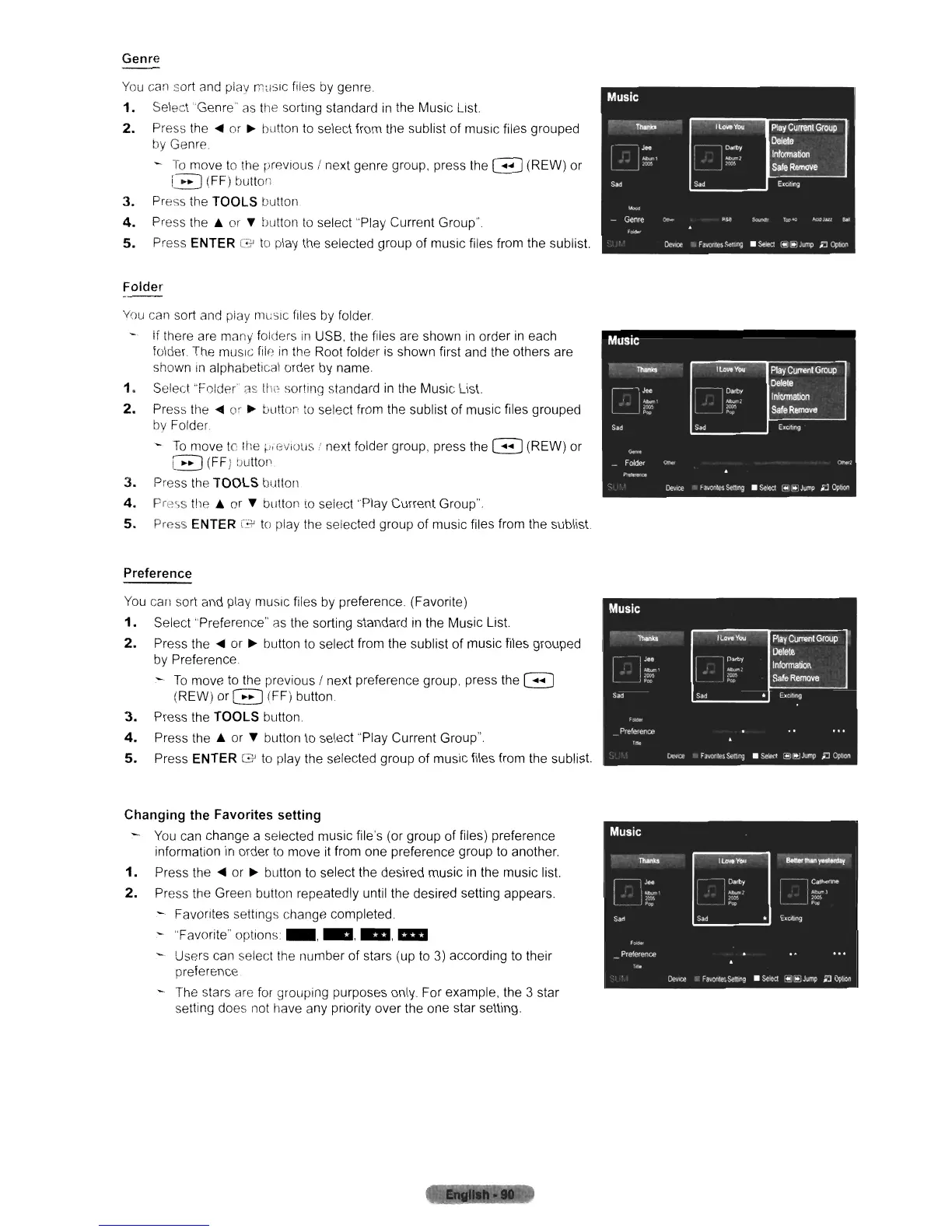
Genre
You
can sort and play
m~ISIC
files
by
genre.
1.
Select "Genre'
as
the sorting standard
in
the Music
List
2.
Press
the.
or
~
button
to
select from the sublist of music files grouped
by
Genre
-
To
move
to
the previous I next genre group, press the G (REW) or
G (FF) button
3.
Press the TOOLS button.
4.
Press
the'"
or T button
to
select "Play Current Group".
5.
Press ENTER G
to
play the selected group of music files from the sublist
Folder
You
can sort and play
rm.;slc
files
by
folder.
If there are many folders
in
USB. the files are shown
in
order
in
each
folder. The musIc file
in
the Root folder
is
shown first and the others are
shown
in
alphabetical order
by
name.
1.
Select "Folder"
CIS
tile
sorting standard
in
the Music List.
2.
Press
the.
or
~
button
to
select from the sublist of music files grouped
by
Folder.
-
To
move
to
fhe
p,eviuus.' next folder group. press the G (REW) or
G (FF) buttof'.
3.
Press the TOOLS button
4.
Pre<,s
the'"
or T button
to
select 'Play Current Group".
5.
Press ENTER r3'
to
play the selected group of music files from the sublist
Preference
You
can sort and play musIc files
by
preference. (Favorite)
1.
Select "Preference"
as
the sorting standard
in
the Music
List
2.
Press the • or
~
button
to
select from the sublist of music files grouped
by
Preference
~
To
move
to
the previous I next preference group. press the G
(REW) or G (FF) button.
3.
Press the TOOLS button.
4.
Press
the'"
or T button
to
select "Play Current Group"
5.
Press ENTER
G'
to
play the selected group
of
music files from the sublist
Changing the Favorites setting
You
can change a selected music file's (or group of files) preference
information
in
order
to
move it from one preference group
to
another.
1.
Press
the.
or
~
button
to
select the desired music
in
the music list.
2.
Press the Green button repeatedly until the desired setting appears.
Favontes settings change completed.
- "Favorite" options _
.........
11II
-.
Users can select the number of stars (up
to
3)
according
to
their
preference
- The stars are
for
grouping purposes only. For example. the 3 star
setting does not have any priority over the one star setting.












 To Next Page