Access Point Select
You
can select the IP sharer
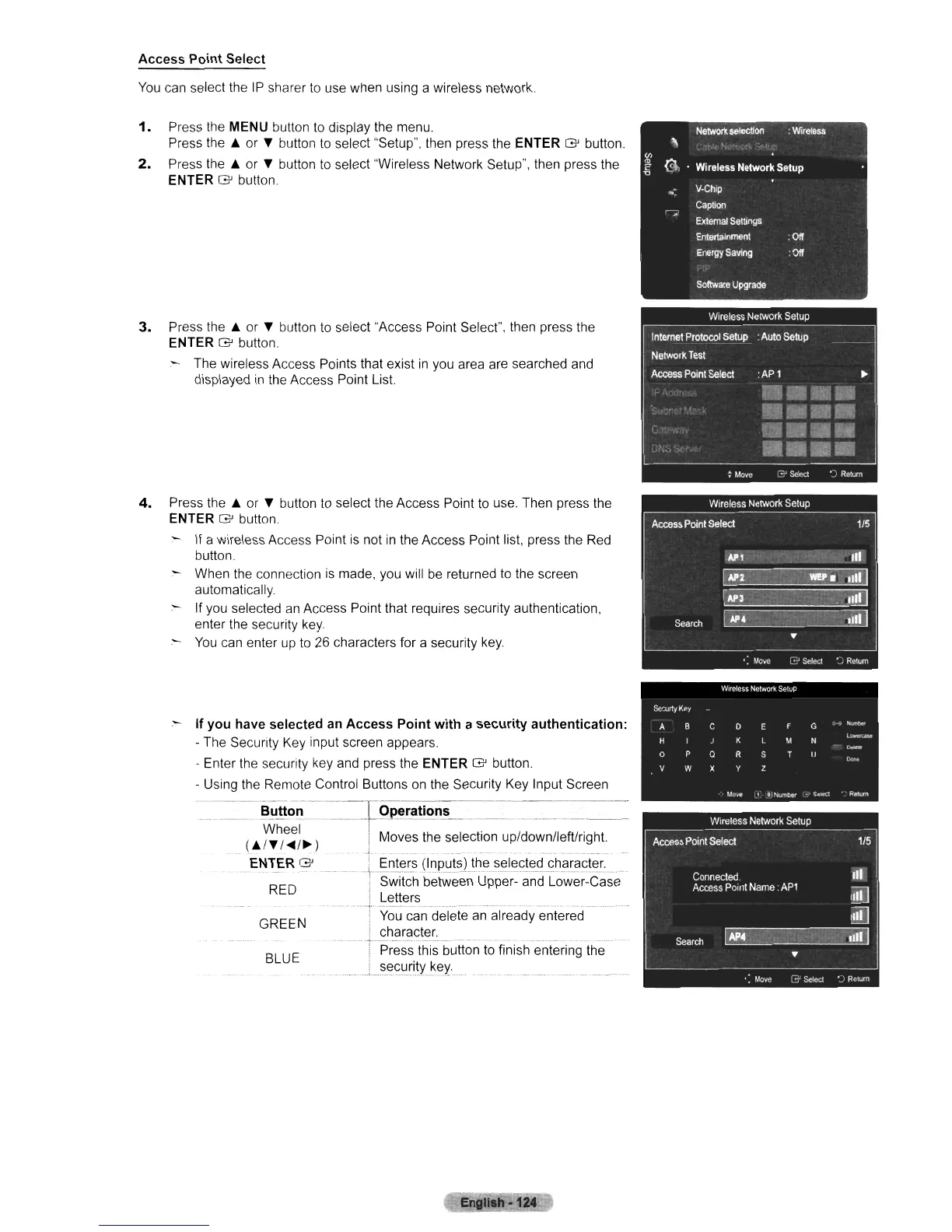
to
use when using a wireless network.
1.
Press the MENU button
to
display the menu
Press the or • button
to
select "Setup", then press the ENTER G button.
2.
Press the or • button
to
select "Wireless Network Setup", then press the
ENTER G button.
3.
Press the
...
or • button
to
select "Access Point Select", then press the
ENTER G button.
- The wireless Access Points that exist
in
you area are searched and
displayed
in
the Access Point List.
4.
Press the
...
or • button
to
select the Access Point to use. Then press the
ENTER G button.
- If a wireless Access Point
is
not
in
the Access Point list, press the Red
button.
~
When the connection
is
made, you will
be
returned
10
the screen
automatically.
~
If you selected
an
Access Point that requires security authentication,
enter the security
key.
-
You
can enter up
to
26 characters for a security key
RED
BLUE
GREEN
- If you have selected
an
Access Point with a security authentication:
- The Secunty Key input screen appears.
- Enter the security key and press the
ENTER G button.
- Using the Remote Control Buttons on the Security Key Input Screen
~.~
"~-
B~!tO~
----=l=Qe.eratiC!n~_
_ _
_.
..
_
(
...
~~::~~
) i Moves the selection up/down/lefUright.
-. .
~
..
-
...
-
•.
ENTER G
..
L~~tElrs
the selected character.
i Switch between Upper- and Lower-Case
I Letters
-
TYo~cand-elete'anaT~e'ad'y
"en-teredO
! character.
........
-r
_ _- -
I Press this button
to
finish entering the
.L~Elct,J_rity
..
~el'-.
_...
_......____..
....
_.
En
.leh·124












 To Next Page