Chapter 5: Display Panel Messages
Display Panel Messages
90 Scantron OpScan 4ES and iNSIGHT 4ES Scanners
To resolve this condition, press down firmly on the
sheet deflector so that it is fully seated.
Press START to resume scanning.
Press OFF to put the scanner into sleep mode.
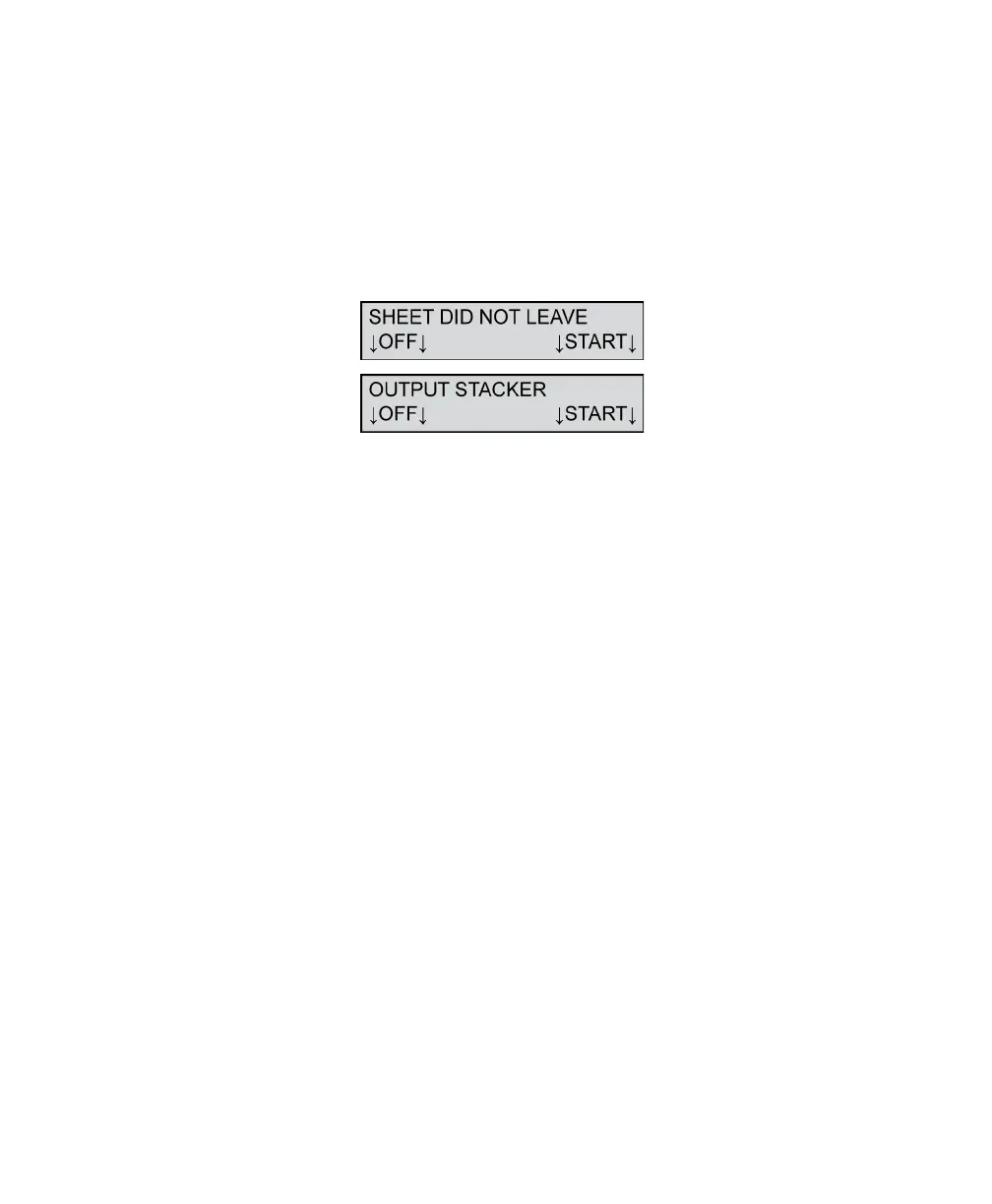
Sheet Did Not Leave Output Stacker
The scanner displays this message when a sheet jams.
This error is also displayed as a result of a dirty sensor
and/or dirty conditions surrounding the sensor area.
NOTE: Refer to the section “Cleaning the Select
Stacker” on page 216 of this manual for directions
on cleaning the Select Stacker.
To resolve this condition:
1. Clear all sheets from the scanner and Select
Stacker transport bed.
2. Blow canned air (Scantron recommends a non-
condensing propellant) onto the output sensor
and surrounding area to remove paper dust and
debris.
3. Place any sheet(s) not processed by the host
software back in the input tray.
Press START to continue scanning after taking
corrective action.
Press OFF to put the scanner in sleep mode.


 To Next Page