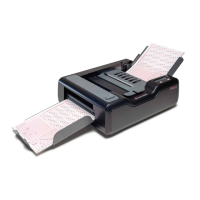
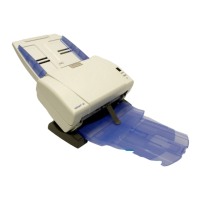
Chapter 2: Setting Up Your Scanner
Installing Scanning Software
30 Scantron OpScan 4ES and iNSIGHT 4ES Scanners
Installing Scanning Software
Install your scanning software. Refer to the
documentation that came with your scanning software
for instructions.
NOTE: TWAIN driver software is included on the utility
CD.
The TWAIN driver allows various TWAIN
compatible software applications to interact and scan
forms with your iNSIGHT 4ES scanner.
IMPORTANT: If you are replacing an older scanner but
will still be using your original scanning software,
you will likely find that you do not have a selection
for your new scanner in your scanning software. In
most cases, your older scanning software will work
if you select an earlier version scanner that is
compatible with the OpScan 4ES or iNSIGHT 4ES.
Use the following as guidelines:
• If you purchased an OpScan 4ES, select
OpScan 4 in your scanning software.
• If you purchased an iNSIGHT 4ES and will be
running in OMR with Imaging mode, select
iNSIGHT 4 in your scanning software.
• If you purchased an iNSIGHT 4ES and will be
running in OMR Only mode, select OpScan 4 in
your scanning software.
• If you purchased an OpScan 4ES or iNSIGHT
4ES and will be running in ES/ScanMark emula-
tion mode, select the ES scanner that you have
replaced (ES 2010, ES 2260, or ES 2800 scan-
ner).


 To Next Page