Chapter 2: Setting Up Your Scanner
Installing Printer Cartridge(s)
Operator’s Guide 23
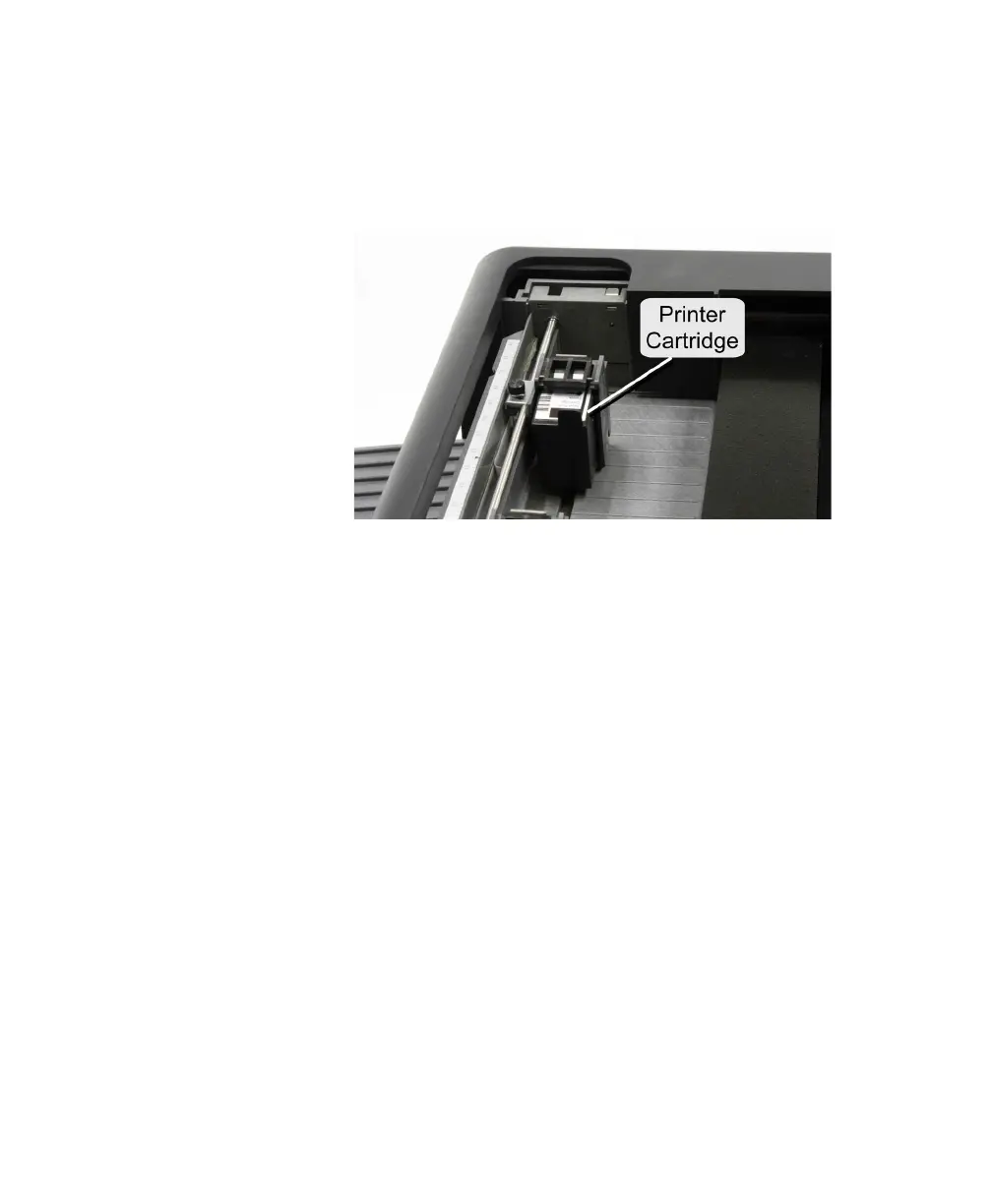
3. Slide the printer cartridge into the cartridge holder
“feet first” then press the top of the cartridge
firmly into the cartridge holder until you feel two
clicks. This ensures that the cartridge is fully
seated.
4. If you have dual printers, repeat step 3 for the
second printer.
5. Re-install the printer cover.
NOTE: For more printer information, refer to Appendix
B.


 To Next Page