UTT Technologies User Management Menu
http://www.uttglobal.com Page 106
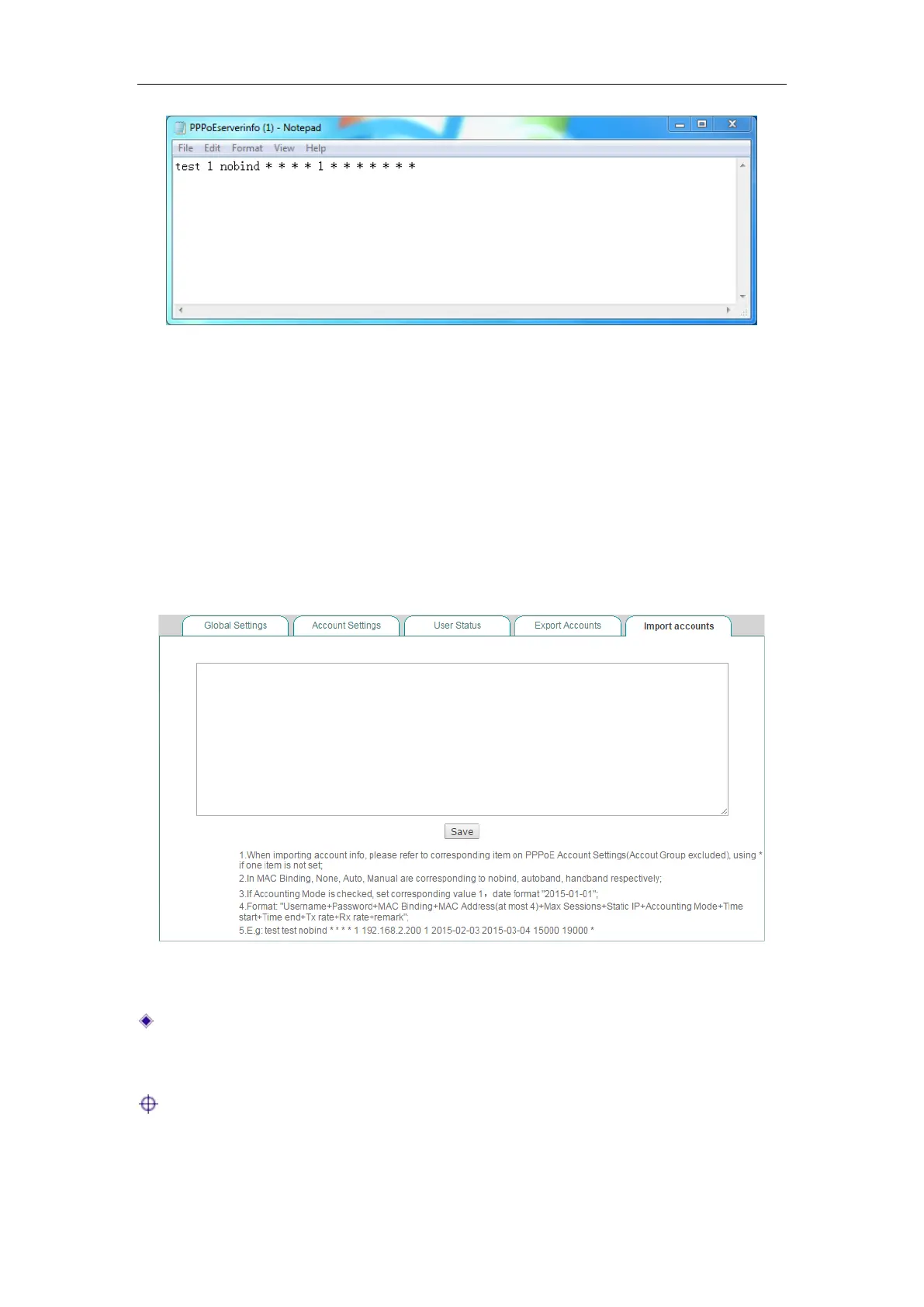
Figure 9-16 Export PPPoE accounts
9.3.3.5 Import Accounts
The PPPoE > Import Accounts page provides PPPoE accounts import function to
simplify operation. When you want to create a great deal of PPPoE accounts, you can
import them at a time in the page. You can edit them in Notepad, and then copy them
to the
Import Accounts list box; also you can directly enter them in the Import
Accounts list box. The import contents are: User Name, Password, and Description of
each PPPoE account, one PPPoE account per line; and the import format of a PPPoE
account is: User Name
<Space>Password<Space>Description<Enter>.
Figure 9-17 Import PPPoE accounts
Save: After you have entered the PPPoE accounts in the Import Accounts list box,
click the
Save button to save them to the Device, and then you can view them in
the
PPPoE Account List.
Note: To avoid unnecessary data loss due to computer crashes, you can copy the
entered PPPoE accounts to a Notepad file in your local PC before saving them to
the Device.



 To Next Page