UTT Technologies Advanced Menu
http://www.uttglobal.com Page 70
Add an NAT Rule: Click the Add button to go to the setup page, and then
configure it, lastly click the
Save button.
Edit an NAT Rule: Click its Edit button, the related information will be displayed on
the setup page. Then modify it, and click the
Save button.
Delete NAT Rule(s): Select the leftmost check boxes of them, and then click the
Delete button.
7.1.2.5 NAT Rule settings
7.1.2.5.1 One2One settings
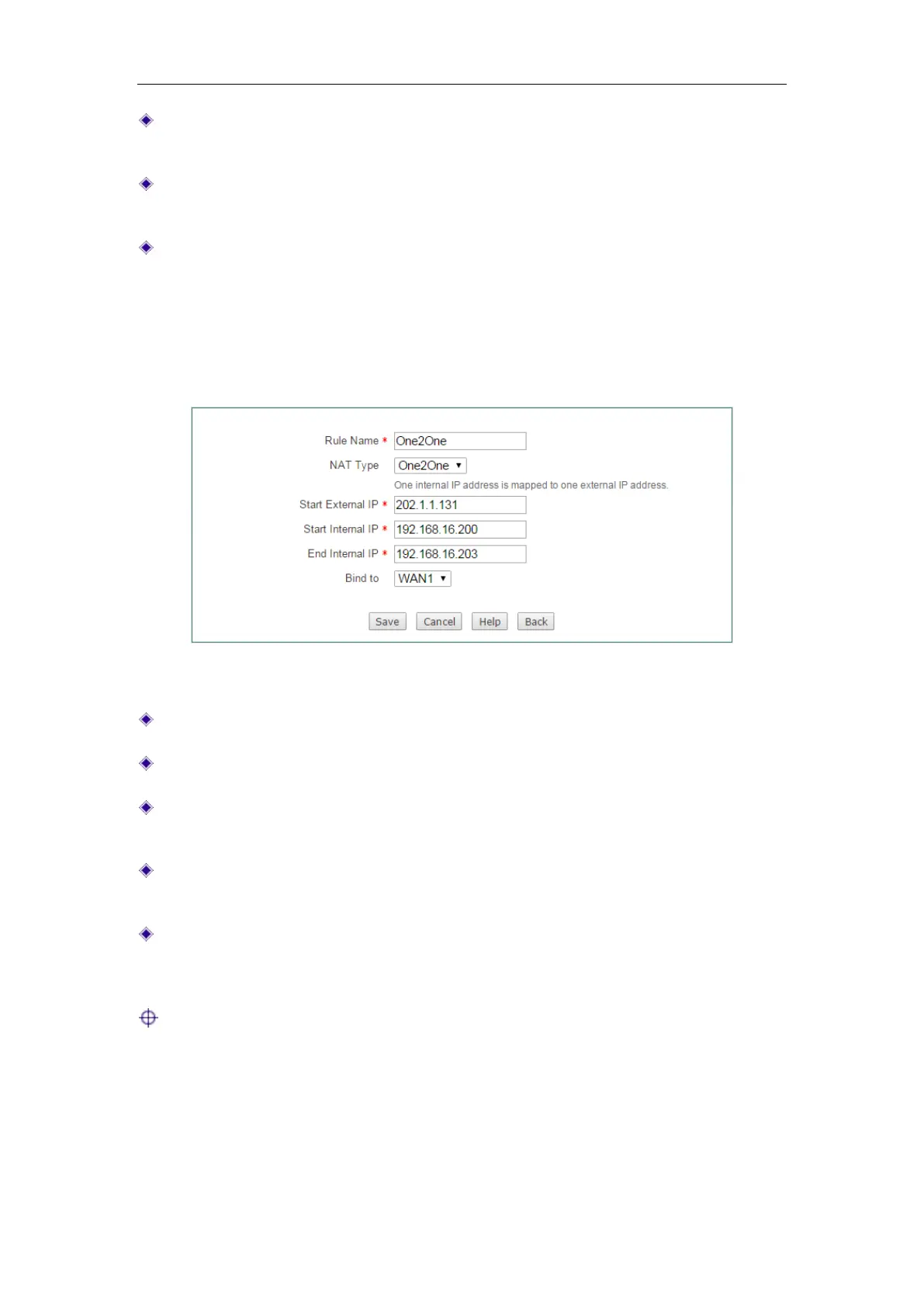
Figure 7-7 One2One settings
Rule Name: Specify the name of this NAT rule entry.
NAT Type: Specify the type of the NAT rule. Here please select One2One.
Start External IP: Specify the start external IP address to which the start internal
IP address is mapped.
Start Internal IP and End Internal IP: Specify the internal address range of the
NAT rule. The LAN hosts that belong to this address range will use the NAT rule.
Bind to: Specify an Internet connection to which the NAT rule is bound. The LAN
hosts that match the NAT rule will access the Internet through this Internet
connection.
Note:
1) When creating a One2One NAT rule, you should set the Start External IP Address,
and the number of the external IP addresses is the same as the number of
internal IP addresses, which is determined by the
Start Internal IP Address and
End Internal IP Address. For example, if the Start Internal IP Address is
192.168.16.6,
End Internal IP Address is 192.168.16.8, and Start External IP
Address is 200.200.200.116, then 192.168.16.6, 192.168.16.7, and 192.168.16.8
will be mapped to 200.200.200.116, 200.200.200.117, and 200.200.200.118



 To Next Page