MODULE 5: RESULT HANDLING
5-10 AEROSET
®
Customer Training Guide
94858-103 — July 2003
Searching for Results
The search function allows the Operator to enter specific criteria used to
search for specific orders and results. To use the search function, perform
the following steps.
1. Select <Database> in the Information Access Area, if the screen is
not currently displayed.
2. Select <Search> at the bottom of the DATABASE screen.
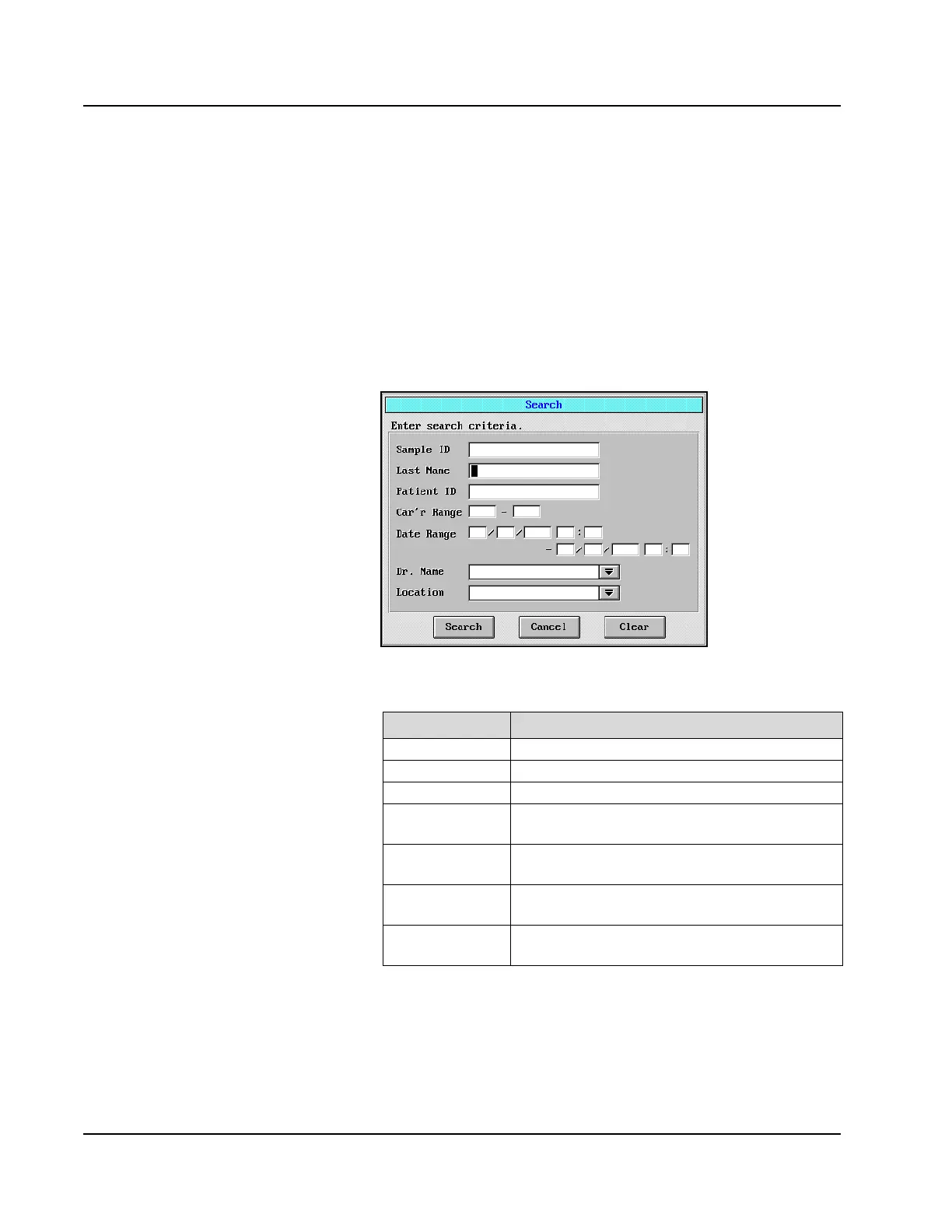
3. The Search dialog window is displayed.
Figure 5.5: Search Dialog Window
4. The following criteria can be entered for the search:
Criteria Description
Sample ID An individual Sample ID can be entered.
Last Name Enter up to 20 alphanumeric characters.
Patient ID Enter up to 20 alphanumeric characters.
Car’r Range A single carrier number or range of carriers can be
entered.
Date Range Enter a date range using day, month, year and/or
time.
Dr. Name Enter up to 20 alphanumeric characters or select
from the Drop-down list box.
Location Enter up to 20 alphanumeric characters or select
from the Drop-down list box.
• Can do searches using
multiple fields.
• Use “Clear” to delete all
fields.
• You can also select “Clear”
then “Search” to end the
search function.



 To Next Page