3.
(QuantStudio
™
7 Flex System only) If you have a Twister
™
Robot, toggle the power
buon on the rear of the Twister
™
Robot.
Note: The Twister
™
Robot is ready to use when the power LED illuminates.
4.
Power on the monitor.
5.
Power on the computer:
a.
Press the computer power buon, then wait for it to start.
b.
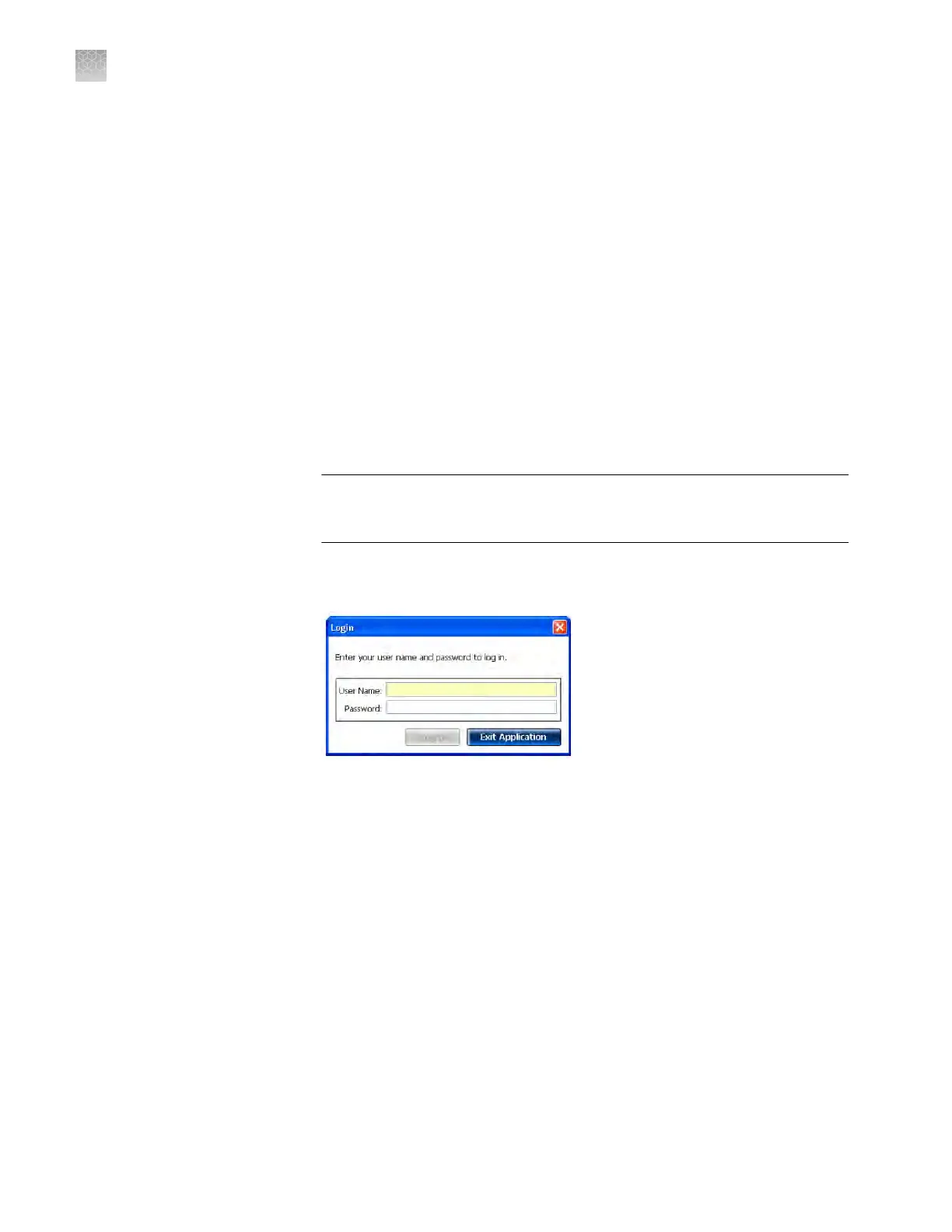
When the Login screen appears, enter your user name and password, then
click OK.
6.
Start the QuantStudio
™
Real-Time PCR Software:
a.
On the desktop, double-click QuantStudio
™
Real-Time PCR Software.
Note: If the shortcut is not present on the desktop, select Start4All
Programs4Applied Biosystems4QuantStudio Real-Time PCR Software
to start the software.
IMPORTANT! If the softw
are does not start, conrm that no other instances
of the instrument control software are open. If any instance of the software
is open, close it before starting the softwaree.
b.
If the QuantStudio
™
Real-Time PCR Softw
are Login appears, enter your
user name and password, then click Log In.
Note: Security is a separately licensed module. If y
our system requires this
module, contact Thermo Fisher Scientic.
Note: If the software displays the License Central screen after you log into
the software, your license le may have become corrupt. Contact Support to
obtain a replacement license le.
Appendix D P
ower on or off, store, and move
Power on the QuantStudio
™
6 or 7 Flex Real-Time PCR System
D
124
QuantStudio
™
6 and 7 Flex Real-Time PCR Systems v1.6 Maintenance and Administration Guide



 To Next Page