Chapter 9: The Touchscreen program
9/4
Operators & Maintenance Manual GENIUS Compact Version UK 0.1 © BESTnv
BESTnv Industrial Research BV, Marinus van Meelweg 20, 5657 EN, EINDHOVEN, THE NETHERLANDS
General tel. +31 (40) 292 2622 - Service tel. +31 (40) 292 2620 - Fax. +31 (40) 292 2633 - Email: service.BESTnv@bestnv.com
A. Title Bar
- To the left this bar features a list of menu names ending with the name the currently active menu.
These are the names of all the menu’s and submenus you have passed through to get to this menu.
(E.g. the title bar below indicates we are presently in the Normalization menu, which is a submenu of the
Detection menu, which is itself a submenu of the Main menu.)
- To the right you will fi nd 2 icon-buttons:
The alarm button: a yellow warning sign (left). Press this button to access a pop-up screen with a list
of warning and error messages
The Help button: a green book (right). Press this button to access the Help fi les.
B. Main Screen
Can be subdivided into several zones, containing buttons, screens, graphs and/or information. This is
the zone where the user will be adjusting settings or entering values.
C. Navigation Bar
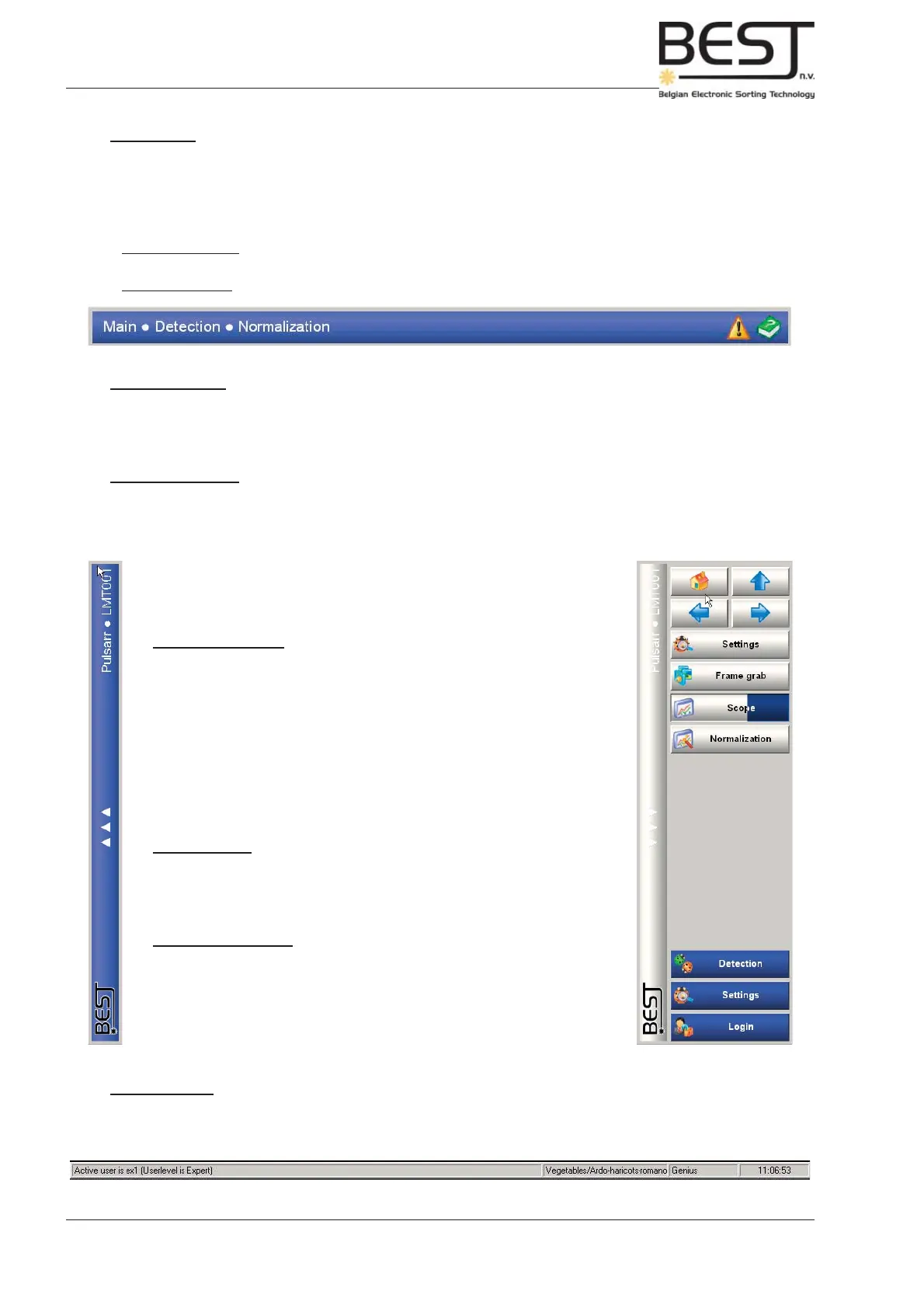
To the right side of each touchscreen menu there is a bar containing 3 arrows pointing to the left. If this
bar is pressed, the navigation bar will pop out, slightly overlapping the central screen of the menu. To
make the navigation bar disappear again, just press the bar to the left of the navigation bar with the
arrows pointing to the right.
D. Status Line
The status line underneath the main screen displays the following info from left to right (see below):
- User name + level, current Product fi le name and Time.
The navigation bar contains a number of buttons that can be divided in 3
groups from top to bottom on the bar:
1. ‘Navigation’ buttons: from left to right, and from top to bottom:
- “Home” Pressing this button will take you right back to
the main menu.
- “Level up” Pressing this button will take you to the menu that
is exactly one level above the menu you are in.
- “Back” Pressing this button will take you back to the
previous menu you visited
- “Next”” Pressing this button will take you to the next menu
(will only be activated when the ‘Back’ button has
been pressed one or more times).
2. ‘Menu’ Buttons:
The buttons shown here provide links to the menu’s that can be visited
directly from this menu. Usually these are the menu’s directly below
this menu
3. ‘Most visited’ buttons:
These 3 buttons provide direct links to the 3 most visited menu’s.



 To Next Page