9/31
Chapter 9: The Touchscreen program
Operators & Maintenance Manual GENIUS Compact Version UK 0.1 © BESTnv
BESTnv Industrial Research BV, Marinus van Meelweg 20, 5657 EN, EINDHOVEN, THE NETHERLANDS
General tel. +31 (40) 292 2622 - Service tel. +31 (40) 292 2620 - Fax. +31 (40) 292 2633 - Email: service.BESTnv@bestnv.com
9.7. Expert Settings
(Only available in Expert user level)
At present this only contains the user management menu.
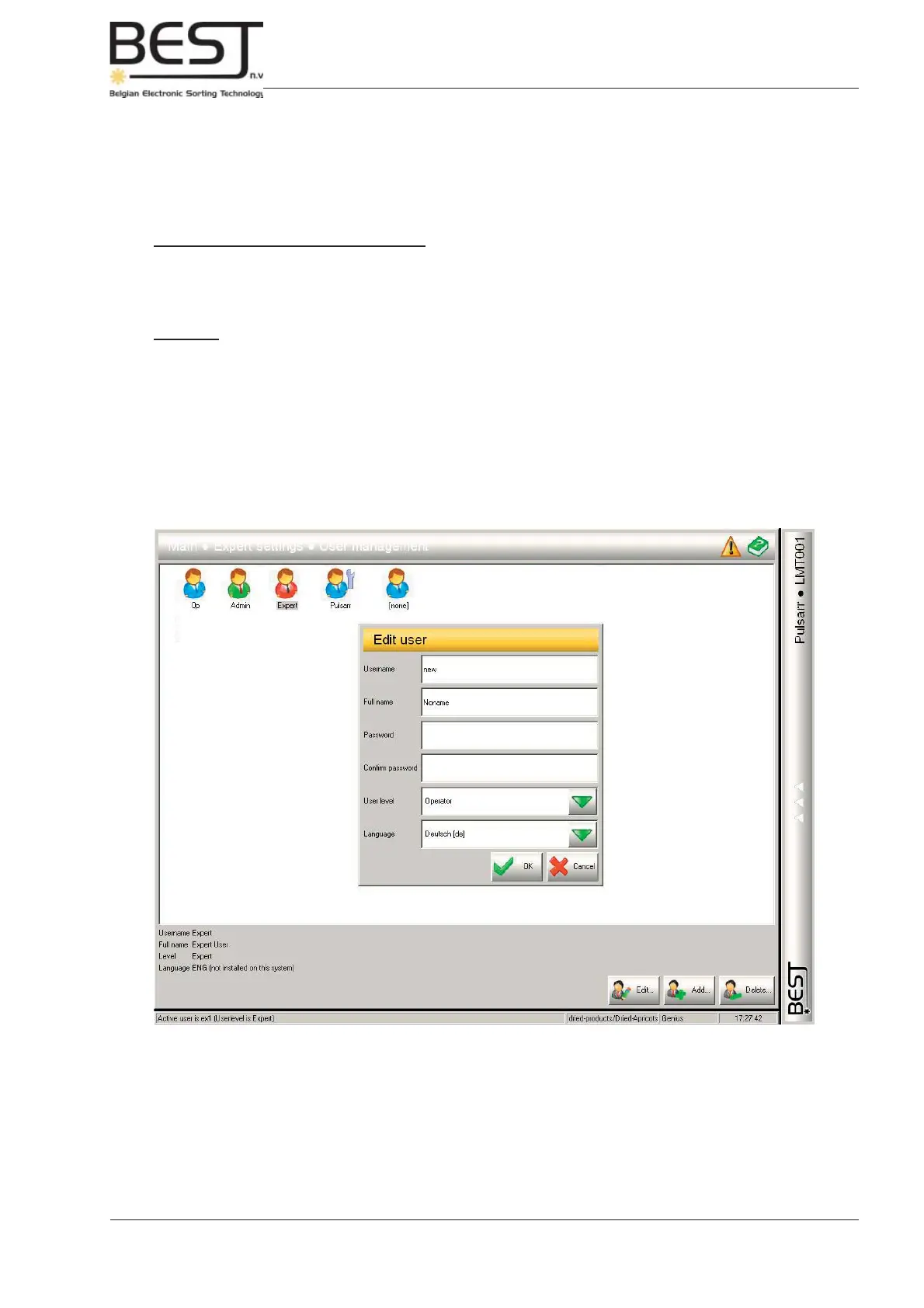
9.7.1. User Management Menu
This menu contains all features having to do with the management of the different users. Users can be
added, deleted, or edited.
Features:
- Edit button: Select a user icon and press this button to edit an existing user. A pop-up screen will
appear (see picture below) showing the present data of the user and enabling you to change
that data.
- Add button: Press this button to add a new user. An empty pop-up screen will appear (see picture below)
enabling you to fi ll in the appropriate data.
- Delete button: Select a user icon and press this button to remove an existing user. A pop-up screen
will appear asking you to confi rm your choice.
- In the left lower corner of the menu the data of the current user are displayed.
There are 3 basic user levels (see 9.2.2):
- Operator (blue)
- Administrator (green)
- Expert (yellow).
There is an additional Service level (black) which can be accessed by pressing the “Service” button to
the lower edge of the screen. This level is only intended for BESTnv service engineers.



 To Next Page