Chapter 9: The Touchscreen program
9/12
Operators & Maintenance Manual GENIUS Compact Version UK 0.1 © BESTnv
BESTnv Industrial Research BV, Marinus van Meelweg 20, 5657 EN, EINDHOVEN, THE NETHERLANDS
General tel. +31 (40) 292 2622 - Service tel. +31 (40) 292 2620 - Fax. +31 (40) 292 2633 - Email: service.BESTnv@bestnv.com
9.4.1. Settings Menu
This submenu contains all settings and functions concerning the thresholds and fi lters of the different
devices (camera/laser).
Attention! - All changes made in this menu will have immediate effects on the sorting
process if the device and the threshold are activated.
Features:
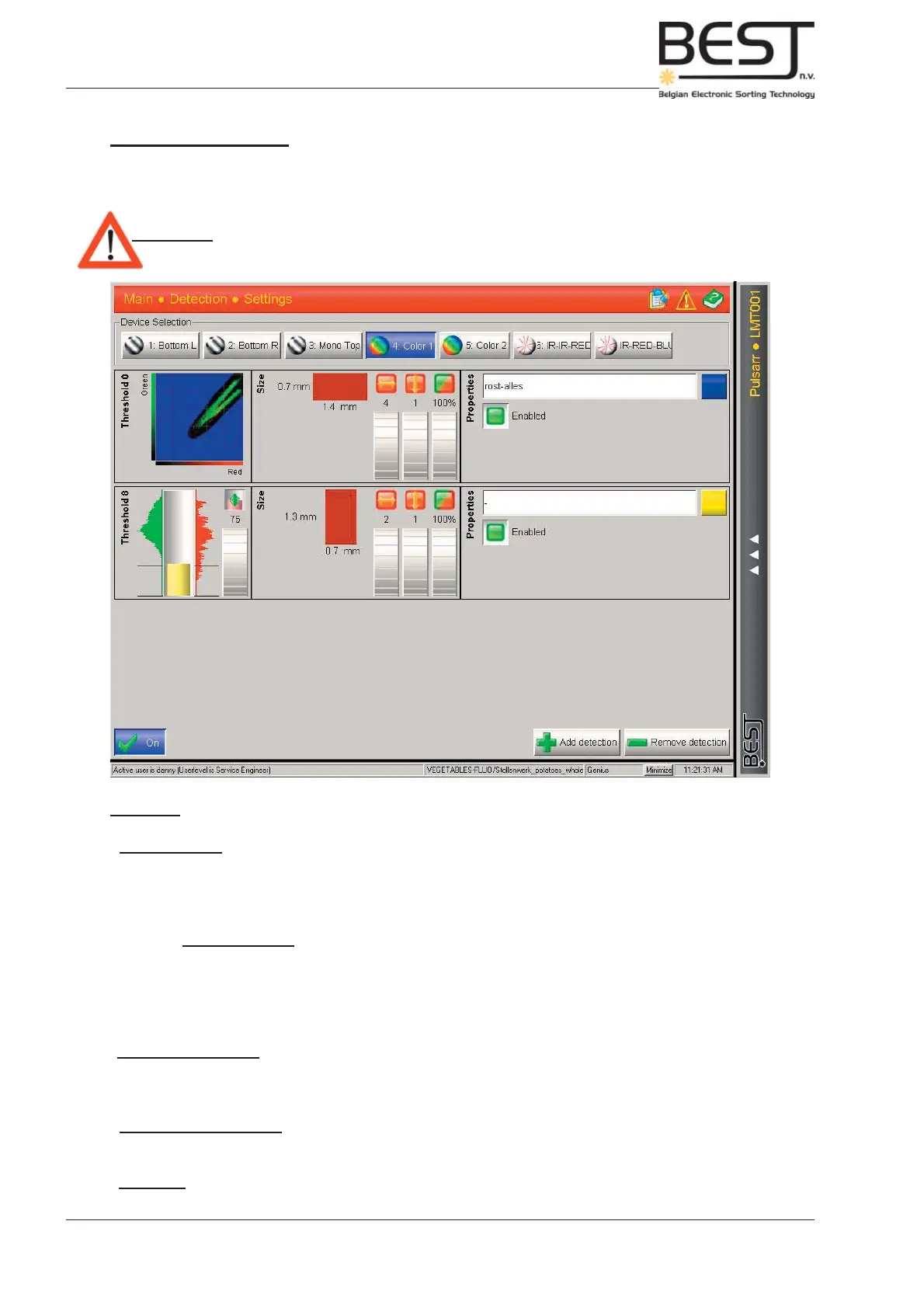
- Device buttons near the top of the screen: To select a particular device, press the appropriate button.
There are 3 different types of devices, Monochrome camera’s, Colour cameras and Lasers.
The different thresholds that have been created for this particular device will immediately appear on the
main screen.
- Different Detection Filters on the main screen (see picture):
There are 2 basic fi lter types: 1D (mono) and 2D (combined), and an additional Template Matching option
for both fi lter types.
For more theoretical information on the different Detection Thresholds, see chapter 3: Theory.
For a procedure on how to set the different thresholds, see chapter 5: Operational Procedures.
- Add Detection button near the bottom right corner of the screen: With this button new detection fi lters can
be added for the selected device. A number of menu’s will appear giving a choice in the type of detection
fi lter (1D or 2D), the signal to be used and the option (size fi lter or template matching).
- Delete Detection button near the bottom right corner of the screen: With this button detection fi lters of
the selected device can be deleted. Just press the button and make your choice.
- Off button near the bottom left corner of the screen: With this button the selected device will be switched
ON or OFF (the button will display the current state).



 To Next Page