Chapter 9: The Touchscreen program
9/8
Operators & Maintenance Manual GENIUS Compact Version UK 0.1 © BESTnv
BESTnv Industrial Research BV, Marinus van Meelweg 20, 5657 EN, EINDHOVEN, THE NETHERLANDS
General tel. +31 (40) 292 2622 - Service tel. +31 (40) 292 2620 - Fax. +31 (40) 292 2633 - Email: service.BESTnv@bestnv.com
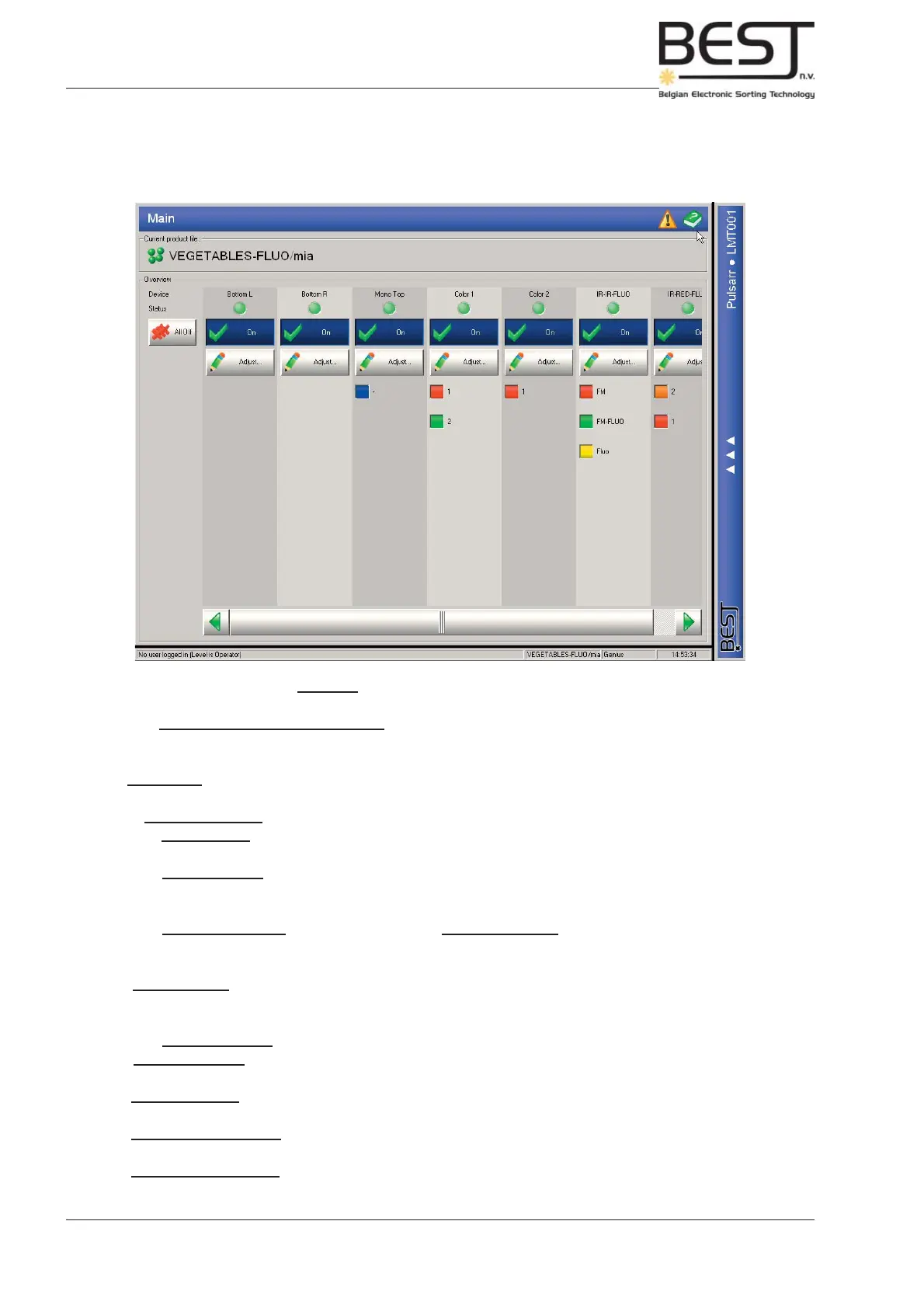
9.3. Main Menu
This menu will appear immediately after login (see picture below).
On this menu the following features can be found:
1- The icon and name of the product fi le that is currently in use is displayed near the top of the main
screen.
2- All devices (cameras and lasers) are displayed on the main screen in separate columns containing
the following items:
- A green status light underneath the device name will be active if the device is on.
- The On/off button can be pressed to switch the device on/off. The current state of the device (On/Off)
is also shown on the button.
- The “Adjust” button can be pressed to go directly to the settings submenu of the detection menu.
Here the signal thresholds can be adjusted (see 9.?.? Settings submenu) and added or deleted (only
in expert level).
- The coloured squares represent the different signal thresholds that have been created.
By pressing them these can be turned off (grey) or on (coloured).
3.- “All off” button to switch all devices off.
Via the navigation bar the user can go to the following submenu’s:
- Detection menu: This menu and its submenu’s contain all info, settings and functions regarding
the actual detection of product and defects.
- Rejection menu: This menu and its submenu’s contain all info, settings and functions regarding
the actual rejection of the defects.
- Product Setups menu: This menu contains all info and functions regarding the management of
product setup fi les.
- Expert Settings menu: (only in expert user level) This menu contains all info and functions regarding
the management of the users and user levels.



 To Next Page