delete.
Result: The selected Portfolio is highlighted.
Click the Delete button.3.
Result: The selected Portfolio folder and all the BlackTrax and BTWYSIWYG files in the folder
are deleted from the BlackTrax Portfolios folder.
To sort the displayed portfolios by name
In Portfolio Manager, click on the drop-down arrow and choose the Sort: Name drop-down menu.1.
Result: The list of Portfolios will be displayed in alphabetical order.
To sort the displayed portfolios by date
In Portfolio Manager, click on the drop-down arrow and choose the Sort: Date drop-down menu.1.
Result: The list of Portfolios will be displayed with the most recent Portfolio on top and the
oldest Portfolio at the bottom.
To import a file(s) from a portfolio
BlackTrax and BTWYSIWYG files can be imported into new Portfolios. When importing files, the user does
not need to import all file types. If no file is imported for a given section, the template file will be used for
that portion of the Portfolio.
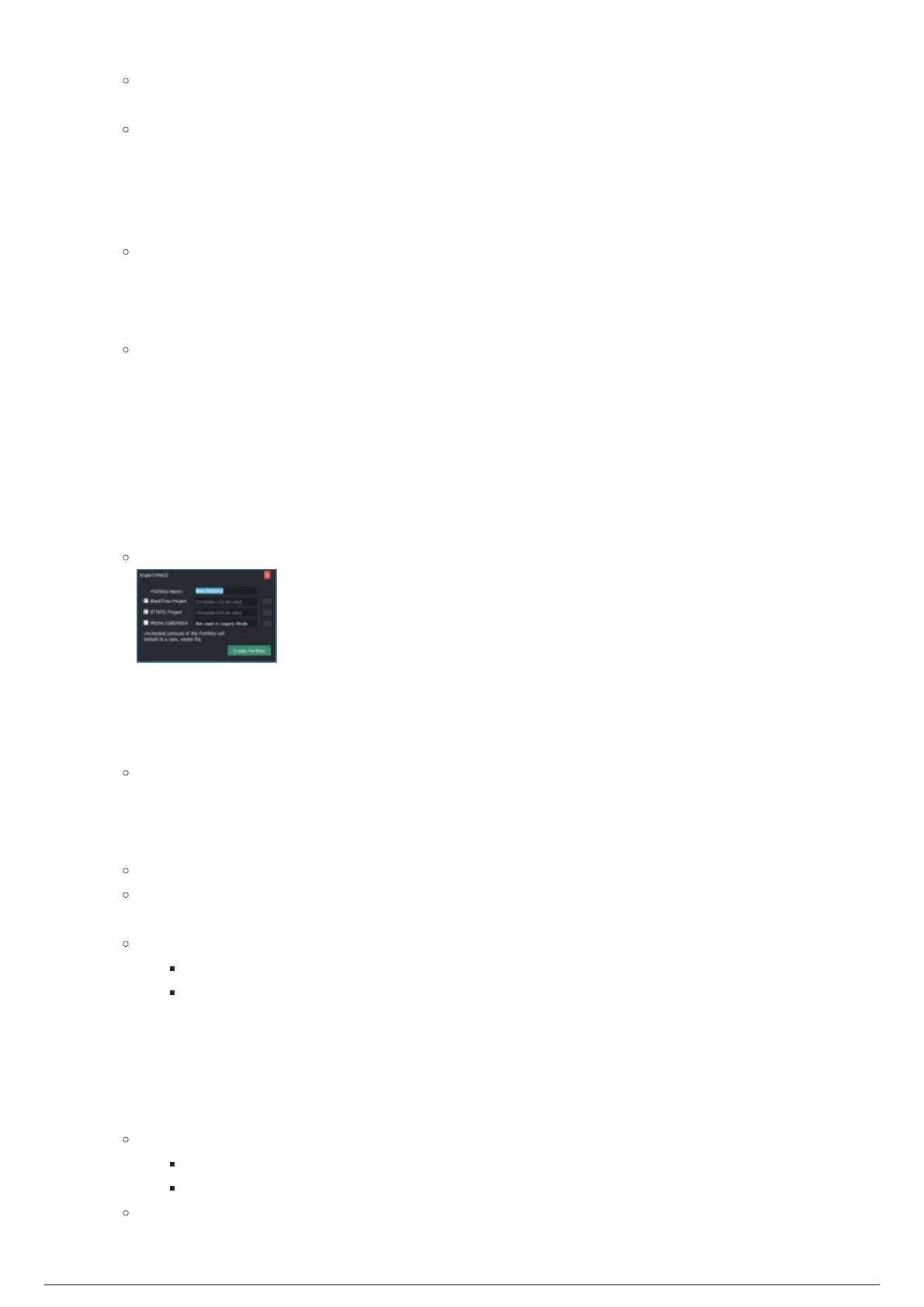
In Portfolio Manager, click the Import File(s) button.1.
Result: The Import File(s) dialog box appears.
Type the new name of the Portfolio in the Portfolio Name box.2.
Select the BlackTrax Project checkbox to include BlackTrax files that will be imported and added to3.
the new Portfolio.
Click on the ellipsis button to browse and select the BlackTrax file.4.
Result: The link appears in the BlackTrax Project box.
Select the BTWYG Project checkbox to include BTWYSIWYG files that will be imported and added to5.
the new Portfolio.
Click on the ellipsis button to browse and select the BTWYSIWYG file.6.
Result: The link appears in the BTWYG Project box.
Note: The unchecked portions of the Portfolio will default to a new, empty file.
Click Create Portfolio.7.
Result:
BlackTrax and BTWYSIWYG projects that were imported into the new Portfolio open.
BlackTrax and BTWYSIWYG files are renamed and copied to the BlackTrax Portfolios
folder.
To open a portfolio folder
In Portfolio Manager, select a Portfolio.1.
Click the Open Folder button.2.
Result:
The folder of the selected Portfolio opens in the browse dialog.
The name of the open Portfolio is highlighted in blue in the Portfolio Manager window.
Note: By default, all BlackTrax Portfolios folders are saved in C: > BlackTrax Portfolios >
Portfolio Name > BlackTrax folder and BTWYG folder.



 To Next Page