Sending Trackables
The Sending Trackables section is where Trackables are displayed and selected. The Trackable
Settings in the Output Options section are then applied to the selected Trackable.
Beacon IDs and Trackables are sent over RTTrPM.
When you patch a Beacon or Mini Beacon or Rigid Body Frame or Soft Body Frame to a Trackable, a
BlackTrax output sends the name of the Trackable (for example Luke instead of 1).
The position and orientation of the Trackable is generated from the Beacon or Frame that is
patched to it.
When you repatch a Trackable to a different Beacon or Frame, the position of the new Beacon
or Frame is sent to the Trackable and out to the third party.
Beacons and Frames that are not patched to a Trackable will send as Beacon IDs. You can repatch
Trackables to different Beacons and Frames in the BlackTrax software and all connected third
parties will receive the update automatically. You do not need to manually repatch Beacons in
every third party.
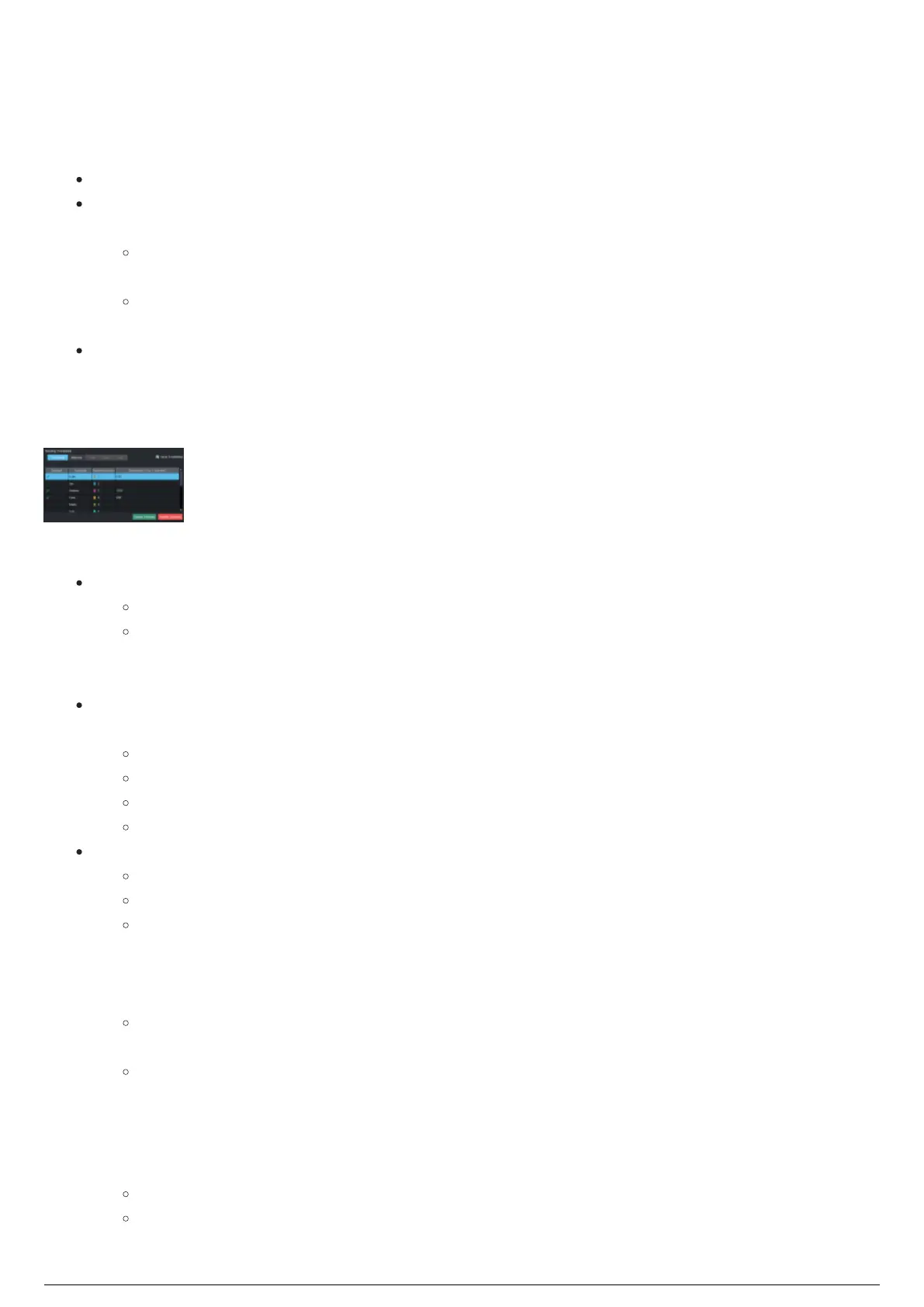
Sending Trackables section
In the Sending Trackables section:
Send Trackables checkbox: Select the checkbox to enable the Trackables tab.
Result: The Trackables tab is displayed.
Note: By default, the Trackables tab is off. Not all third parties are compatible with this
feature; consult with BlackTrax Technical Support or the third party support to confirm
compatibility.
Trackables tab: Click the tab to display the list of Trackables and their output status: Enabled,
Trackable, Patched Beacon and Smoothing.
Enabled: Displays a check mark when enabled.
Trackable: Displays the name of the Trackable.
Patched Beacon: Displays the ID or name of the Beacon or Frame assigned.
Smoothing: Displays the Smoothing value that was set in the Trackable Settings tab.
Beacons/Mini/Rigid/Soft tab: Click the tab to display the table with the list of Trackables.
Enabled: Displays a check mark when enabled.
Beacon: Displays the Beacon ID or name.
Smoothing: Displays the Smoothing value that was set in the Trackable Settings tab.
To enable sending trackable data to third parties
On the Sending Trackables section, select the Send Trackables checkbox.1.
Result: The Trackables tab appears.
Click the Trackables tab or Beacons tab or Mini tab or Rigid tab or Soft tab.2.
Result: The list of detected Trackables/Beacons/Mini Beacons/Rigid Frames/Soft Frames are
displayed in their tabs.
On each of the tab list, select or highlight the Trackable or Beacon or Mini Beacon or Rigid Frame or3.
Soft Frame.
Click Enable Selected.4.
Result: The Enabled column displays a check mark.
Tip: You can select/highlight several Trackables or Beacons or Rigid/Soft Frames at once and
then click Enable Selected to send to third parties, or click Disable Selected to stop sending.



 To Next Page