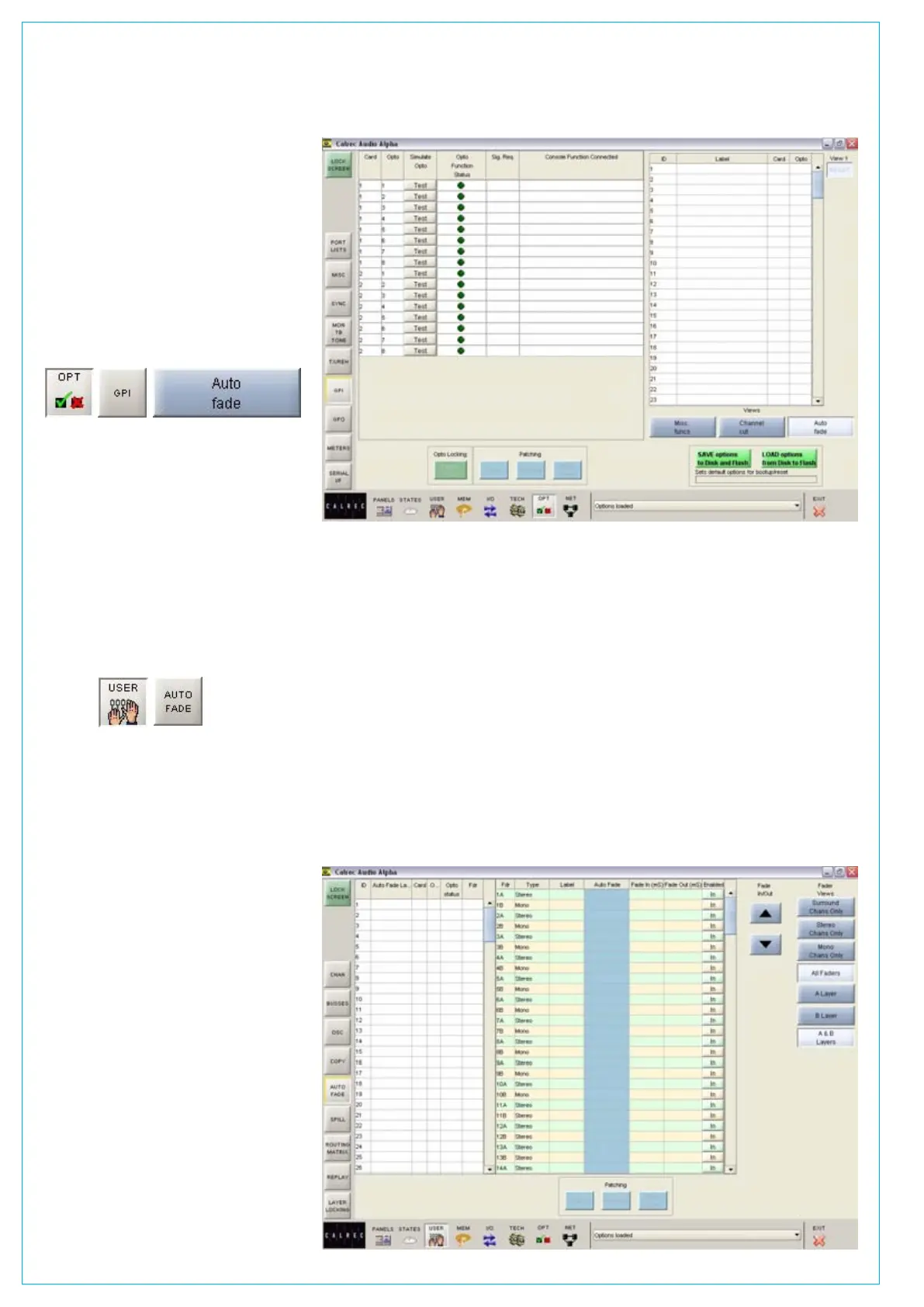
Assigning Auto-Faders to Opto
Inputs
Auto faders are assigned to any one opto
input using the Options - GPI screen.
To make an assignment, select an opto from
the available list on the left, and an auto fader
from the auto-fader list on the right, and then
select “Patch”. Each auto fader has a 6
character user editable label. An auto fader
without an assigned opto will remain inactive,
its operation will have no effect on the audio
but it may still be assigned to a path.
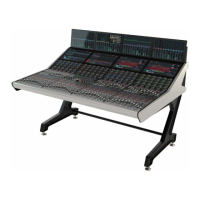
User - Auto-Fade Screen
The User-Auto Fade screen is used to
allow assignment of channel or group
faders to the 192 available auto-faders.
Each auto fader provides the ability for one
path to be faded up to and down from the
current fader level. Only faders with valid
channel or group paths will be available
for assignment although other faders may
be displayed. Assignments are made by
selecting an auto fader from the list on the
left, and a channel or group fader from the
list on the right, and selecting “Patch”.
Fade IN and OUT Times
The fade in and out times of each auto
fader are individually adjustable either by
typing a value in the relevant cell in the
fade in/out columns, or by using the nudge
buttons. The range for both parameters
are 10 ms to 5secs, as follows:
10ms to 100ms in 10ms steps
•
100ms to 1sec in 100ms steps•
1sec to 5s in 500ms steps•
Operation
Once an auto fader has been assigned to
an opto input, and has a channel or group
path assigned, it is possible to automatically
fade in or out the channel or group fader
AUTOMATIC CROSS-fADINg
under the control of the opto input. When
the opto input is fired, the path connected
to the opto will be automatically faded in
to the current fader level (after taking into
account any VCA fader adjustment). When
the opto is not firing, the fader connected to
the opto will be automatically faded out.
The user can enable and disable each
auto-fader using the Enabled IN column on
this screen.
5.1 Surround Channels
If an auto-fader is assigned to a surround
master the auto fader function acts on all its
spill legs. The auto fader settings are stored
with the surround master’s path number.
The status of the auto fade is shown on
both the surround and spill fader’s NULL
LED’s. If an auto fade is unassigned from a
surround path all the spills are faded up.
Indication of an Auto-Fade
Indication of an auto fade is provided by
illuminating the fader’s down NULL LED
when the path is, or is currently being, faded
out. If the current physical position of the
fader is OFF then this will not apply. The
down NULL LED will revert back to its
original state as the path is faded back to its
current position. If the path’s fader is also a
VCA master, the NULL LED operates only if
the fader is in VCA interrogate mode thereby
exposing the status of the slaved path.


 To Next Page