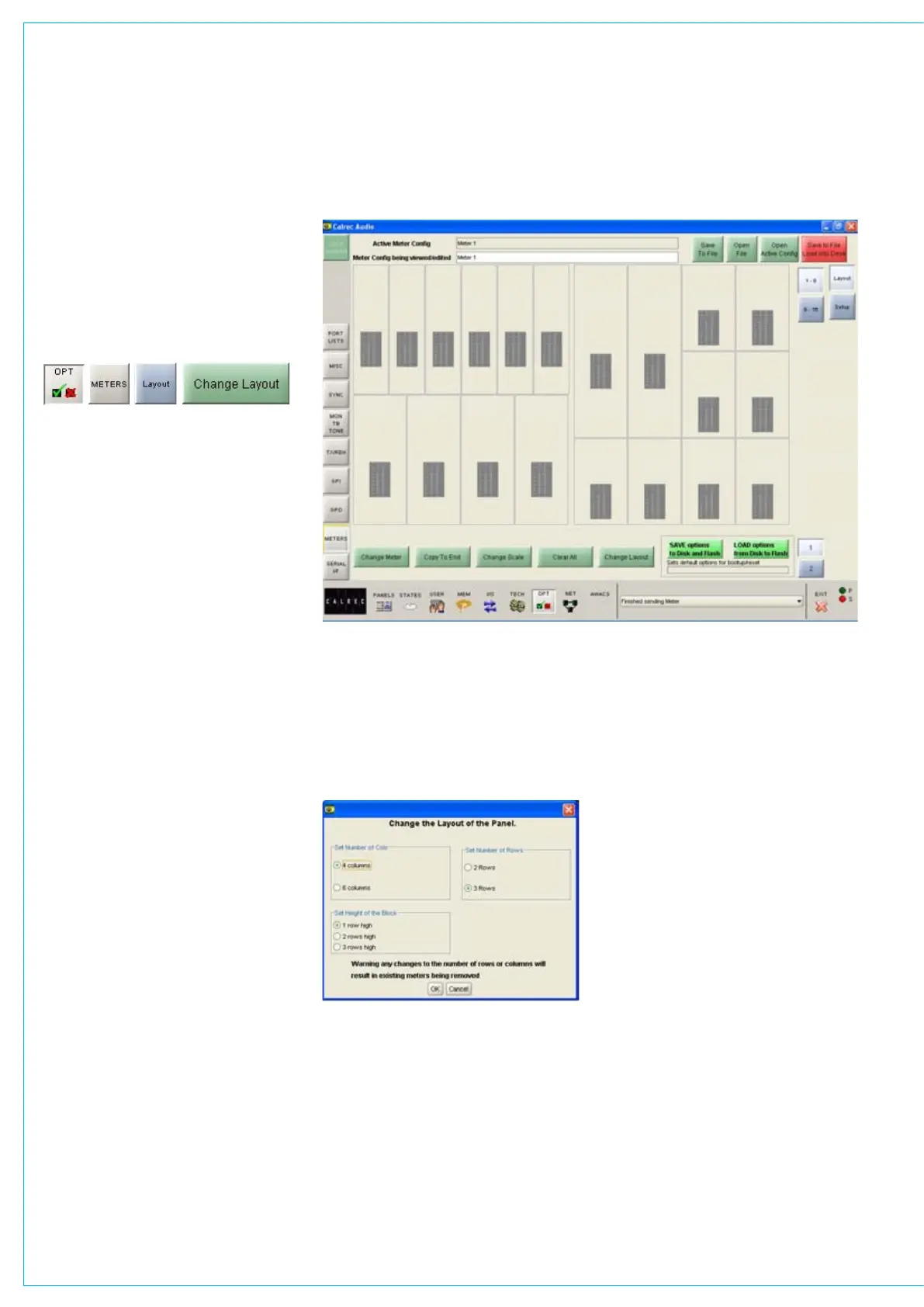
Select a meter position (its background
turns blue), and select CHANGE LAYOUT.
A dialogue box then allows the number of
columns and rows in the selected meter’s
half of the screen to be chosen. The
meter’s height can then be set to span the
available rows.
Rows
Each half of the screen can have two or
three rows, and the meters within each
column can be set to take up 1, 2 or 3
rows, to achieve different row heights
for different columns. Changing the
number of rows only affects meters in the
selected meter’s half of the screen.
There can be 4 or 6 columns in each row
across each half of the screen. As the
screens are set up in halves, there can
be different column widths on each side
of the screen. Changing the number of
columns will affect the selected meter’s
row only (Unless the change affects
meters already set on other rows). This
allows rows to have different numbers of
columns.
Block Height
In a column with 2 rows, selecting 1 row
high makes the meter take up half of the
column it occupies. Selecting 2 rows high
makes the top meter position take up the
full height of the column it occupies. In a
column with 3 rows, selecting 1 row high
ADJUSTINg TfT SCREEN LAyOUT
makes the meter take up one row (1/3 of
column height) in the column it occupies.
Selecting 2 rows high allows the meter to
take up the row it is on and the row below
in its column. 3 rows high makes the
meter the full height of its column.


 To Next Page