136 A L P H A with Bluefin
Loading a modified bundle
On the console PC, go to the TECH
screen and the OFFLINE EDITOR page
which opens the now familiar ‘bundle
operations’ screen.
Browse for the modified bundle file using
the ‘Load a bundle from’ field.
In many instances, the offline changes
may all be stored in console memories
but as the offline editor includes the
screens that can be used to change meter
configurations, router settings etc., there is
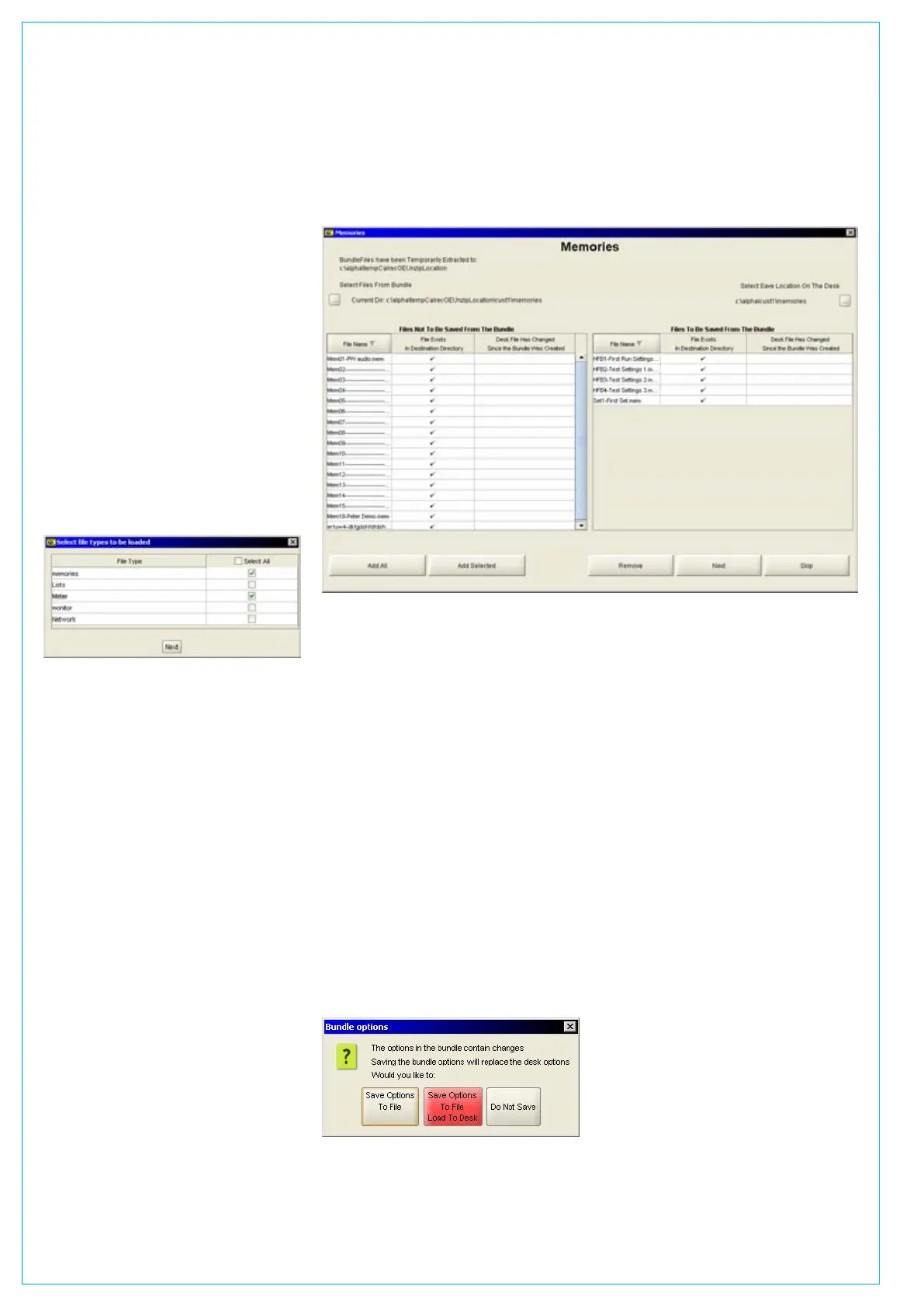
an option to select which file types should
be loaded from the bundle.
It is possible to select all file types by
clicking on the tick box at the top of
the column but unless there is new
information in all the file types, this will
add unnecessary steps to the loading
process.
As the image above shows ‘Memories’
selected to be loaded into the console,
the next screen to appear would be the
memory selection screen. Depending
on the file types that were specified for
loading, the selection and save process
may appear different and may also need
repeating to load meter, monitor, network
or router settings. The operation of these
other screens is exactly the same as the
memory selection screen.
PART 3 - ON THE CONSOLE PC
Select memories to load
The application should automatically
find the location of the memories in the
bundle. If not, the list of available memory
files is displayed by clicking on the browse
button towards the upper left region of the
screen. The destination on the console PC
can be confirmed using the browse button
in the upper right.
Once the memories are displayed, either
‘Add All’ or ‘Add Selected’ buttons can be
used and the selected one are copied to
the right pane of the window. ‘Save’ then
processes that set of memories.
Repeat this process for any other file
types you selected. When you have
finished you will be presented with a
dialog box confirming that you wish to load
the data to the console.
Finishing up
Once the various types of files have been
loaded to the console PC, they can be
loaded in the same way as other files
that had been created and saved to the
console PC. For example, going to the
OPTIONS page and METERS screen
gives you access to Open a saved meter
file which can then be loaded into the
desk.
Many offline operations are likely to have
involved saving a memory file so it will
usually be necessary to use the MEMORY
page, SETUP screen to get to the
RESTORE MEMORIES function.


 To Next Page