CALREC Putting Sound in the Picture 37
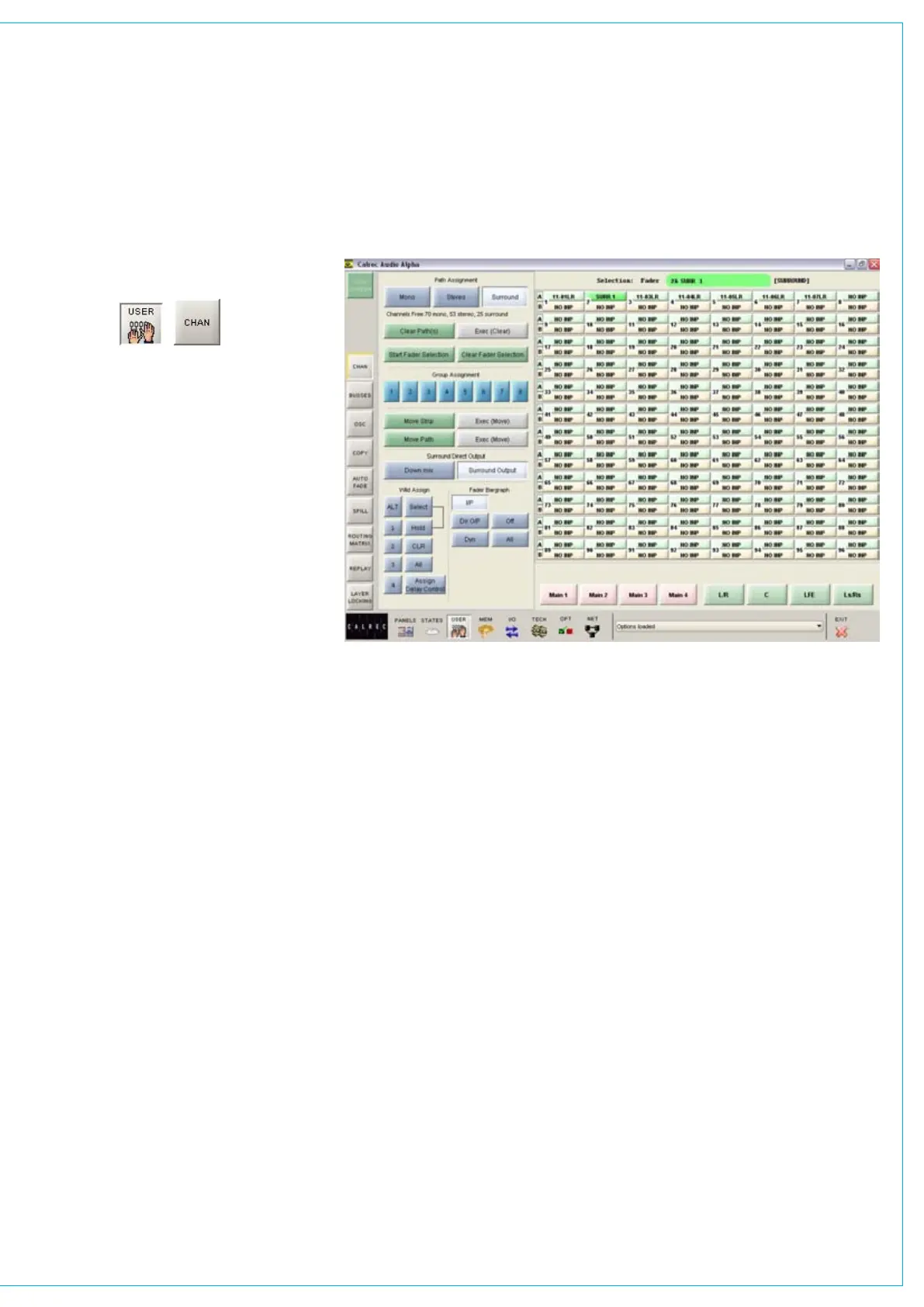
USER - CHAN SCREEN
The right side of the screen shows the
fader paths A and B. To make changes,
select the required fader path either from
the screen or by pressing its fader assign
button, and use the controls on the left
side of the screen.
Path type selection
The MONO, STEREO and SURROUND
buttons select the path type for the
currently assigned fader. If the path is to
be a group, its number is selected using
buttons 1-8. Groups are defined as
surround, stereo or mono on the USER-
BUSSES screen.
Surround direct output downmix
All surround channels and groups have
surround direct outputs. The buttons on
this screen allow the user to choose the
full surround direct output, or to downmix
the output to stereo.
Clearing paths
To clear a path, select the assign button
of the path you wish to clear, and select
CLEAR PATH and then EXEC. “Start
Fader Selection” allows a number of fader
paths to be selected, either from the
screen, or by selecting their fader assign
buttons. In this way, a number of fader
paths can be cleared in one operation.
Multiple fader selection can also be used
to allocate a path type to several paths at
once. The multiple fader selection can be
cleared using “Clear Selection”.
Move path and move strip
A or B paths can be moved or swapped
from one fader to another, using the
MOVE PATH buttons. To move paths,
select the required path, and select
MOVE PATH (the assign button will
flash). Then select the destination fader
path, and select EXEC (Move). The two
paths will swap over, and any Wild control
assignments will move with them.
MOVE STRIP moves the whole fader
strip to a different fader. This means that
the A and B paths including any Wild
Assignments will move to the selected
destination fader strip.
Wild Control Assignment
The Wild assignment controls on this
screen are a duplication of the controls
already available on the control surface. In
addition, a button is provided with which
the user can assign delay controls to a
Wild control. This is for use where the
console does not use the optional Delay
panel.
Fader Bargraph Assignment
Buttons I/P, DIR O/P, DYN and OFF
on the FUNCTIONS panel will set the
function of the fader bargraph for the
currently assigned fader, to either the
channel input (post the input gain and the
tone switching), the channel direct output,
or the gain reduction of the dynamics. If
ALL is pressed first, all fader bargraphs
will be set to the selected function.
Buttons to set the function of the fader
bargraph are also available on this screen.


 To Next Page