CALREC Putting Sound in the Picture 39
Filters
LF
Flat then 20Hz to 330Hz
12dB/octave
HF
3.3kHz to 20kHz then flat
12dB/octave plus notch
For independently controlled LFE spill
paths:
HF 12dB/octave, 50Hz to 20kHz
This is so that the user can apply a low
pass filter to the LFE leg of the main
output (at either 80Hz or 120Hz for
example) to remove unwanted higher
frequencies.
There are buttons to allow flattening
of the filters on the panels - EQ/Dyn
screens.
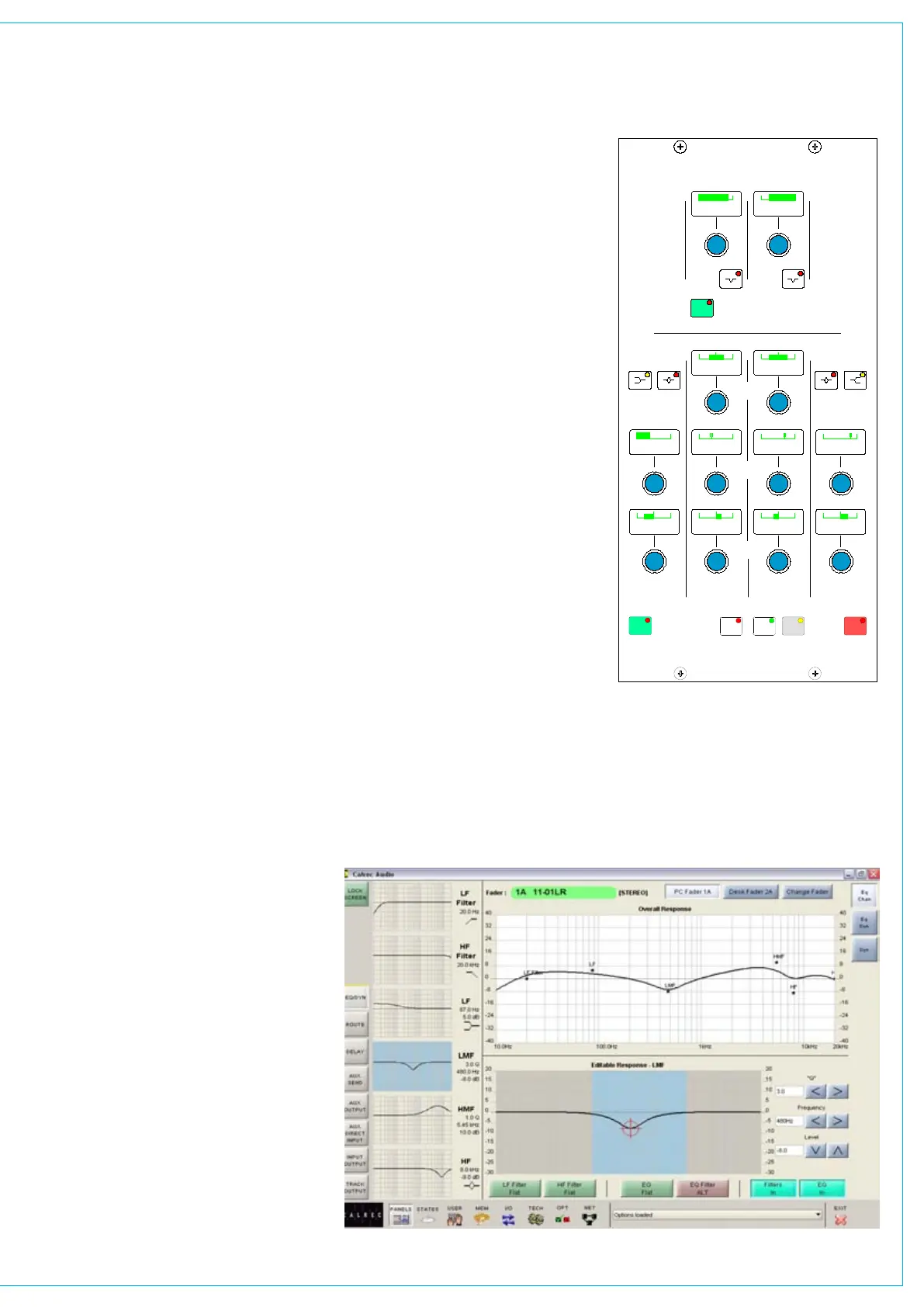
Equalizer
LF 30Hz to 470Hz, shelf or bell
(Q of 1)
LMF 160Hz to 2.4kHz,
Q from 0.3 to 10
HMF 500Hz to 7.5kHz,
Q from 0.3 to 10
HF 1kHz to 16kHz, shelf or bell
(Q of 1)
EQ level controls are adjustable by
±15dB. Excessive control ranges are
deliberately avoided to simplify operation.
EQ and Filters are switched in and out
of the signal path using the IN buttons in
each section.
EQ FLAT will clear any EQ settings to
flat. The button must be pressed and held
down, this prevents against accidental
flattening of settings.
The ALTERNATE EQ FLTR button allows
switching between two complete sets of
EQ and Filter controls.
IN
CONTROL
LF HF
FILTERS
CH
FLAT
EQ
LEVEL
FILTERS
LF LMF HMF HF
EQUALISER
ALTERNATE
FREQUENCY
"Q"
EQUALISER
EQ
QF5579
FLTR
EQ
1 100Hz 10.0k 5
6.0 Q 4.0 Q
2 220Hz 3 750Hz 3.0k 3 8.4k 3
- 5.0 dB + 3.0 dB - 2.0 dB + 4.0 dB
CHAIN
SIDE
SIDE CHAIN LMF SIDE CHAIN HMF
IN
EQ AND fILTERS
There are 4 bands permanently available
in the side chain in addition to the 6 bands
available for channels. The CH and SIDE
CHAIN buttons are used to choose which
to control for the whole panel.
The CH button allows the panel to
control the EQ and Filters in the assigned
channel’s path. The SIDE CHAIN button
allows the panel to control the EQ and
Filters in the dynamics of the assigned
channel.
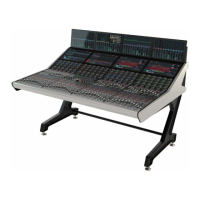
Panels - EQ Screen
The user can view and manipulate the
EQ and filter response curves, using the
Panels-EQ screen. All of the controls on
the EQ panel are also available on this
screen. In addition, the user can choose
whether to control the EQ and filters of the
currently assigned fader path, or to select a
different fader, known as the “PC Fader” to
which EQ and filter settings can be applied
independently of the current assignment.
Each frequency band is selected from the
left side of the screen. When selected,
that band’s response curve is shown
in the Editable Response window, with
the adjustable area highlighted in blue.
Frequencies are adjusted using the
touch screen, or trackball, by moving
the crosshair around within the editable
area. As it moves, the frequency and level
values of the selected path will change.
Nudge buttons to the right of the editable
response window can also be used to
make adjustments.
The overall response window shows the
overall response curve for the selected
path. The curve itself is only visible if EQ
is switched into the path.
A similar screen exists to adjust the EQ if
it is switched into the dynamics.


 To Next Page