CALREC Putting Sound in the Picture 57
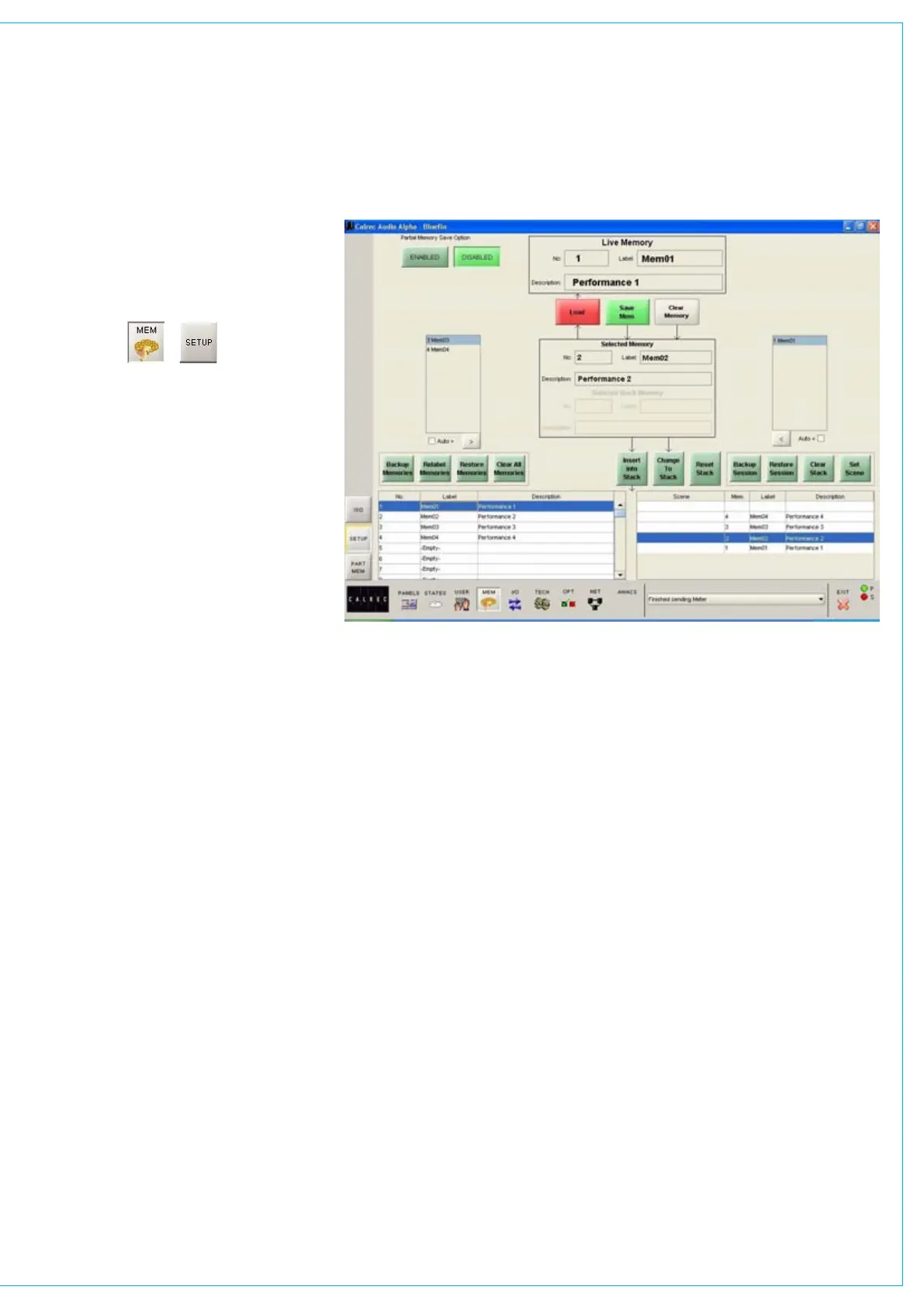
All the available Flash ROM memories are
listed on the left of the screen, and when
selected will occupy the Selected Memory
position. Memories will be shown as
empty if they have not yet been used. To
create a new memory, choose an empty
memory from the list either by selecting it,
or by typing its number on the keypad in
the memory section of the control surface.
When loading, saving or clearing
memories from the memories screen, a
confirmation box must be accepted before
the action is carried out. When loading a
stored memory, the system checks that its
configuration matches the current desk
configuration. If there are discrepancies, a
warning will be given.
The two memories either side of the
Selected Memory in the stack will appear
in the windows either side of the Selected
Memory window. With the Auto > or Auto
< check box ticked, the next memory
in the stack will automatically move to
the Selected Memory position after the
previous Selected Memory has been
loaded from the stack.
MEMORy SET UP SCREEN
Managing Memories in the Flash
ROM List
It is possible to back up all the memories
to the hard disk by selecting “Backup
Memories”. Previously backed up
memories can be restored from the
hard disk or other media into Flash ROM
by selecting “Restore Memories”. The
user can choose the location number to
which a memory is restored. Memories
can be re-named by selecting “Re-Label
Memories”.
Selecting “Clear All Memories” will remove
all memories from the Flash ROM. Please
note that “Clear All Memories” is only
available in Technician Mode.
Sessions
Stacks can be saved to the hard disk as
“sessions”. Selecting “Back Up Session”
backs up the stack and all the memories
in it. “Restore Session” allows previously
backed up sessions to be restored. Scene
labels can be applied to positions in the
stack by highlighting a stacked memory
and selecting “Set Scene”. “Clear Stack”
will remove all stacked memories from the
stack.


 To Next Page