CALREC Putting Sound in the Picture 133
Organising bundles
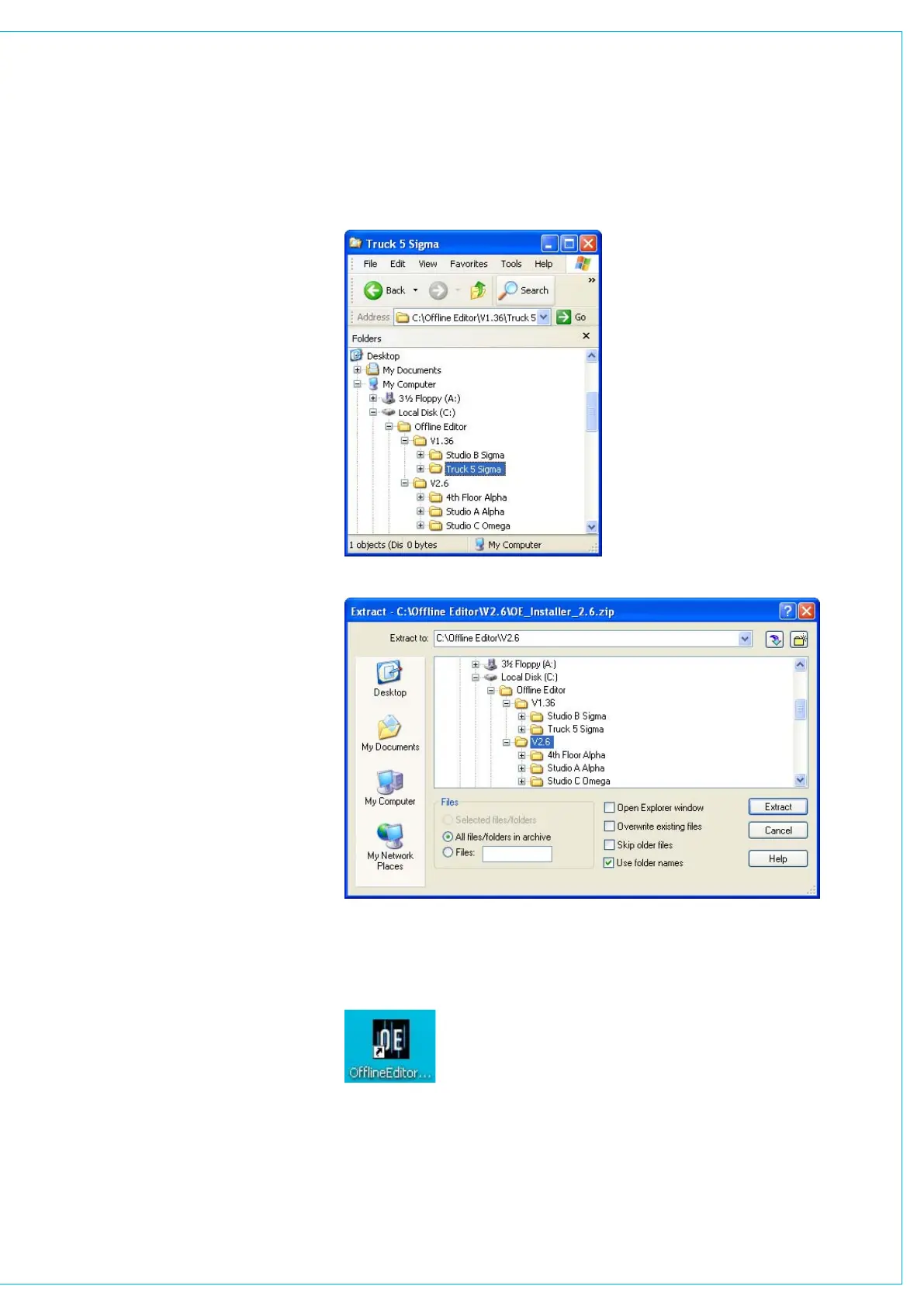
Once the installer and bundle are created,
they can be copied to the laptop. If it is
likely the laptop will be used for offline
work with several different consoles, it is
worth devising a logical ‘tree’ structure to
make it simple to manage the various file
bundles that you will soon have for various
consoles.
Installing the Application
Unpack the installation program
‘OE_Installer_x.y.zip’ (x.y being the version
number) to the desired installation location
using either the Windows unzip utility
or any other suitable decompression
program.
Be sure that your unzipping utility does not
fail to ‘Use Folder Names’. In the version
shown here this is enabled with a tick in
the box.
Once the files have been extracted, locate
the file InstallOfflineEditor.exe and double
click on it. This will give you the option to
create a shortcut to the application in your
preferred program group but will default to
‘Calrec OfflineEditor’. The application files
are installed to the same directory as the
installer file.
The offline editor is now installed and
ready for use. Depending on the options
selected during installation, the application
may be run from the new program group
or from the icon that has been placed on
your Windows desktop.
PART 2 - ON THE LAPTOP PC



 To Next Page