134 OffLINE EDITOR Digital Broadcast Production Consoles
Loading a desk into the laptop
Start the offline editor by double clicking
on the desktop shortcut, or by going via
the Calrec OfflineEditor program group.
The first time the editor is run, no bundles
will be listed. Once you have loaded
bundles into the application, subsequent
launches will list the available bundles.
Java applications can sometimes decide
to check for Java updates and depending
on your Windows security / firewall
settings, you may sometimes be asked to
click an “OK” to give them access through
the laptop’s firewall.
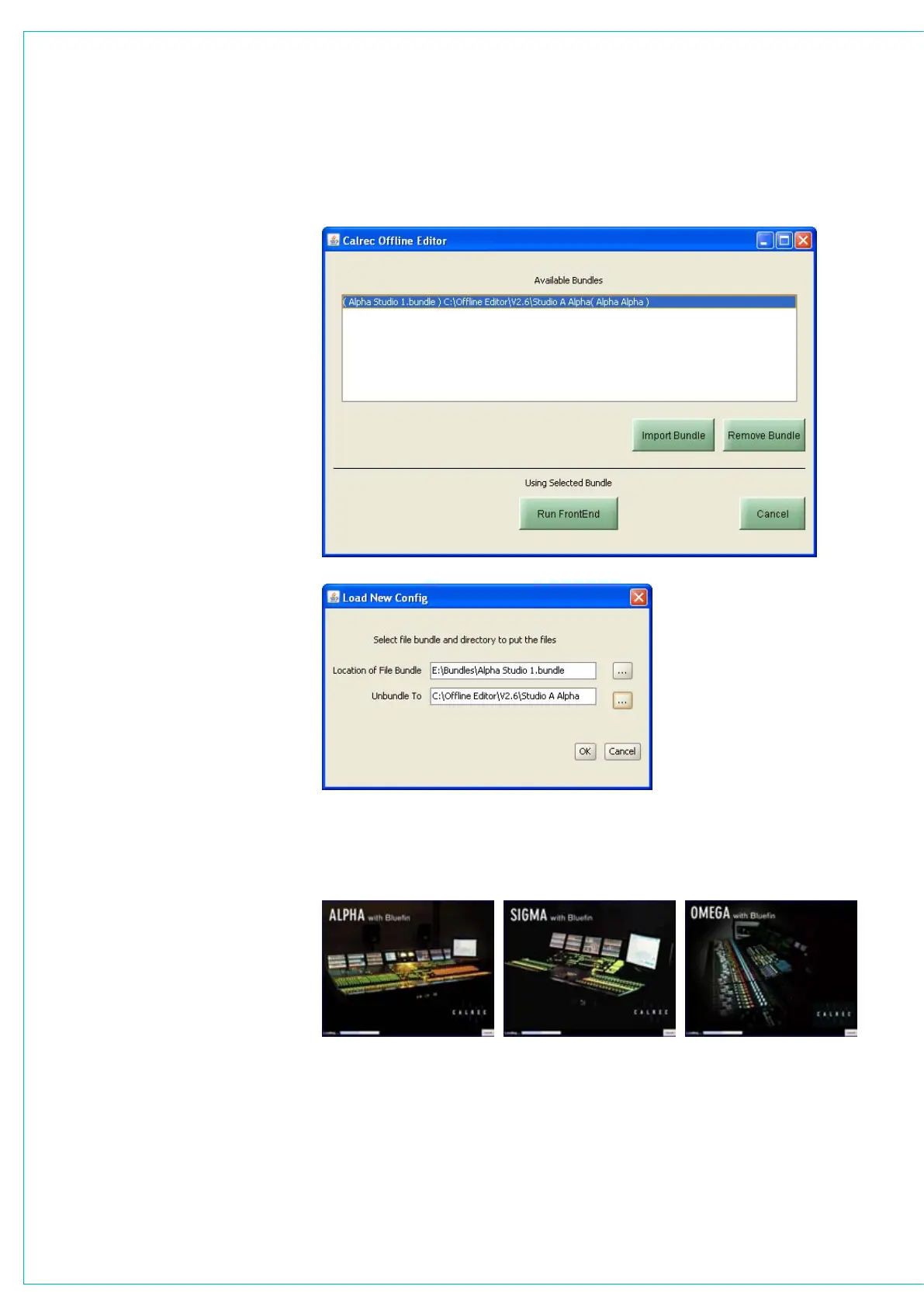
The Import Bundle button opens a browse
dialogue box to locate the required file
which, once selected, appears in the list
and provides that particular console as an
available emulation.
Highlight the required bundle and click
‘Run Frontend’. The application checks
that the console file bundle being loaded
is compatible with that version of offline
editor. If you have installed more than one
version of offline editor, for example both
1.36 and 2.6, be sure you are running the
correct one for the file bundle you need. If
you do try to load an incorrect bundle, an
error message is given.
Once the ‘Run Frontend’ button is pressed
the laptop screen will show what is
normally displayed on the console PC. If
the console runs with a network, you may
be prompted to load the network ini file. It
is then possible to start using the console
front end on the laptop screen, making
whatever changes are needed. The start
point is whatever was live on the console
when the file bundle was created.
If you want to start from one of the
memories that had previously been saved
on the console, go to the MEM screen
and the SETUP page to load whichever
memory is the correct start point.


 To Next Page