2
3
4
5
5b
37
Key to indicator LEDs
Vedo Touch is equipped with a series of RGB LEDs at the bottom which change colour depending on the
situation they are signalling. The LEDs may turn the following colours:
Colour Description
Yellow Steadily lit
Battery fault (disconnected, faulty or voltage under approx. 11.8 V), generic fault, no
mains power supply
Red
Flashing Alarm memory
Steadily lit Alarm in progress (H24 alarm, area in alarm)
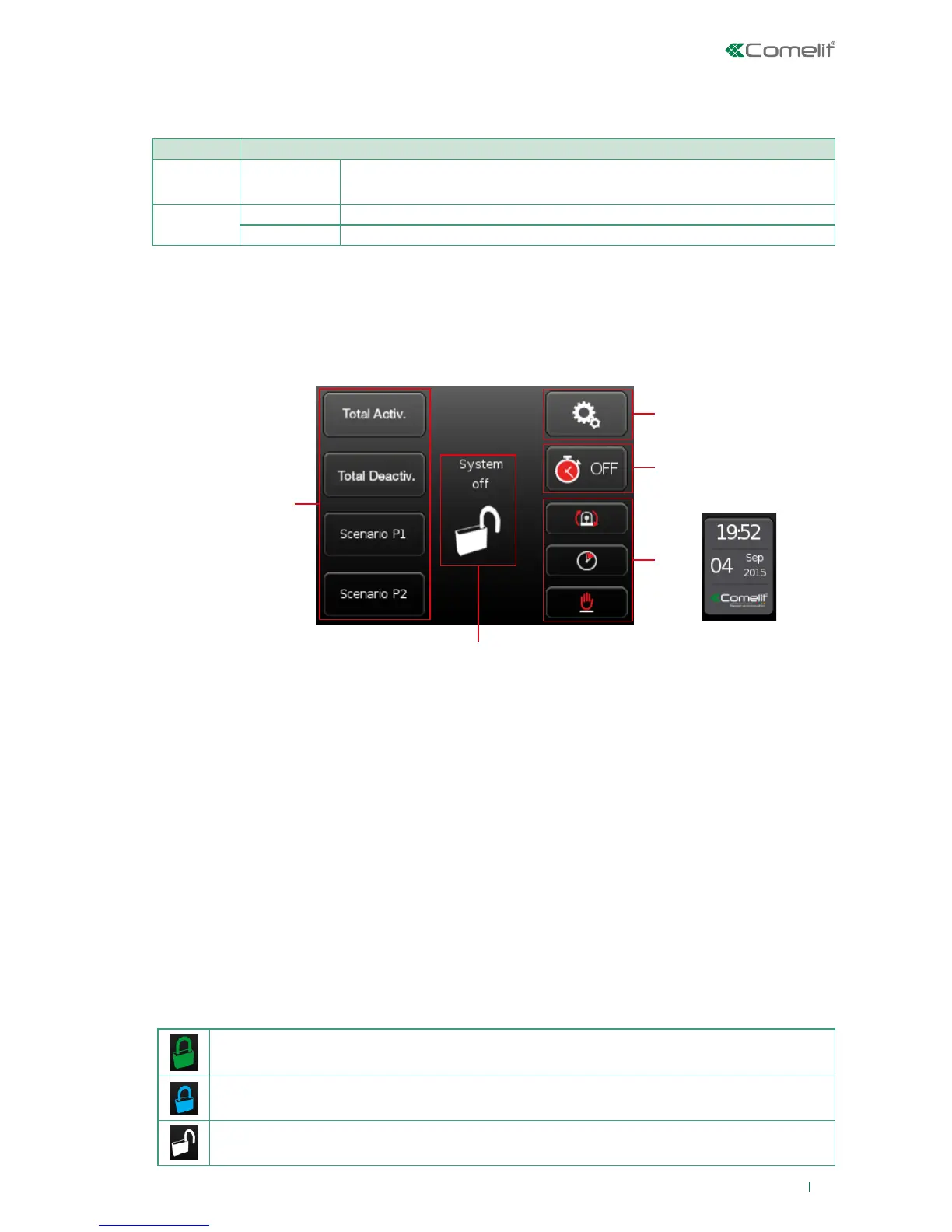
Main screen
To access the main screen, simply touch the screen if it is off, or use the relevant icons if you are already
accessing the menus.
The main screen is structured as follows:
1. Activation/deactivation buttons.
2. System status.
3. Settings menu.
4. Timed activations.
5. Quick commands (as in figure above) or Date/Time (as in figure 5b) on page 33, if quick commands
have not been assigned to the function buttons).
IMPORTANT: Buttons (1) and (5) can be customised; contact authorised users or your installer to
do so.
Activation/deactivation buttons
They can be pressed, once the code has been entered (if required) to carry out the associated action.
A maximum of 4 activation/deactivation buttons are available on the main screen. ‘Main screen’ buttons
can be selected using the ‘Activation control’ option on the ‘Settings menu’ (procedure described on page
46).
System status
The 'System status' icon changes colour depending on the status of the system.
Total activation across all areas
Partial - or customised - activation (not all areas associated with the Vedo Touch are activated)
Areas deactivated




 To Next Page