45
Customised activation
This menu option can be used to activate/deactivate each area individually, plus area status can be viewed
from this menu.
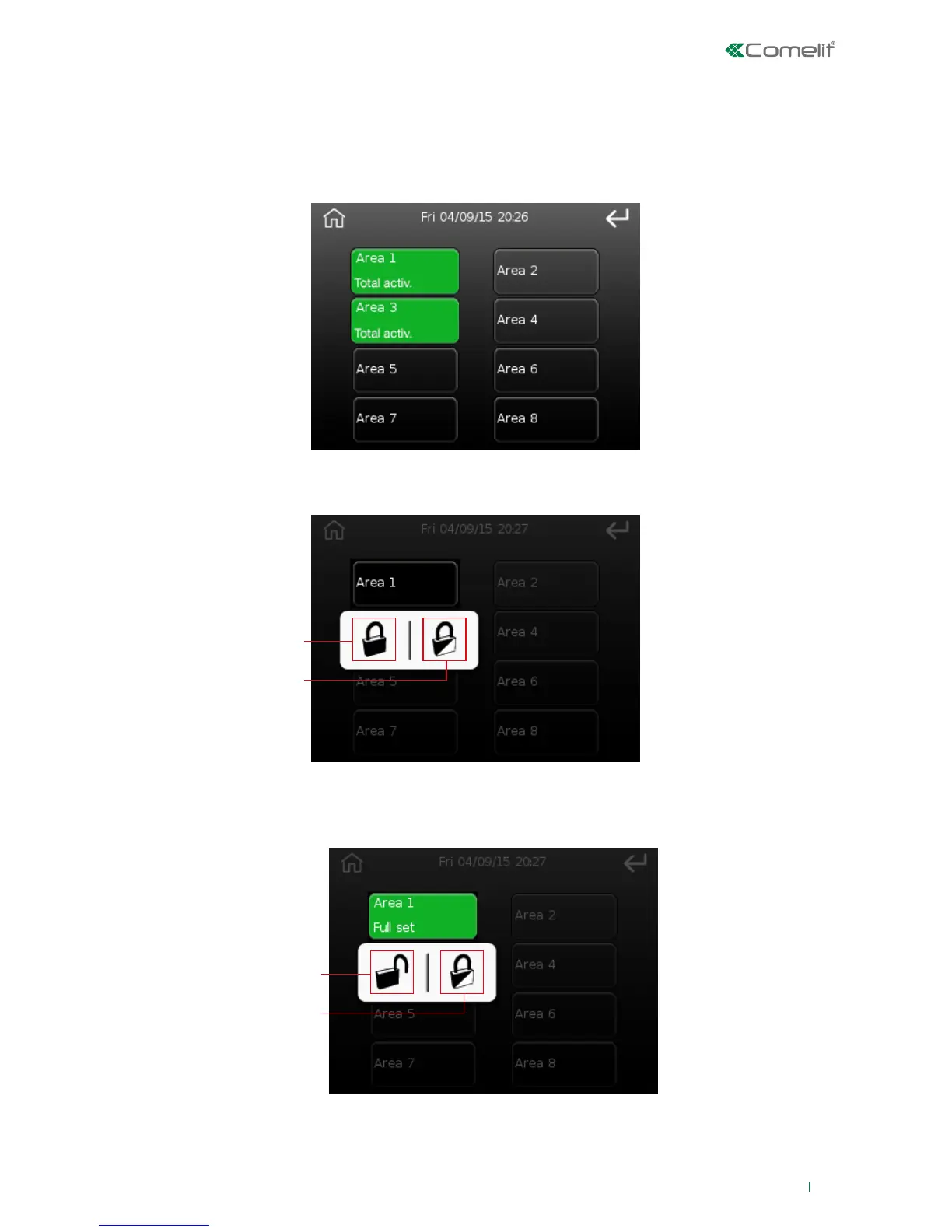
The screen shows the 8 available areas with their buttons, which will be green if the area is activated. Text
inside the button indicates the type of activation (total. partial P1, partial P1, partial P2, partial P1 + P2).
Alongside the areas, the presence of any alarms or faults in each area may be indicated as in the figure
below:
To activate or deactivate an area, simply press the corresponding key.
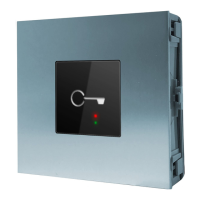
If the area is deactivated after pressing, the following will appear:
1. Total area activation button
2. Partial area activation button
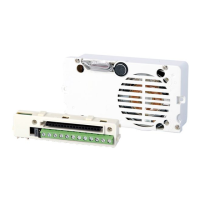
If the area is activated after pressing, the following will appear:
1. Area deactivation button
2. Partial area activation button
After pressing the activation/deactivation buttons, if the action was executed, the 'Action executed'
screen will appear.




 To Next Page