39
Viewing images and video from zones in alarm
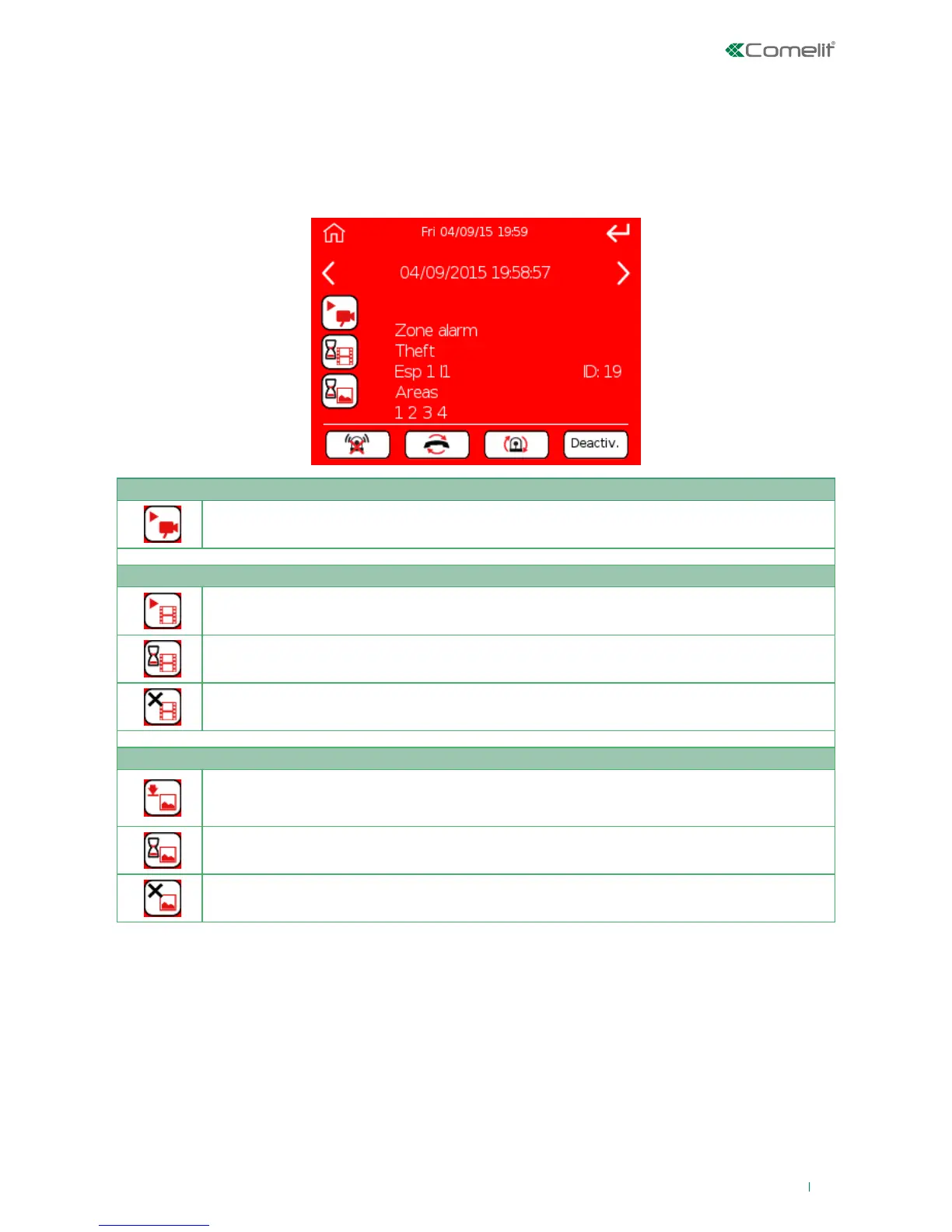
If a camera is associated with a zone, when this zone generates an alarm, the system displays an alert window,
from which it is possible to:
• request the live stream from the camera associated with the zone in alarm condition.
• view the video recording on the alarm
• view the images (max. 4) captured during the pre-alarm/alarm stage.
• execute the system commands stop alarm, reset telephone calls, reset alarms, deactivate system.
*The pre-alarm images will only be captured if the "pre-alarm" function has been assigned to the camera. The
number of images captured in the pre-alarm stage will depend on the length of the pre-alarm time period; once
the pre-alarm period has expired images will be captured during the course of the alarm until the maximum
number of images, set during the programming stage, is reached. For example, if the pre-alarm is set to the
maximum value, the 4 images shown will all be pre-alarm images, whereas if the pre-alarm time i set zero, then
all the images will be captured during the alarm.
Live stream
Live stream available:
Press this icon and enter your user code to activate live streaming from the camera.
Video recording (of the zone in alarm condition)
Video recording available:
Press this icon and enter your user code to view the video recording of the alarm zone.
Waiting for video recording to load.
Video recording not available.
Images (of the zone in alarm condition)
Images available (max 4 per pre-alarm/alarm)*:
Press this icon and enter your user code to view the images captured during the pre-alarm
and alarm.
Waiting for images to load.
Images not available.
The log of alarm alerts is available in the menu 'Events log/Alarms memory' (see page 47).





 To Next Page