D-Show Profile Guide50
To change a System Config option:
1 Put D-Show in Config mode.
2 Go to the Options page and click the System Config tab.
3 Click Edit.
4 Change a System Config, Main Bus, Inputs or Bus Configu-
ration option.
5 Click Apply to confirm and apply your new settings.
System Configuration Settings
The System Configuration section shows DSP and other re-
sources currently available. Available configurations depend
on the number of Mix Engine cards in your system (see “De-
vices” on page 51).
In Show mode, the System Config area is display-only. In
Config mode, you can allocate resources for mixing, routing,
and processing.
To change a System Configuration setting:
1 Put D-Show in Config mode.
2 Click the Edit button on-screen.
3 Choose a new setting for Mix Engines, Channels, FX Re-
turns, or Graphic EQs.
4 Click Apply to confirm the settings.
Mix Engines
On a complete D-Show system, the Mix Engine setting is de-
termined by the number of DSP Engine Cards detected and
cannot be changed.
Channels
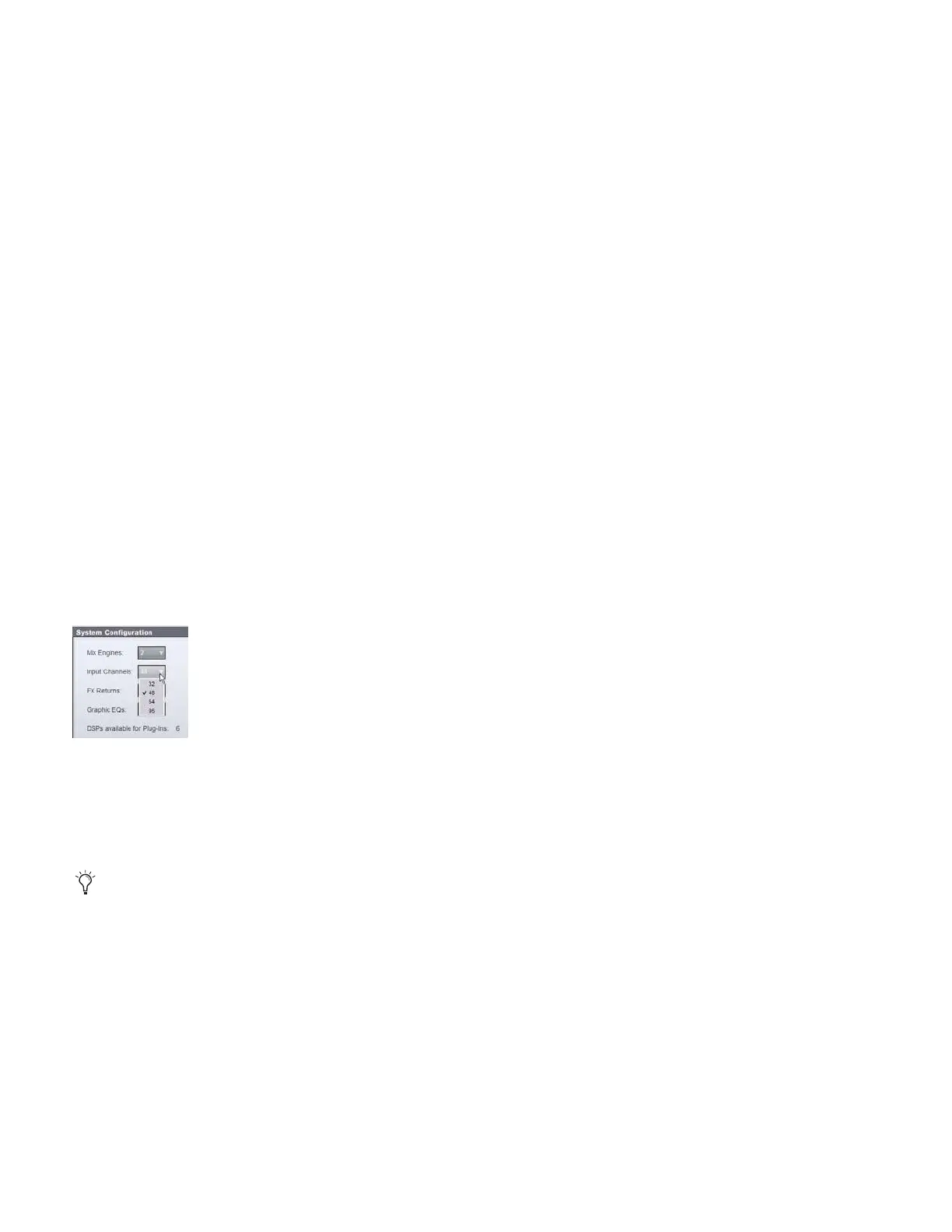
Choose the total number of Input Channels you need. This
number represents mono channels; each stereo channel uses
two mono channels.
Available choices will vary depending on the number of Mix
Engine cards and resources available on your system. With a
standard system containing two Mix Engine cards, you can
choose 32, 48, 64, or 96 Input Channels.
Choosing a lower number of Input Channels leaves more DSP
for plug-ins; choosing a higher number reduces the amount of
DSP available for plug-ins.
FX Returns
Choose the number of FX Return channels you need. You can
choose to have 8 or 16 stereo FX Return channels. Choosing
the lower number leaves more DSP for plug-ins; choosing the
higher number reduces the amount of DSP available for
plug-ins.
Graphic EQs
Choose the number of Graphic EQs you will need for output
processing. You can choose to have 0, 8, 16, or 24 Graphic
EQs. Choosing a lower number leaves more DSP for plug-ins;
choosing a higher number reduces the amount of DSP avail-
able for plug-ins.
DSPs Available for Plug-Ins
The amount of DSP available for plug-ins depends on your
other System Config settings, and cannot be changed directly.
To change the amount of DSP available for plug-ins, adjust
other System Configuration settings:
To maximize the DSP available for plug-ins:
■ Reduce the number of Channels, FX Returns, or Graphic
EQs.
To increase the total amount of DSP available on your system:
■ Add Mix Engine cards, disable the second Stage Rack, or re-
duce the number of Channels, FX Returns, or Graphic EQs.
Enable Stage 2
Lets you enable an (optional) second Stage Rack to increase
the I/O capacity of the D-Show system.
Enable HDx2
Lets you enable an (optional) second HDx card to increase the
I/O capacity of the TDM Record/Playback Option.
Designating the number of Input Channels
Mix Engine allocation can be edited in the D-Show
Standalone software, letting you pre-configure a Show file
off-line then transfer the Show to a D-Show system. See
Chapter 24, “Using the D-Show Standalone Software.”



 To Next Page