User’s Manual
38
Step 3. Setup the Alert of CMS.
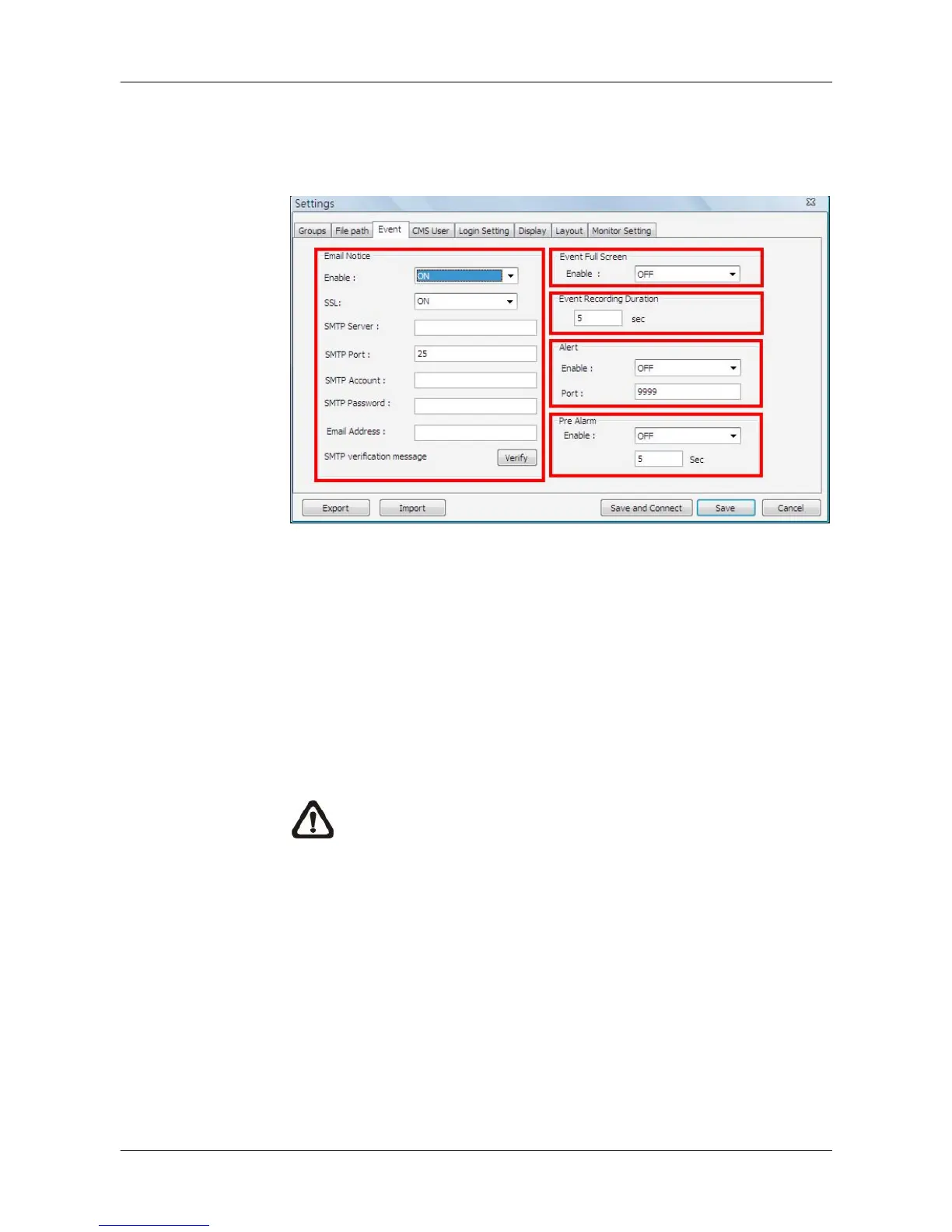
Click on the <Setting> icon and go to Event tab to setup the port in the
“Alert” section. Note the port must match the DVR’s setting. And
select <ON> to enable the alert function.
In addition, users can send alert notice to a specific email via a SMTP
server by selecting <ON> next to <Enable> in “Email Notice” section.
If the email server requires SSL, select <ON> next to <SSL>. Then
enter all required SMTP information. If the format of the email address
is entered incorrectly, an alert message will be shown on the screen.
After SMTP information is filled in, click on <Verify> to confirm if the
input data are correct. The message shown next to <Verify> will
indicate if SMTP setup is successful.
NOTE: CMS will also send emails when connections to DVRs
are lost or when errors occurred in HDDs.
In the “Event Full Screen” section, users can choose whether to
display full screen of the alerted channel. Select <ON> to activate this
function, or <OFF> to deactivate it.
The “Event Recording Duration” section is for users to define
recording duration of event videos, when schedule is set and/or when
motion recording is enabled.



 To Next Page