OSD Setup Manual
31
Follow these steps to enter a new name for a camera.
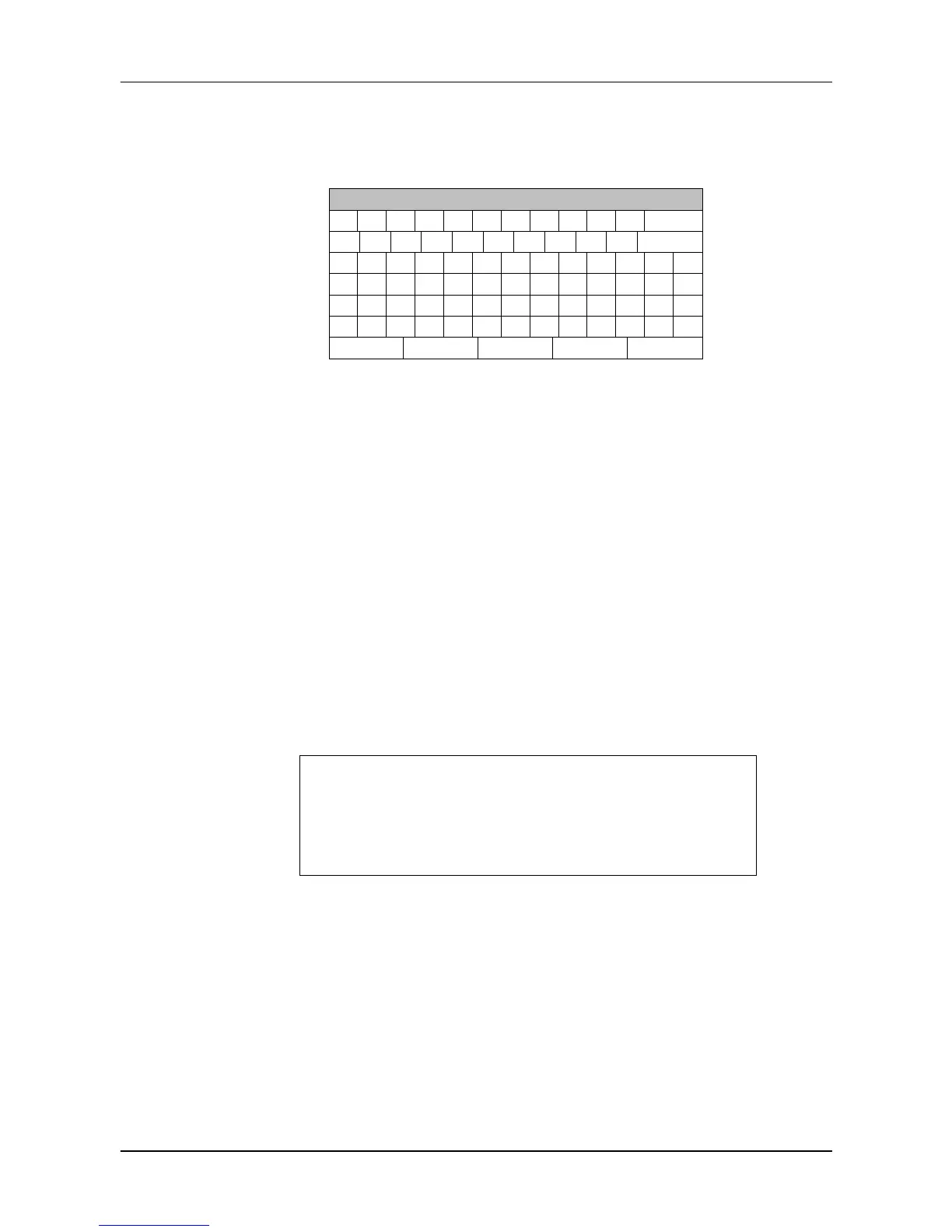
Move the cursor to <Camera Name> and press ENTER. A virtual keyboard with
alphanumeric characters is displayed as below.
!
OK
Use Direction keys to select character.
Press ENTER to add the selected character to the entry field.
When it’s done, move the cursor to <OK> and press ENTER to save the
settings and exit.
Hidden
This function allows users to set monitor display of the specific camera to be
hidden while the DVR continues to record video. Choosing <Yes> means to hide
monitor display of the selected camera; or choose <No> to remain monitor display
of the specific camera non-hidden.
Adjust Video
Enter this menu to adjust video display settings.
Adjust Video
Brightness
Contrast
Saturation
Hue
Reset
0
0
0
0
No
- Brightness
Move the cursor to the item and press ENTER for adjusting the
brightness of the camera. Use UP / DOWN keys to adjust the numeric
value. The range of brightness values is <-128> to <127>.



 To Next Page