User’s Manual
60
6.4 Emap
Emap is a function that allows users to illustrate the positions of cameras on a
self-selected image. Click on the <Emap> icon to open the Emap window.
Refer to the instruction below to setup the Emap.
Add / Remove / Rename Maps
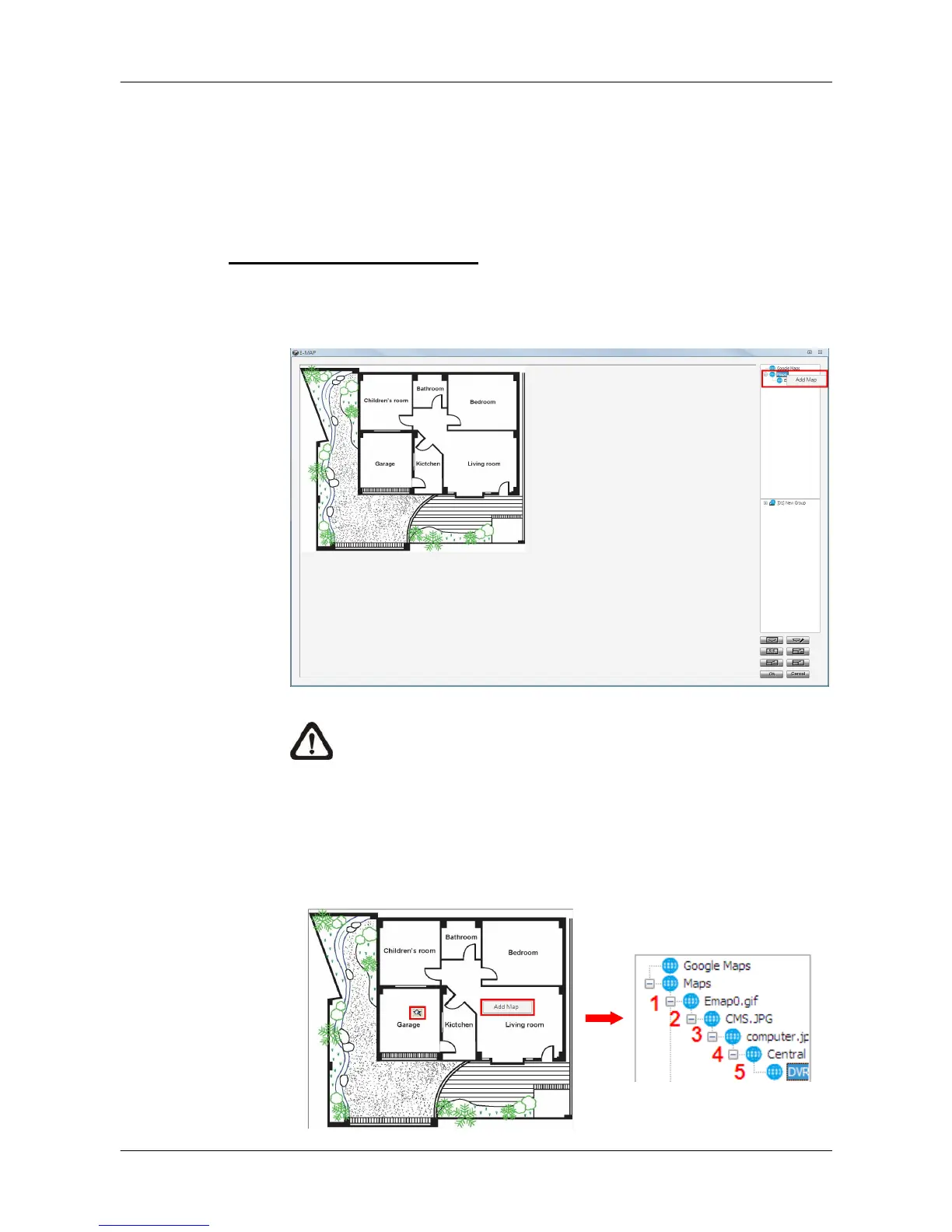
Step 1. First right click on “Map” in the map list, as shown below, and select
<Add Map> to add a self-selected map. The supported picture
formats are Bmp, Jpg and Gif files.
NOTE: The image shown in the window is the default picture. It
will only be available when CMS default setting is installed.
Step 2. A new map can also be added within an existing map. Right click on
the displaying map and select <Add Map>. The added map will be
shown as an icon (as in below picture) at its added position on the
original map. Users can add up to five levels of within maps.



 To Next Page