OSD Setup Manual
42
Sequence Setup
The Sequence Setup menu allows users to set the camera sequence schedule and dwell
time for main and call monitor. Select <Sequence Setup> in main menu and press ENTER.
The menu displays as follows.
Sequence Setup
Main Monitor Dwell
Main Monitor Schedule
Call Monitor Dwell
Call Monitor Schedule
5 Sec
5 Sec
< Main / Call Monitor Dwell >
The main/ call monitor can be set to display full screen video of all installed cameras in
sequence. These items are used to set the dwell time, which is the duration of time elapsed
before switching to the next channel. The dwell time ranges from 1 to 120 seconds.
< Main / Call Monitor Schedule >
This item is used to set displaying sequence of connected cameras to be displayed on the
main/ call monitor in full screen format. Move the cursor to <Main Monitor Schedule> and
press ENTER. The menu is displayed as follows.
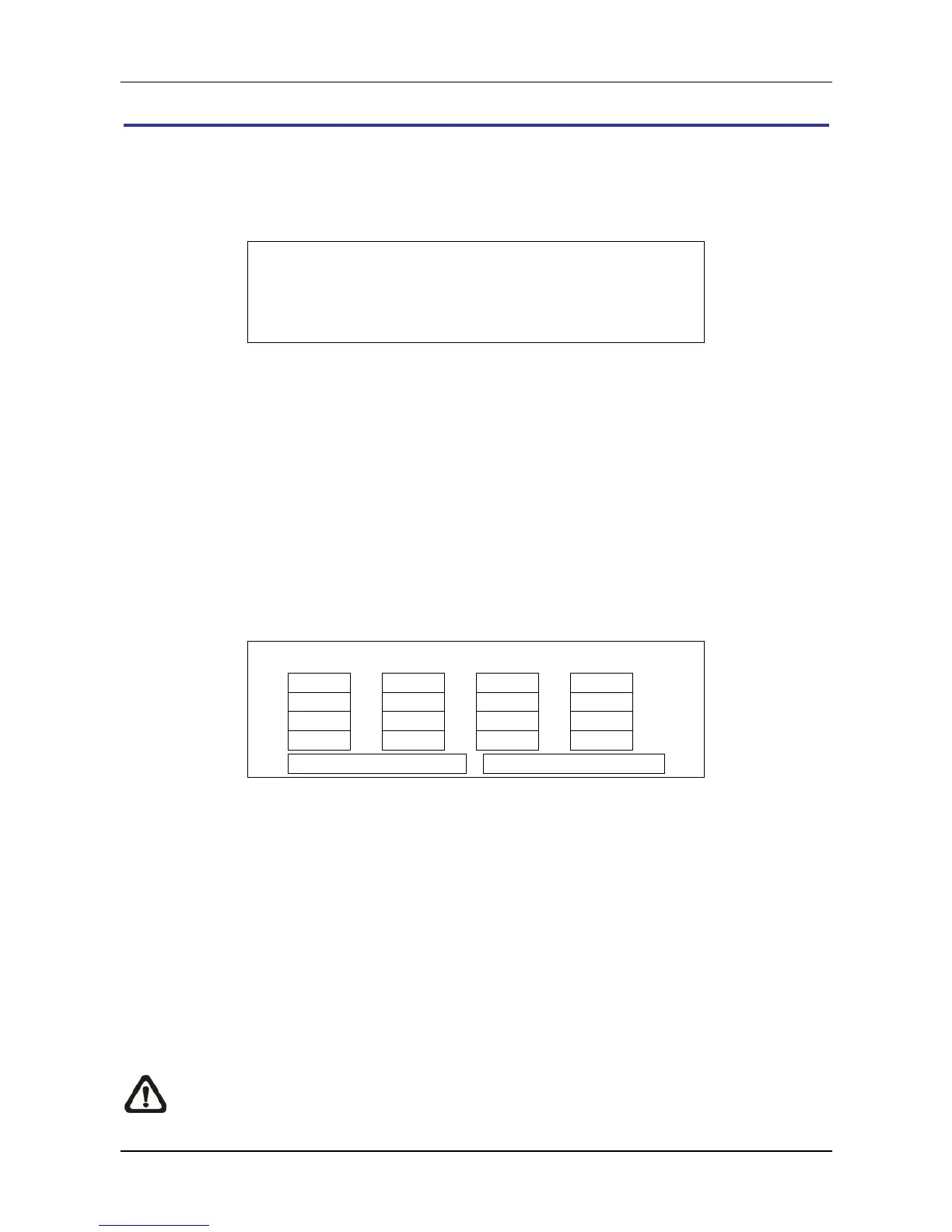
Main Monitor Schedule
Follow these steps to set a sequence:
Press LEFT / RIGHT direction keys to move to previous / next sequence order.
Press UP / DOWN keys to assign a channel to that order in the sequence.
Continue the steps until the sequence is completed.
To setup a sequence with less than the maximum number of entries, select <Circular>
to end the sequence.
The maximum number of entries in a sequence equals to the number of channels. The
sequence can include a specific camera or cameras multiple times.
NOTE: When the display mode is in multiple channels, the schedule setup here will
not be followed. The display sequence will be in numeral order of all channels.



 To Next Page